Scientific Research Management
1. Overview
Research Management is a core business module of the UniResearch platform, integrating project management, output management, partner institutions, member management, document generation, Completion Assistant, and Auto-fill capabilities. It centrally manages government-funded and industry-funded projects and various research outputs, tracks the full project lifecycle, associates team members and partner institutions, generates proposal and completion documents with one click, supports automatic form filling, and helps research teams standardize the management of research projects and output archives, reducing the administrative burden of project proposals and close-outs.
2. User Roles
- Research Team Lead: Oversees project creation, member assignment, and project status management; organizes completion document submissions
- Project Participant: Maintains information on assigned projects and outputs, reviews project materials, and participates in document filling
- Research Administrator: Centrally maintains partner institutions and team member profiles; manages research output archives in bulk
3. Core Features
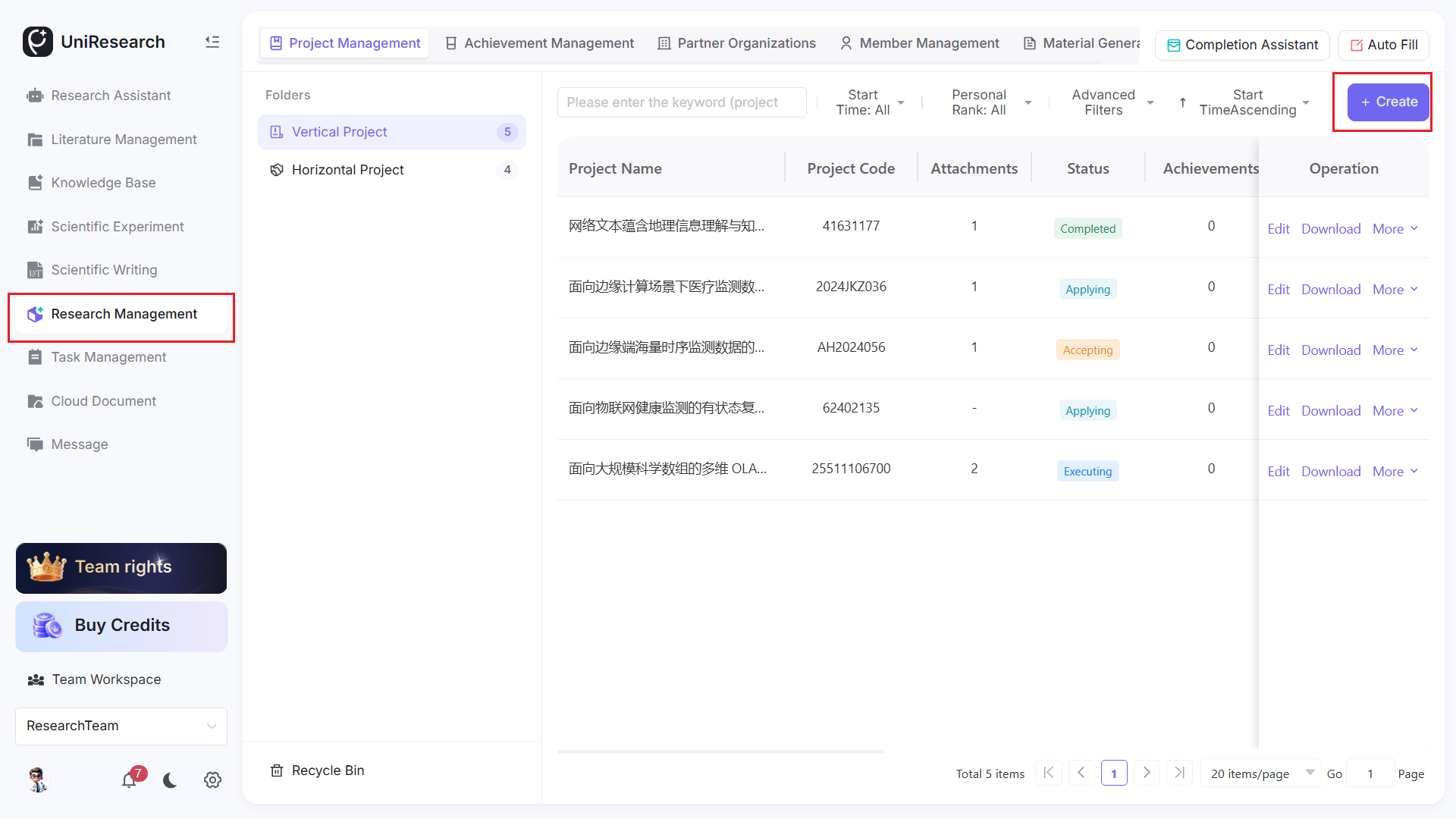
- Project Management: Management of government-funded and industry-funded projects, including project information entry, attachment uploads, status tracking, task management, and filtering/search. Project statuses include: In Proposal, In Progress, Under Review, Completed.
- Output Management: Entry and maintenance of various output types—papers, patents, software copyrights, individual awards, student awards, textbooks, monographs, news coverage, etc.—with support for linking outputs to projects, citation generation, and attachment uploads.
- Partner Institution Management: Maintenance of research partner institutions, universities, and enterprises; create, edit, and delete partner institutions; quickly select and bind them when entering projects or outputs.
- Member Management: Management of the research participant database (internal/external), supporting member creation, contact and email maintenance, and quick author addition when entering projects or outputs.
- Document Generation: Select projects and associated outputs, visually layout and edit completion documents online, with support for cover, header/footer, and page number configuration; preview, save, and export to PDF with one click.
- Auxiliary Tools: Completion Assistant, Auto-fill, and Recycle Bin (stores deleted project/output data with recovery support).
4. Operation Guide
4.1 Project Management Operations
4.1.1 Creating a Government-funded / Industry-funded Project
-
In the left folder panel, select Government-funded Projects or Industry-funded Projects, then click + New in the top-right corner to open the project upload form
-
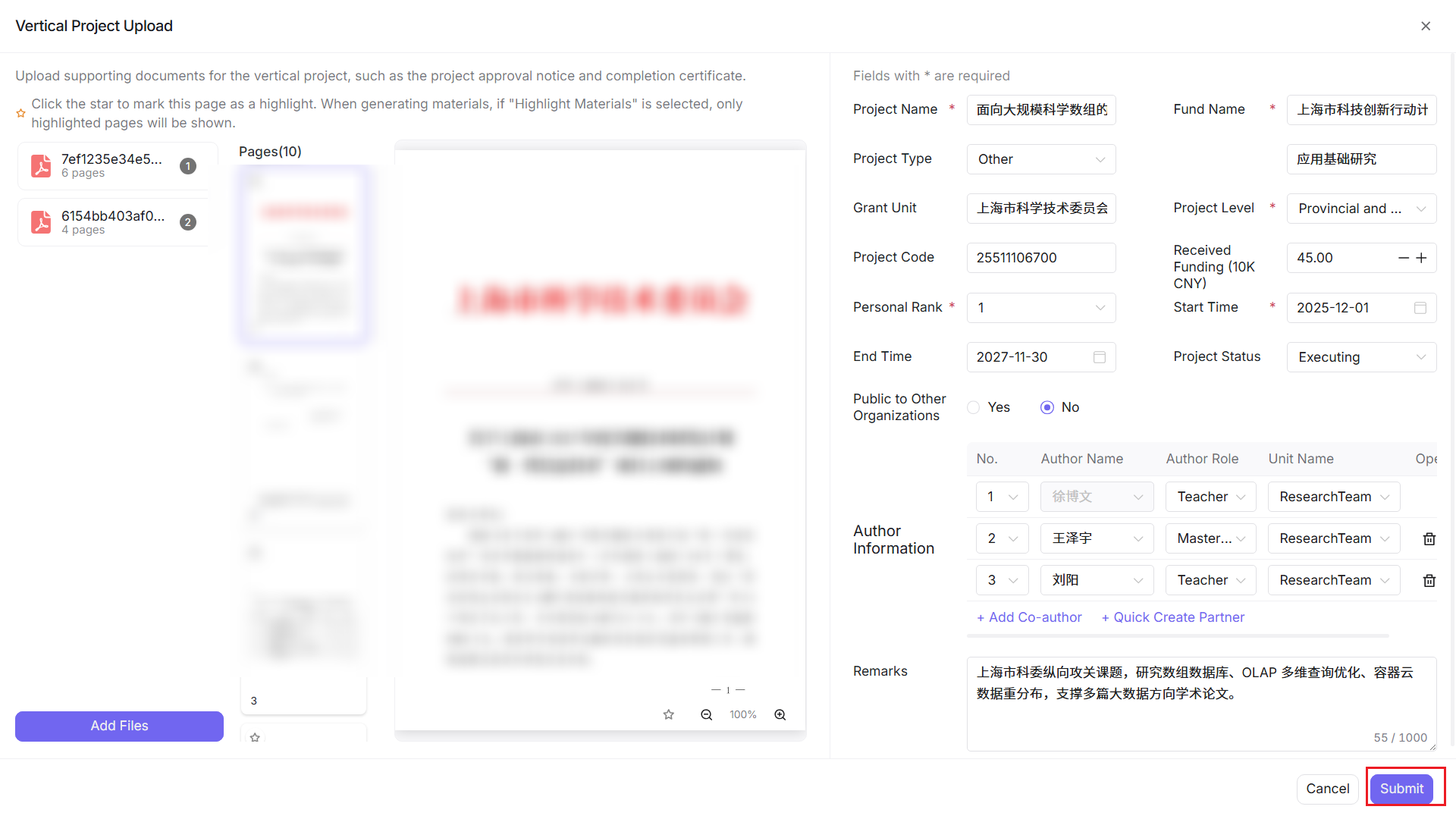
Fill in required fields: Project Name, Fund Name, Project Level, Author Rank, Start/End Date; select Project Type, Awarding Institution, Project Number, Received Funding, Project Status, and Visibility
-
Maintain author information: select author name, author role, and affiliated institution; you can Add Co-author or Quick Create Partner Institution
-
Upload attachments: project approval notices, completion certificates, and other supporting documents; supports drag-and-drop upload for PDF/JPG/PNG
-
Fill in notes, review the information, and click Submit to complete project creation
4.1.2 Project Search and Filtering
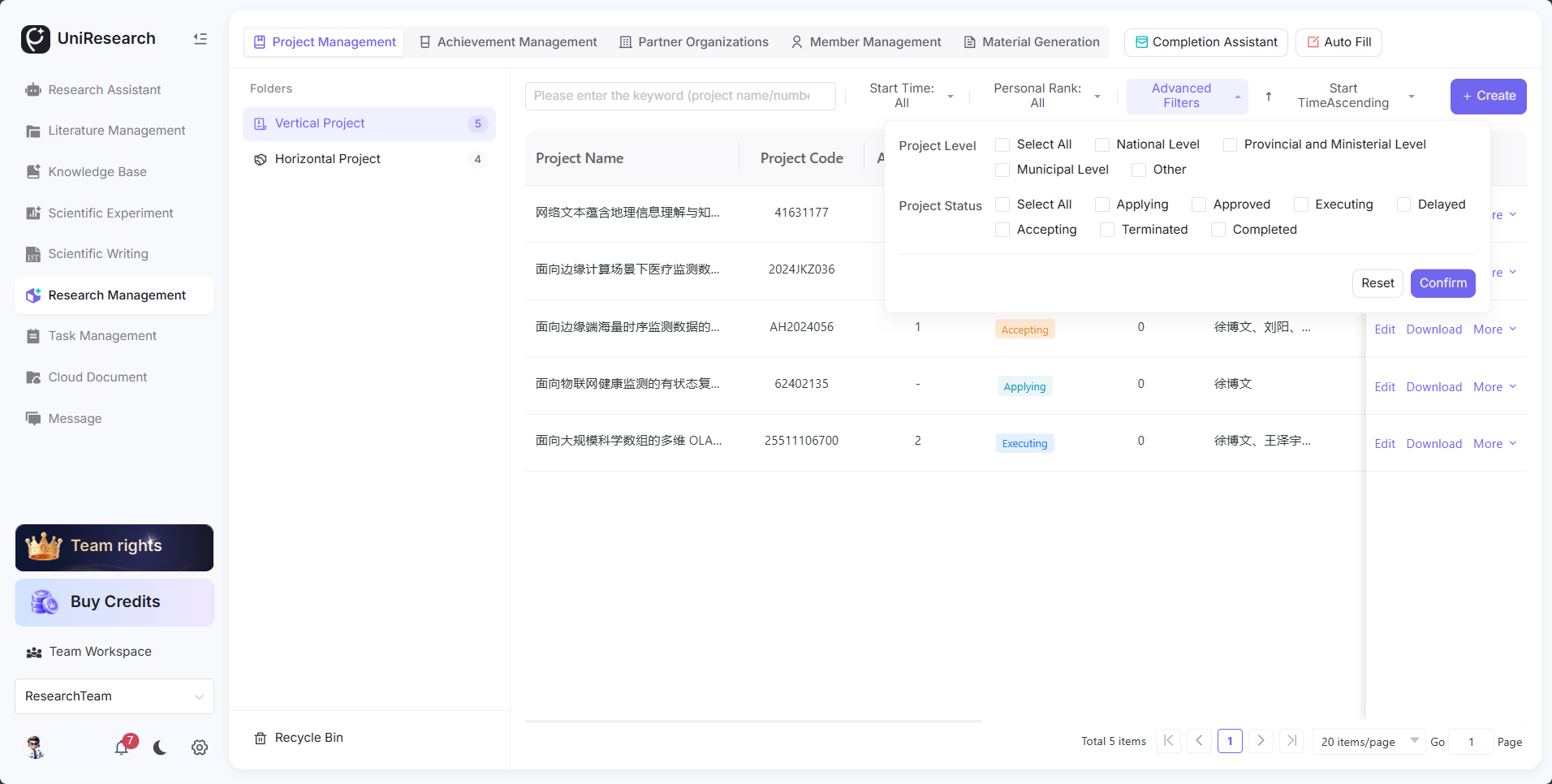
- Top search bar: enter keywords from the project name or project number to search
- Filter conditions: start date, author rank, advanced filter; supports sorting by start date in ascending/descending order
- Pagination: switch pages and set the number of items per page
4.1.3 Project Actions
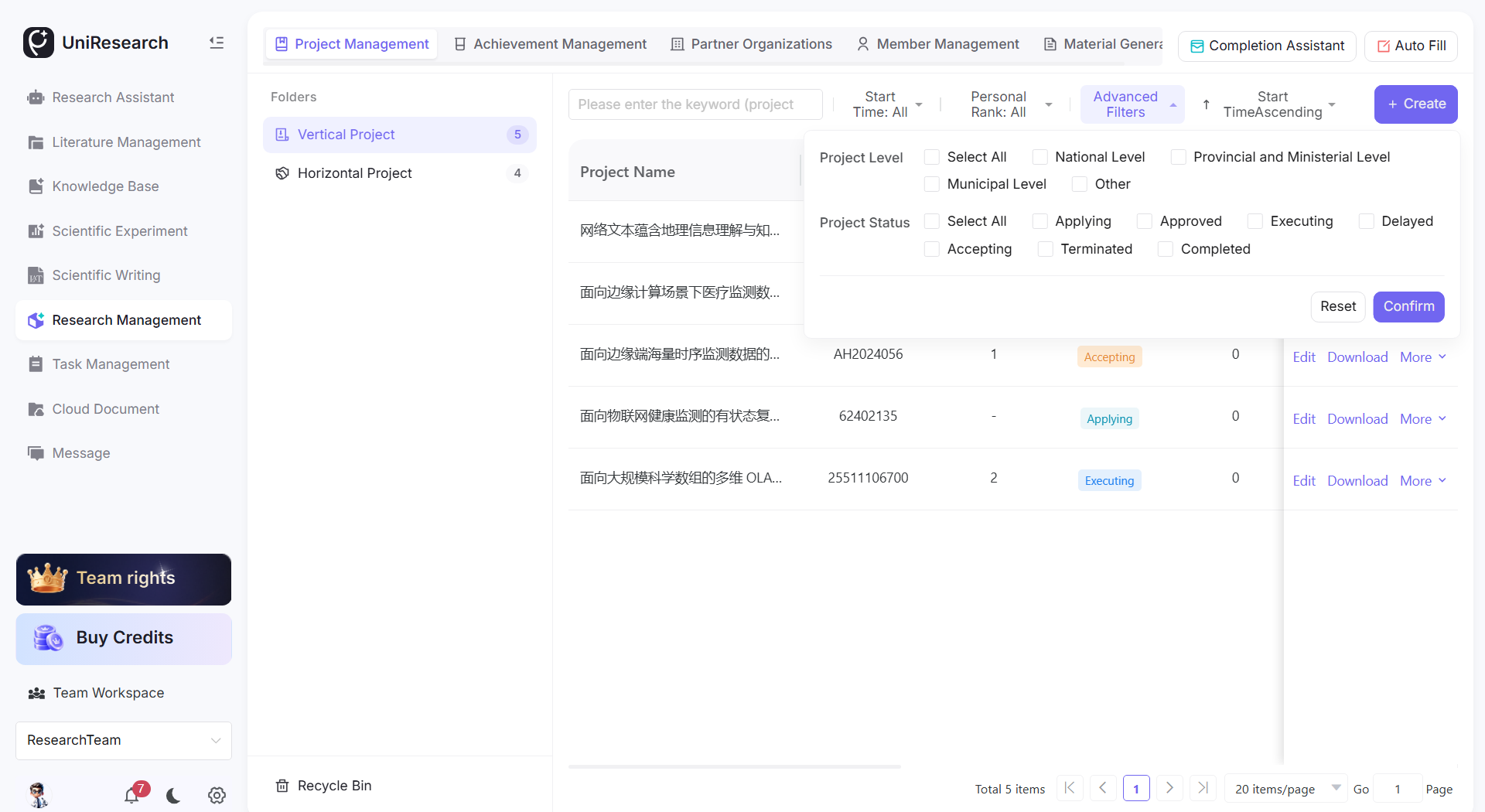
The Actions column on the right of each project row:
- Edit: Modify basic project information, authors, and attachments
- Download: Download attachments uploaded to the project
- More dropdown menu: New Task, Task Management, Delete Project (deleted items go to the Recycle Bin)
4.2 Output Management Operations
4.2.1 Creating an Output
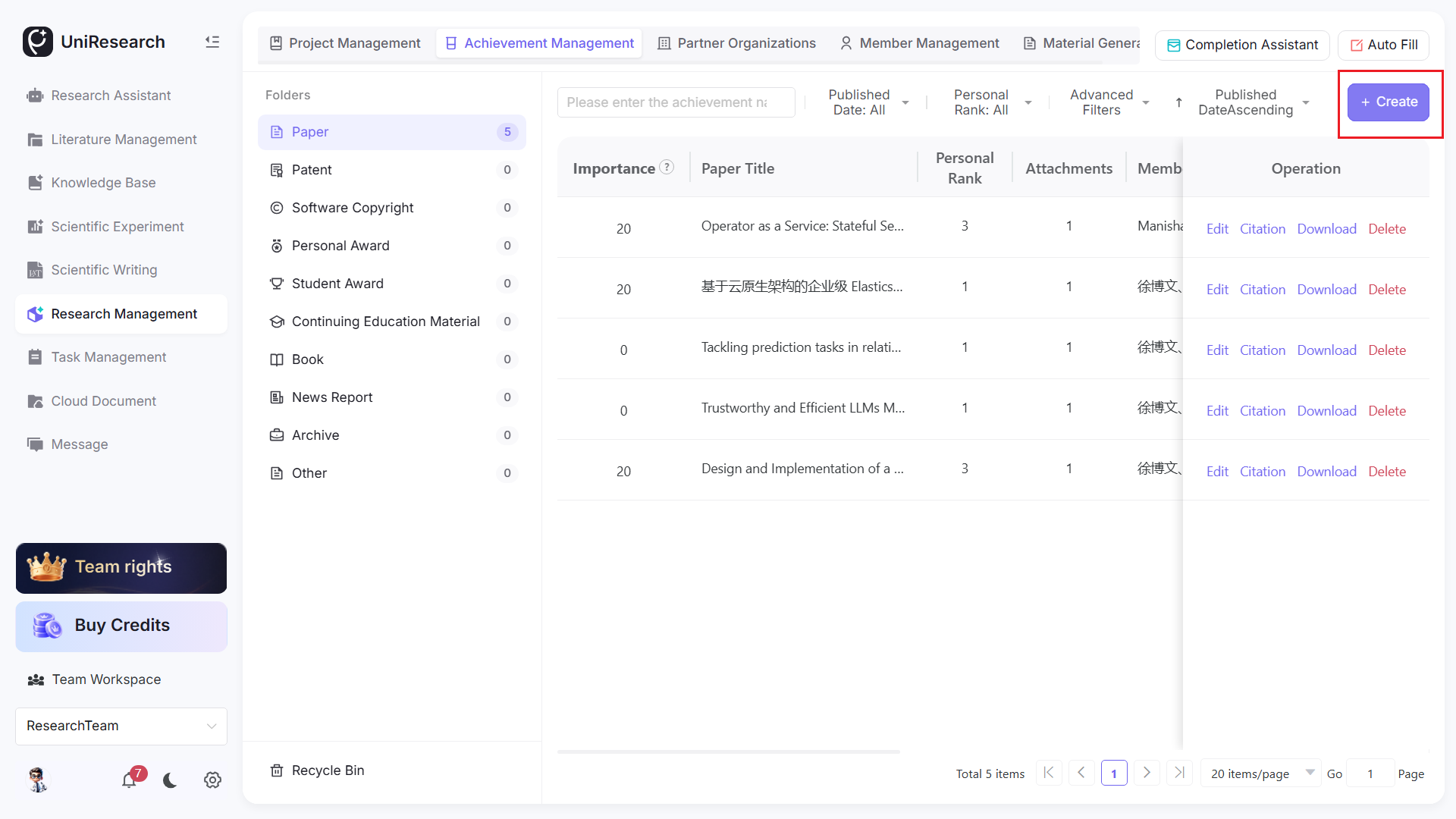
- In the left output categories panel: Papers / Patents / Software Copyrights / Awards / Monographs, etc. Select a category, then click + New in the top-right corner to open the output entry form (using a paper as an example)
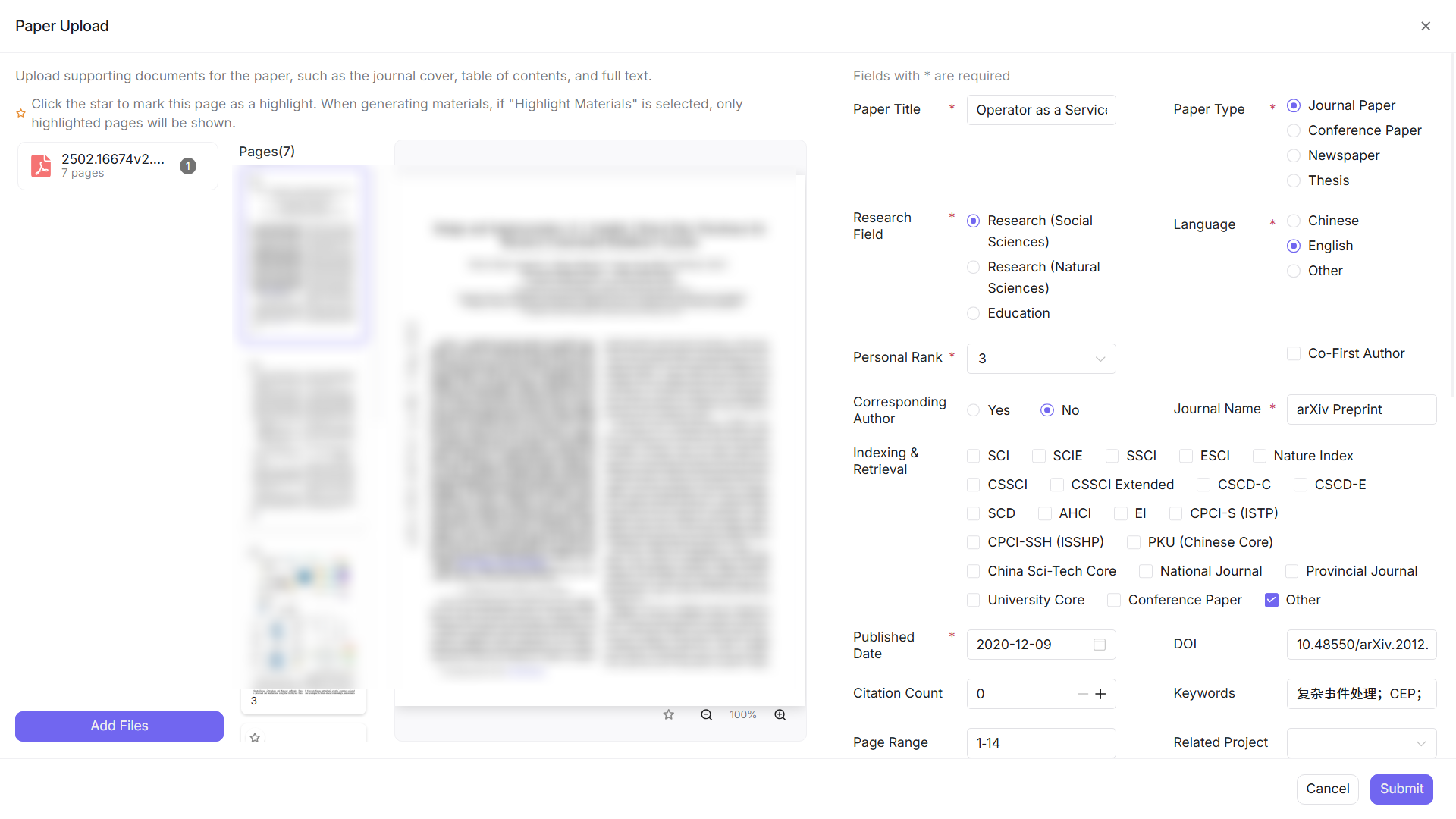
- Fill in required fields: Paper Title, Paper Type, Discipline, Language, Author Rank, Publication Date
- Optional settings: Corresponding Author, Journal Name, indexing tags (SCI/EI/CSSCI, etc.), DOI, Keywords, Page Numbers, Impact Factor, Volume & Issue
- Link to project: select an existing project from the dropdown to associate the output with the project
- Author information: add authors, author roles, and institutions; supports quick creation of partner institutions
- Upload attachments: journal cover, full text, supporting documents; supports PDF/JPG/PNG
- Submit and save; the output appears in the paper list
4.2.2 Output Actions
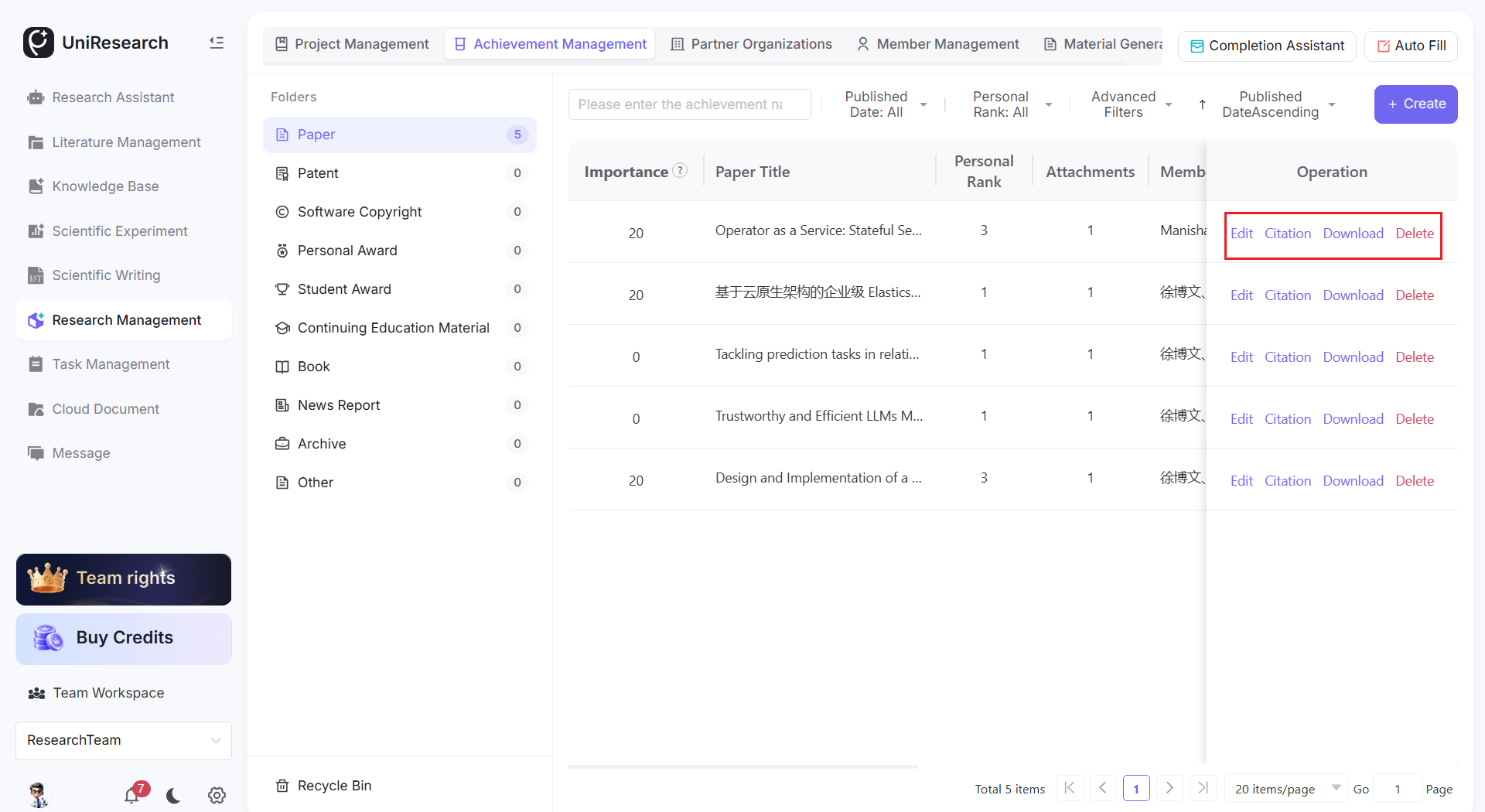
Actions in the output list:
- Edit: Modify output information, authors, and attachments
- Citation: Automatically generate a standard citation format
- Download: Download output attachments
- Delete: Move the output to the Recycle Bin
- Filter: Search by output name, publication date, author rank, and advanced filters
4.3 Partner Institution Management
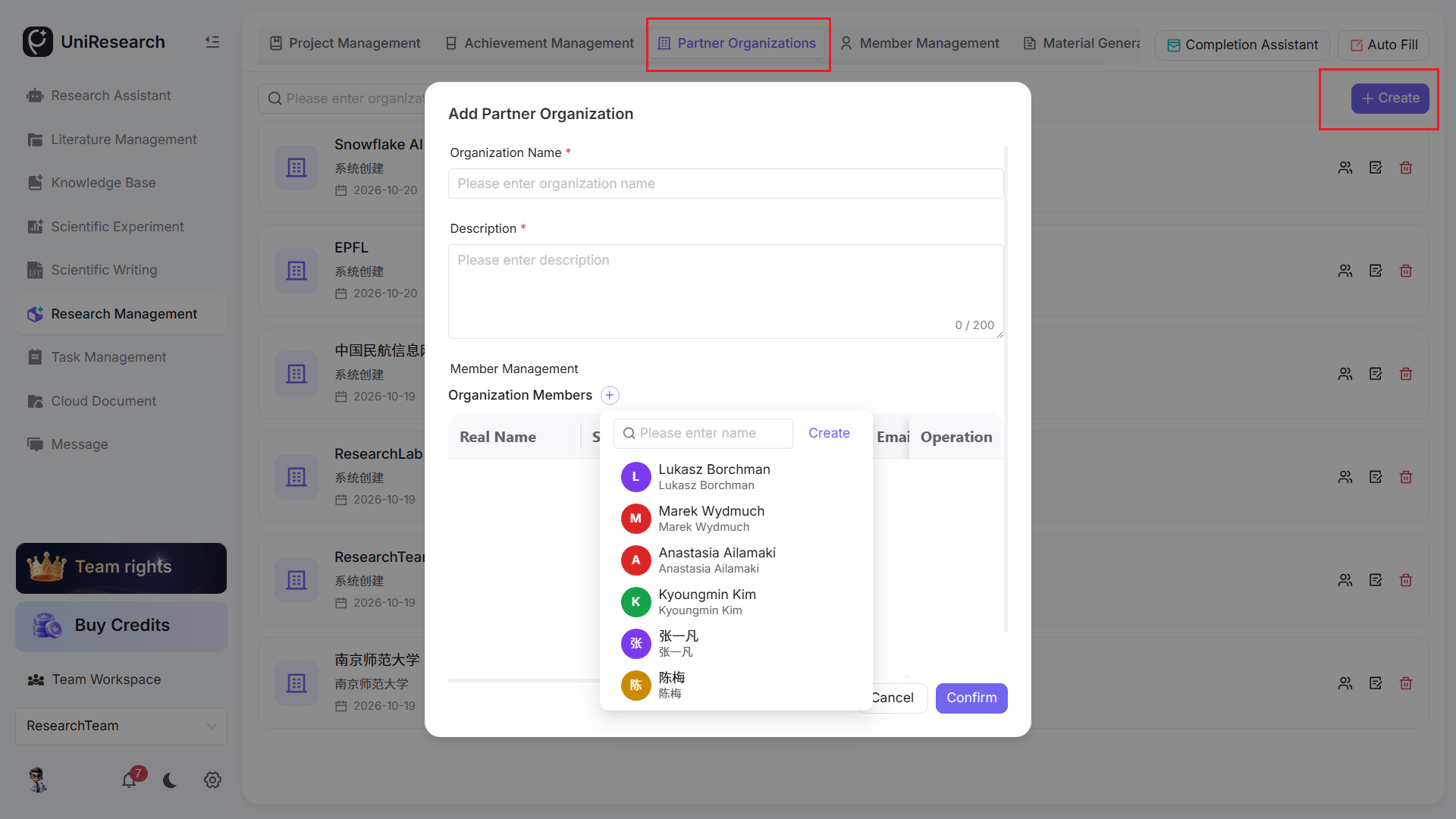
- Switch to the Partner Institutions tab, click + New in the top-right corner to add a partner institution, and fill in the institution name
- Use the search bar to quickly search by institution name
- Actions on the right of each institution row: Member Management, Edit, Delete
When entering project or output authors, you can directly select an existing partner institution without re-entering it
4.4 Member Management
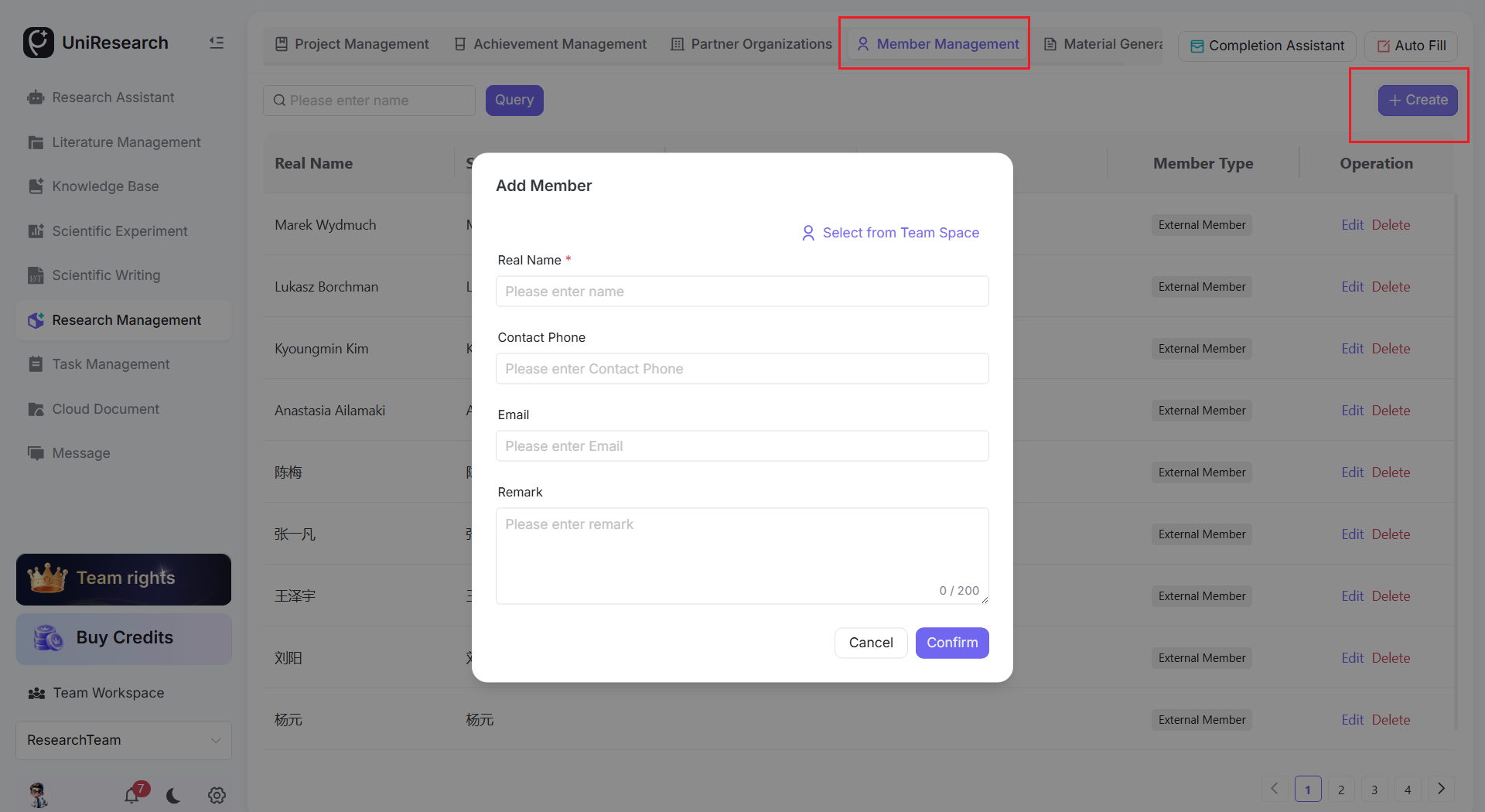
- Switch to the Member Management tab, click + New in the top-right corner, and enter the member's real name, system nickname, phone number, email, and member type (External Member / Internal Member)
- Search by name to find members
- Actions: Edit member information, Delete member; when creating a new project or output, directly select members from the member library in the author dropdown
4.5 Document Generation
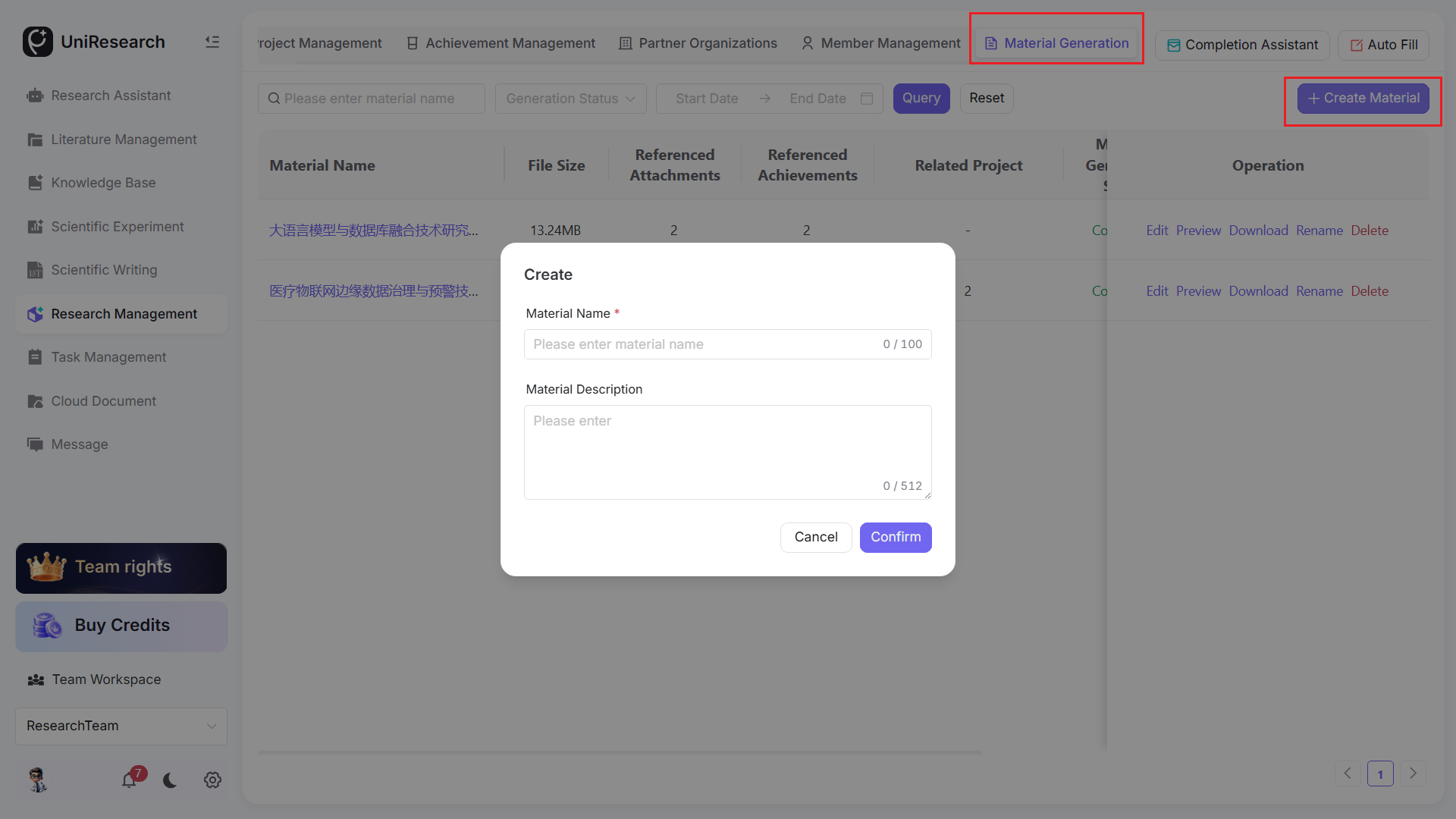
-
Switch to the Document Generation tab, then click + New Document in the top-right corner
-
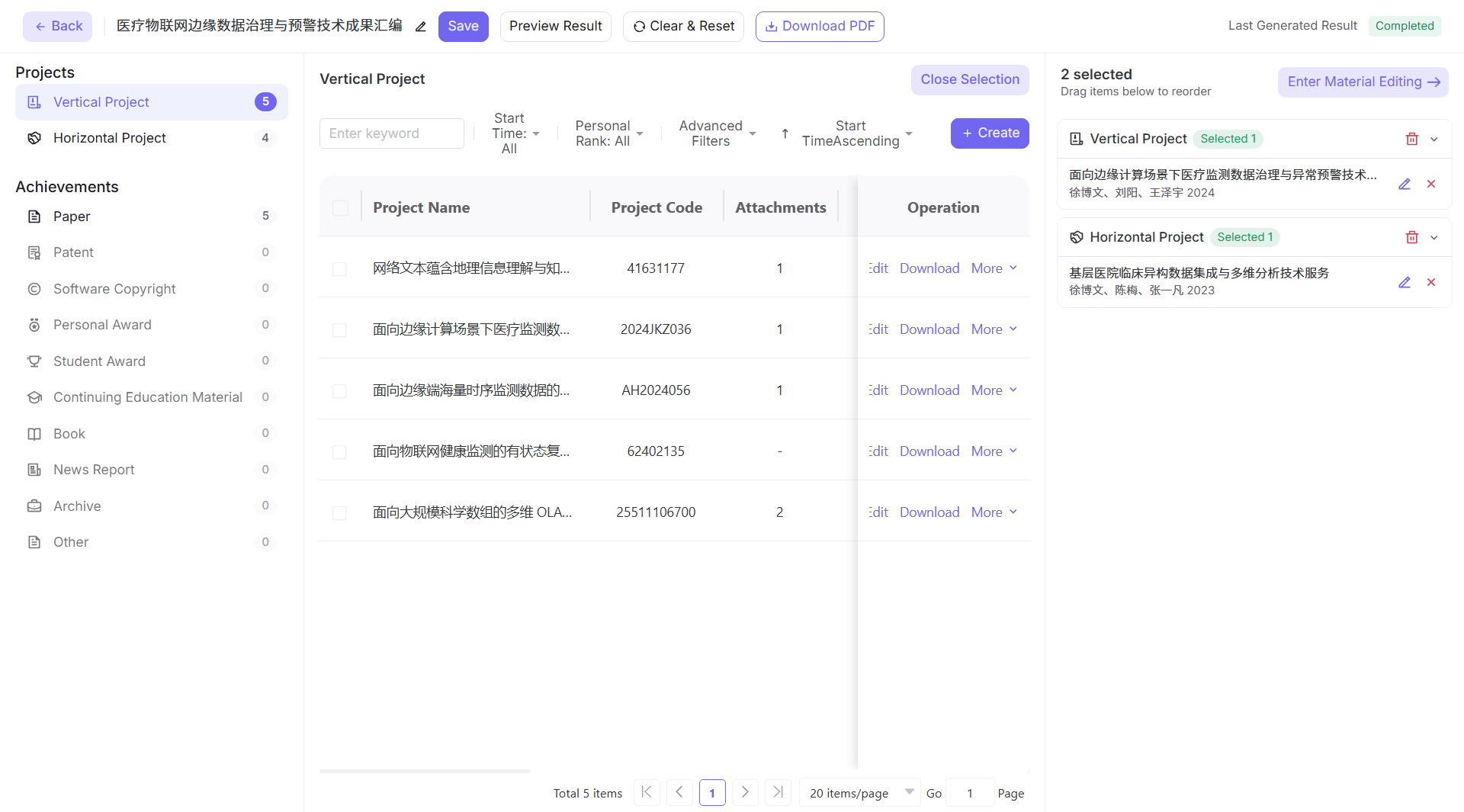
Step 1: Select Projects and Outputs
- On the left, check the target project; on the right, check the papers/outputs to include in the completion document from the output selection area
- The output list supports drag-and-drop reordering; click Collapse Output Selection Area to enter the cover and layout editing page; Expand Output Selection Area allows adding or removing outputs again
-
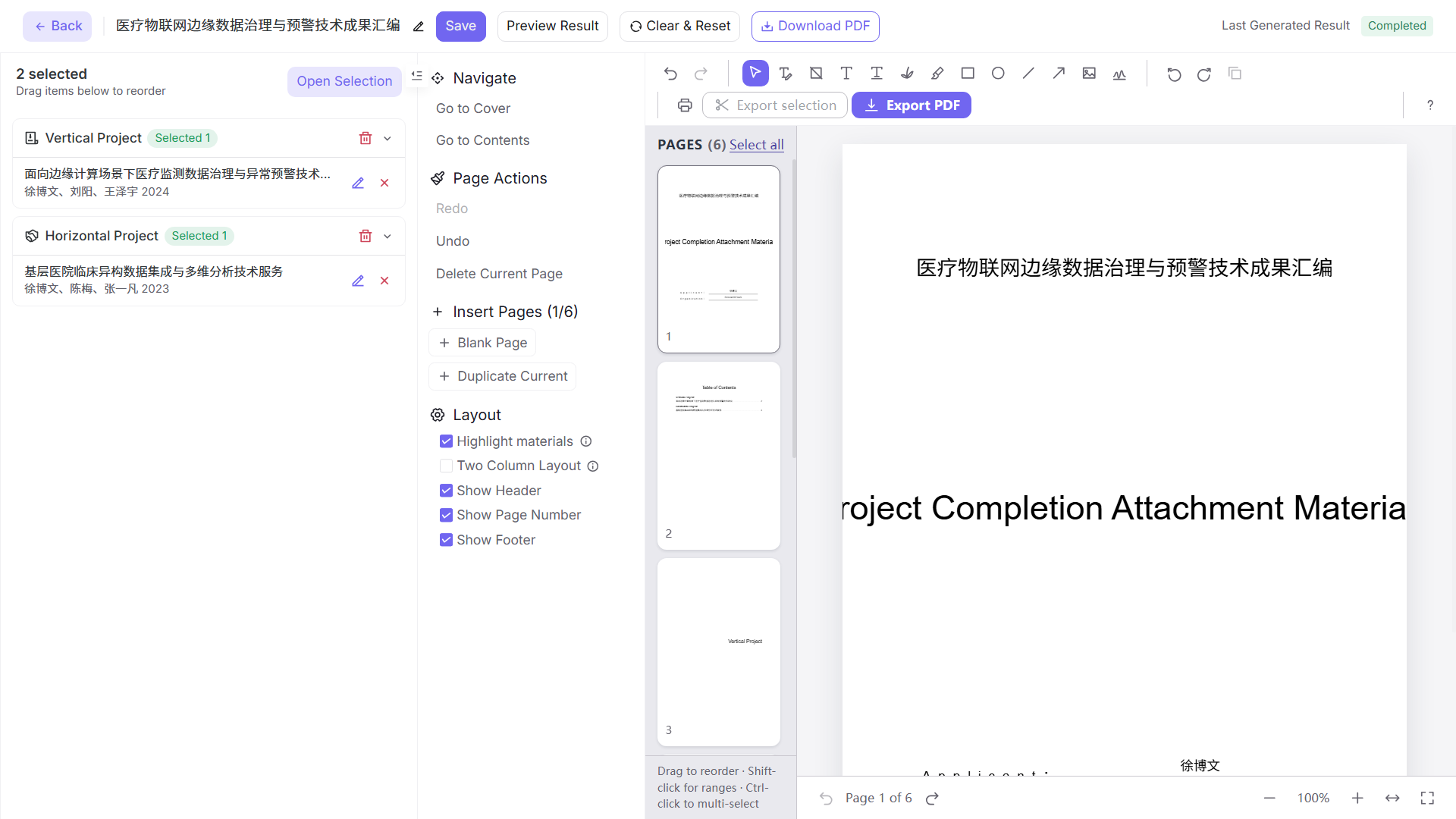
Step 2: Visual Online Editing
- Navigation: Jump to cover, table of contents; page operations: Undo/Redo, Delete Page, Insert Blank Page, Duplicate Page
- Layout settings: Highlighted Materials, Double-sided Materials, Show Header, Page Number, Footer toggle
- Top toolbar: Rich text editing capabilities for text, images, shapes, etc.
-
Step 3: Save & Export
- Save: Save the current edited version; preview the result at any time
- Preview: Preview the complete completion document online
- Download PDF: Export the final completion document file
-
Document list actions: Edit, Preview, Download, Rename, Delete document records
4.6 Recycle Bin
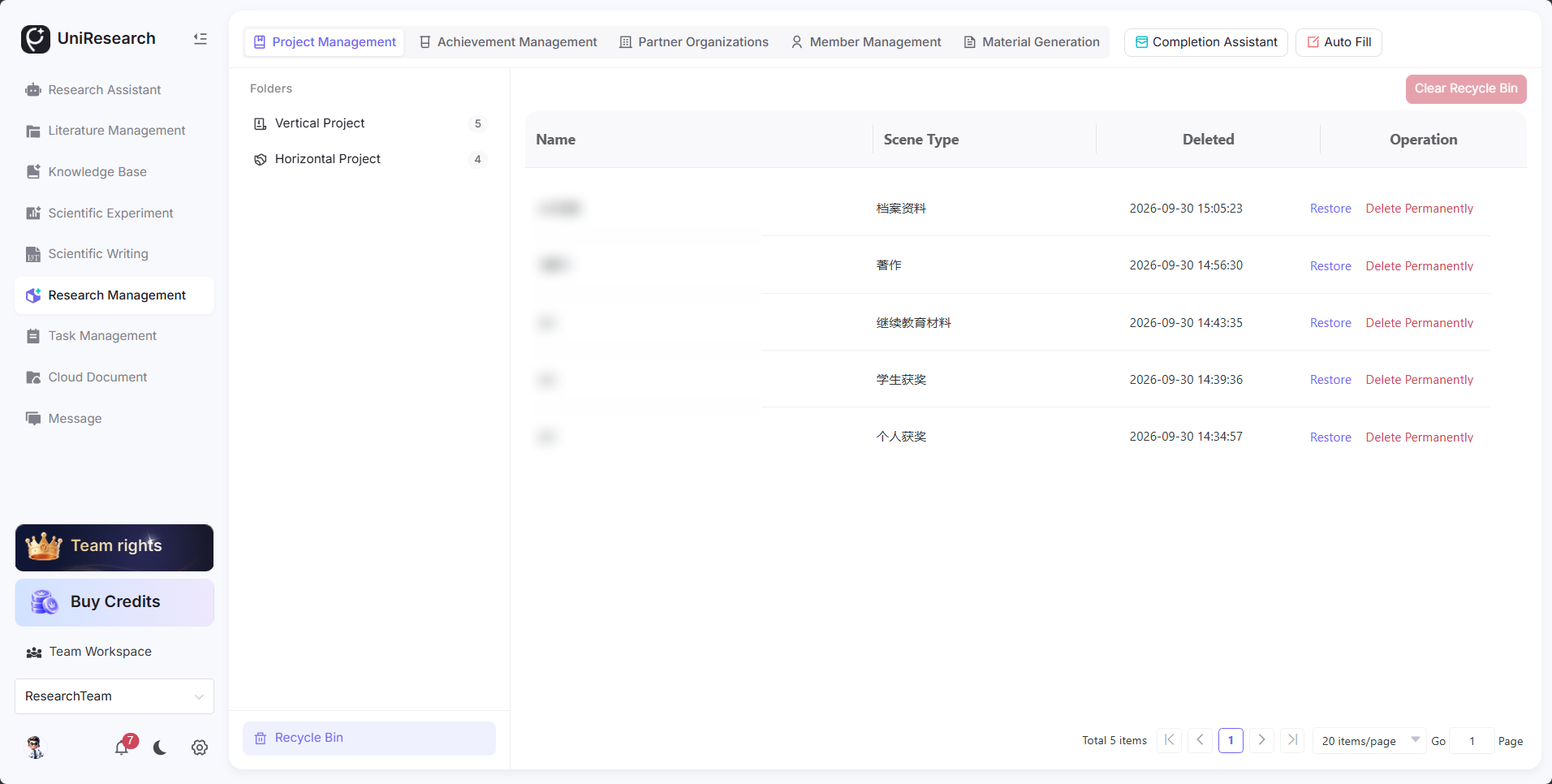
Entry at the bottom-left corner of the page Recycle Bin: Stores deleted project and output records, supporting recovery and permanent deletion.
4.7 Auxiliary Feature Entries
- Completion Assistant: Project completion validation, material checklist reminders, completion information summary
- Auto-fill: Reads existing project and output data in the system to automatically fill proposal/completion forms, reducing repetitive data entry
5. Feature Details
5.1 Project Management
| Feature | Description |
|---|---|
| Folder Categories | Government-funded and industry-funded projects are counted separately, with numbers indicating the total projects in each category |
| Project Fields | Project Name, Project Number, Attachments Count, Status, Outputs Count, Members |
| Attachment Management | Supports multi-file upload; project approval, review, and completion certificates are archived together |
| Task Management | Create sub-tasks under a project to track internal work progress |
5.2 Output Management
| Output Type | Field Description |
|---|---|
| Paper | Importance Level, Paper Title, Author Rank, Attachments, Members, Journal Name, Indexing, DOI, Impact Factor; supports citation export |
| Patent / Software Copyright / Award, etc. | Type-specific fields, uniformly archived, all linkable to projects |
5.3 Partner Institutions & Member Management
- Provides a foundational data dictionary for projects and outputs, reusing institution and personnel information to avoid duplicate entry and ensure consistent author and institution names
- Supports unified maintenance of external universities, research institutions, and enterprise partners
5.4 Document Generation Engine
- Automatically captures metadata from selected projects and outputs to generate covers, tables of contents, and output lists
- Supports custom layout, header/footer, page numbers, and double-sided printing configuration
- Supports repeated editing and saving, multiple PDF exports, adapting to the completion document format requirements of different universities/institutions