Login & Registration
Module Overview
This chapter explains how to log in, register an account, and complete initial setup. The platform supports both password login and SMS login. New users need to complete a profile with discipline, identity, and other information after registration. Some disciplines can automatically load platform demo data.
Password Login
- Enter your registered phone number
- Enter your account password
- Drag the slider to complete verification
- Check the box to agree to the "User Agreement" and "Privacy Policy"
- Click "Login" to enter the system
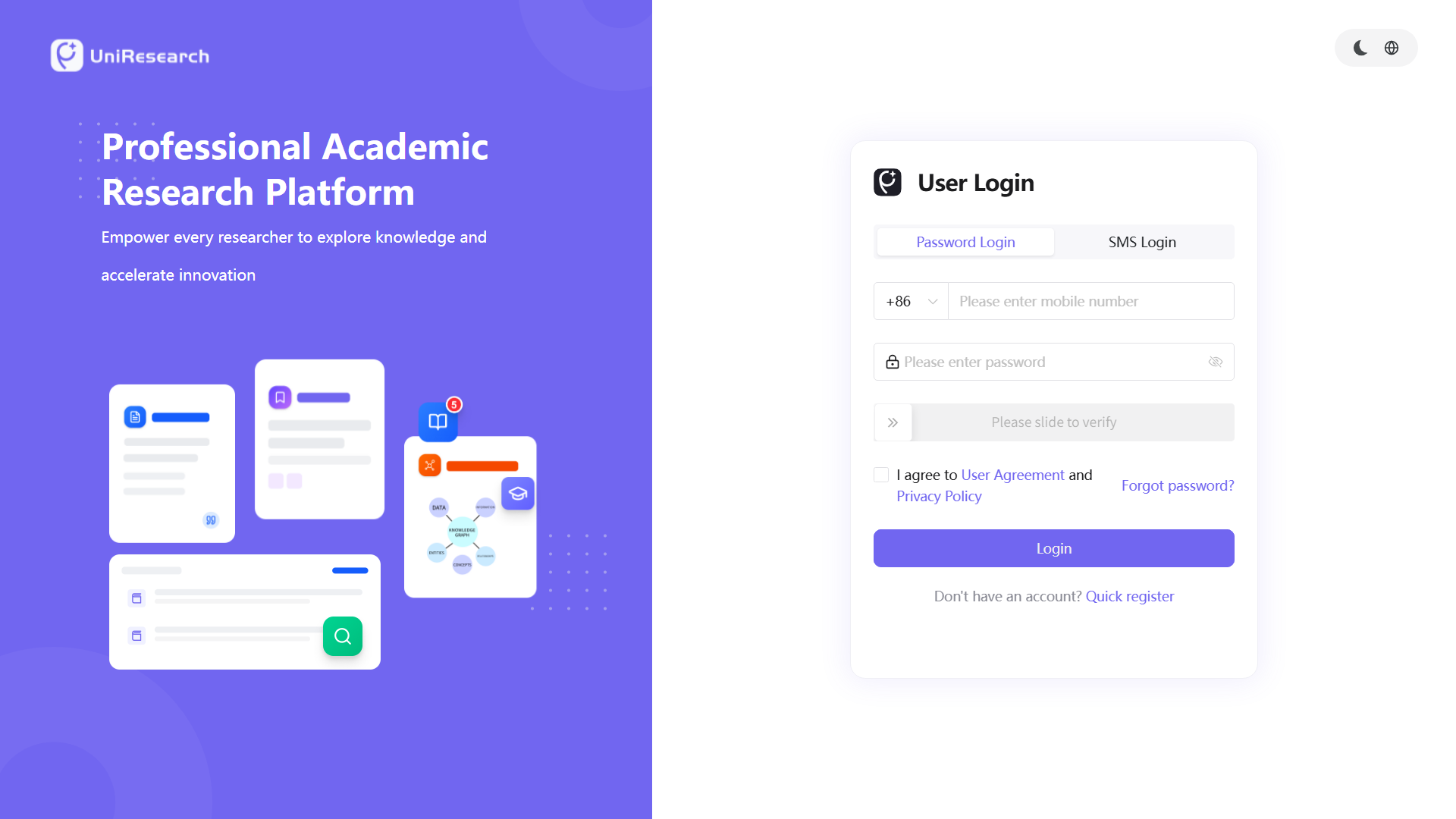
Additional Notes:
- If you forget your password, click "Forgot Password?" to reset it
- Click "Quick Register" at the bottom of the page to go to the registration page
- The upper-right corner of the page supports switching dark mode and language
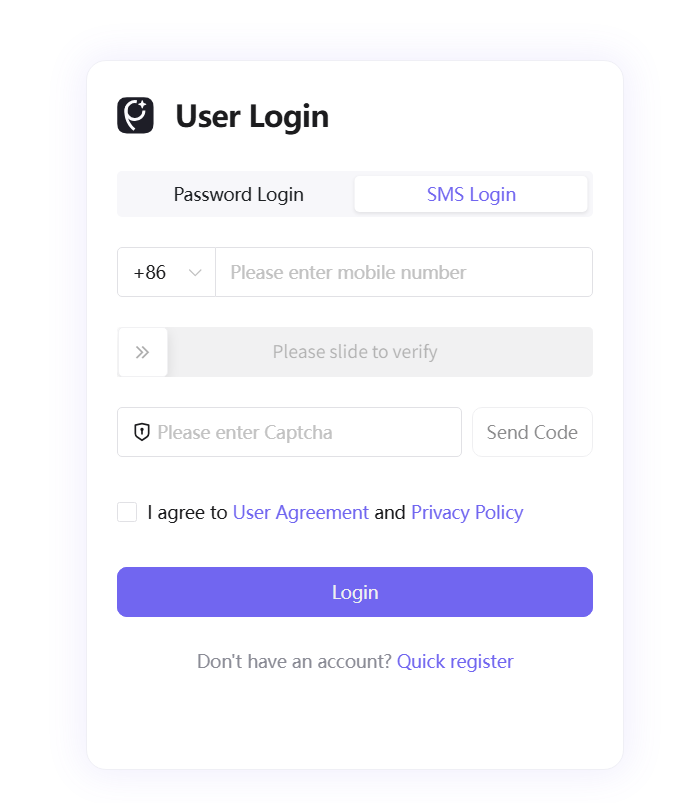
SMS Login
- Switch to the "SMS Login" tab
- Enter your phone number and drag the slider to complete verification
- Click "Get Code" and enter the SMS verification code you receive
- Check the agreement box and click "Login" to complete login
Account Registration
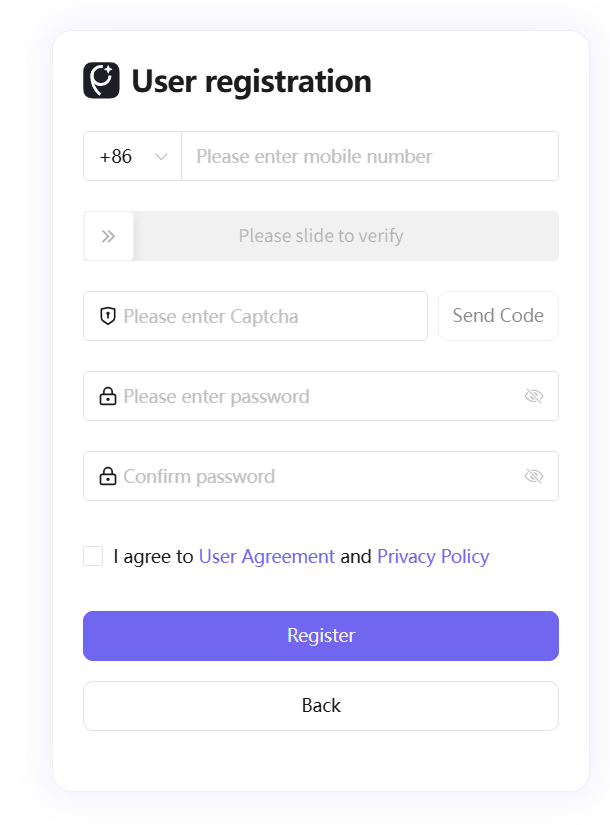
- On the login page, click "Quick Register" to go to the registration page
- Enter an unregistered phone number and drag the slider to complete verification
- Click "Get Code" and enter the SMS verification code
- Set a login password and re-enter to confirm (both entries must match)
- Check the User Agreement and Privacy Policy boxes
- Click "Register" to create your account — you will be automatically redirected to the new user guide page
New User Guide & Information Setup
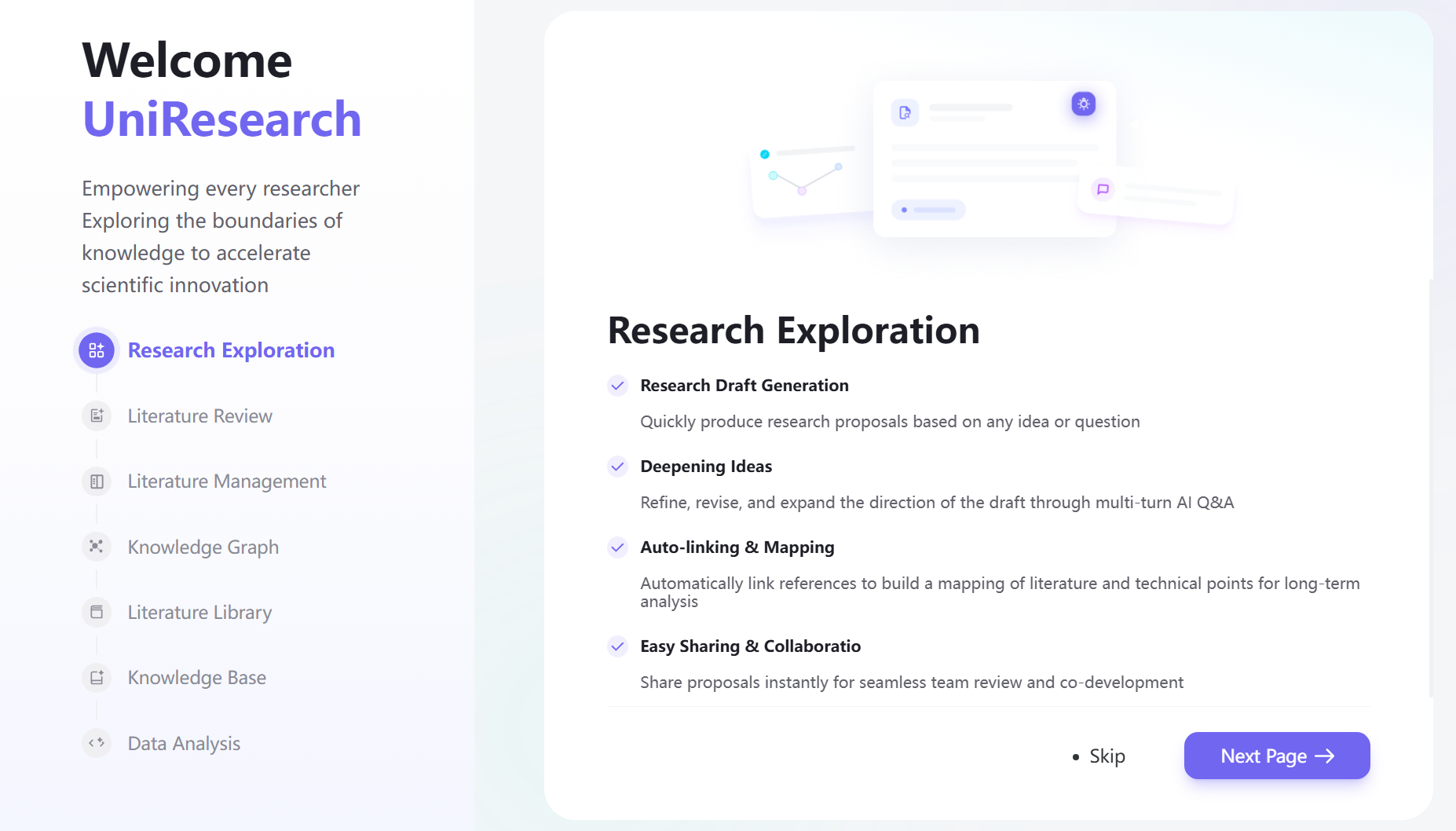
- After successful registration, your first login will automatically open the guide page. Browse through the platform's core features page by page, or click "Skip" to go directly to the information setup section
- After the guide, you'll enter the information form. Fill in as needed: How you learned about us (acquisition channel), Field of Interest (research area), and Current Identity
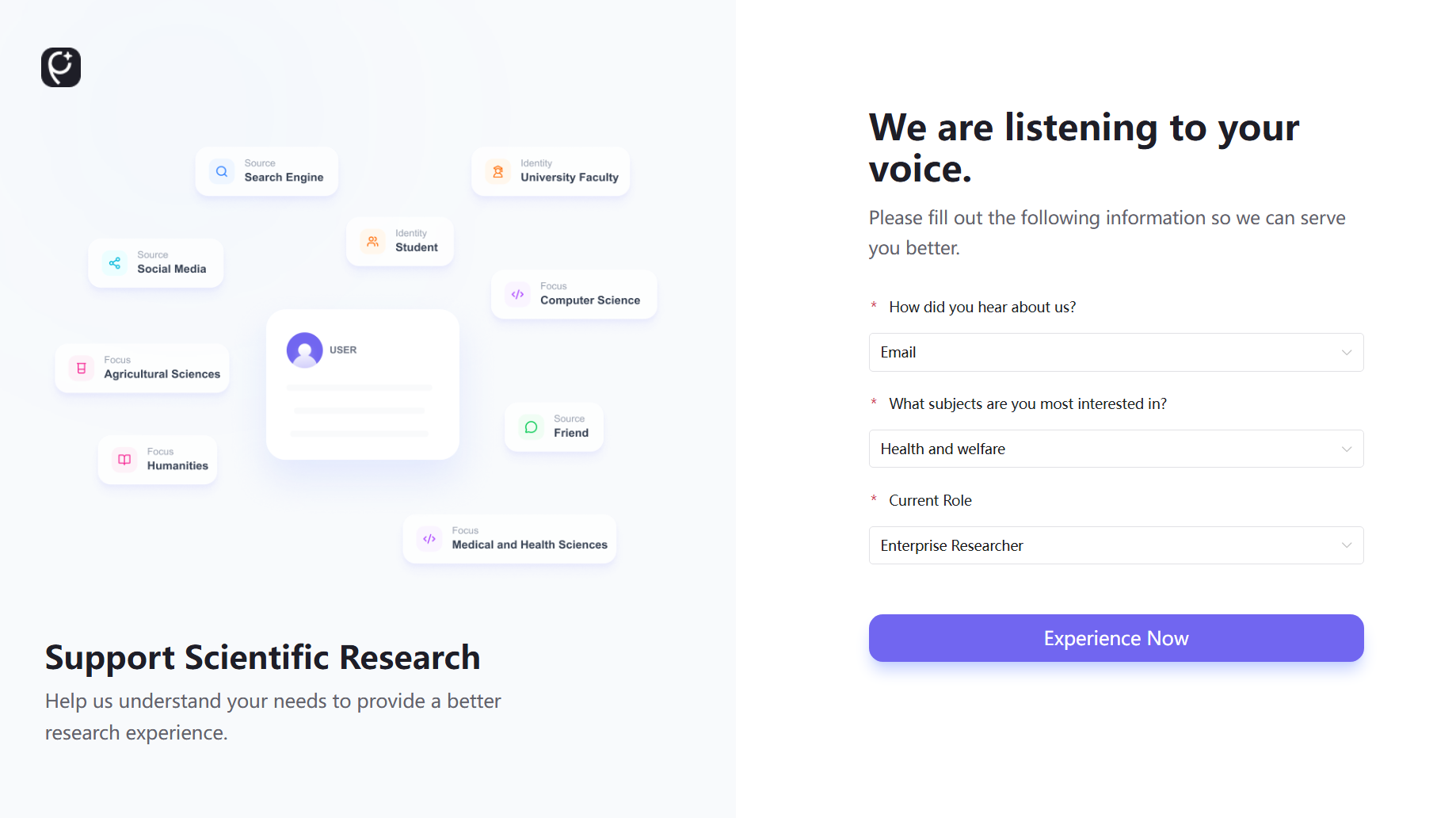
- Click "Start Exploring" to enter the main system interface
Preset Data Rule: If you select "Health and Welfare" or "Information and Communication Technology" as your discipline, the system will automatically load demo literature and knowledge samples in the Literature Management and Knowledge Base modules. Other disciplines do not currently include preset data.