Knowledge Base
Overview
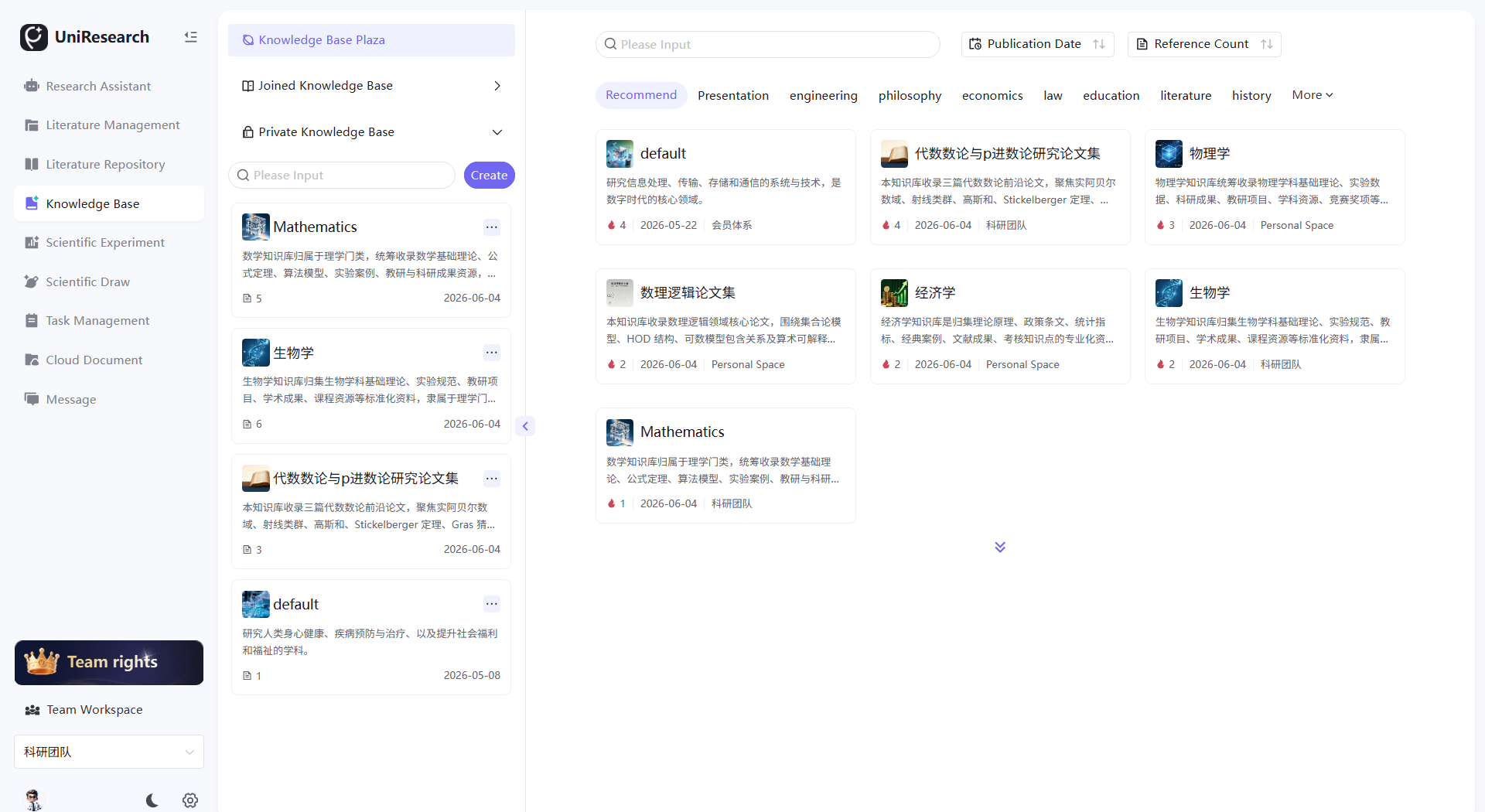
The Knowledge Base module serves as a workspace for structured deposition, sharing and collaboration of research knowledge. It consists of two sections: Private Knowledge Bases (self-built and self-managed by users) and Knowledge Bases I Joined. It is also equipped with a public resource marketplace called Knowledge Square, which supports retrieval by discipline classification and browsing of all platform knowledge bases.
The module covers the full lifecycle workflow including knowledge base creation, basic information configuration, file knowledge import, member permission management, sharing/publication on the square, deletion and archiving. It can deposit research materials such as literatures, experimental data and theoretical notes, and supports collaborative viewing by multiple team members as well as retrieval and invocation via AI Q&A.
Applicable Roles
- Individual Research User: Allows creating and managing private knowledge bases, uploading personal research materials, independently configuring basic information, and sharing or publishing knowledge bases publicly;
- Knowledge Base Creator (Base Administrator): Possesses full permissions for the knowledge base, including modifying basic information, uploading/deleting files, adding/removing members, controlling sharing settings, and deleting the knowledge base;
- Internal/External Members: Only have permissions to view the knowledge base and preview files, with no configuration or management privileges;
- Team Administrator: Can create team knowledge bases and batch-manage all knowledge bases and member permissions within the team.
Core Functions
- Knowledge Base Classification View: Dual-column management for Private Knowledge Bases and Knowledge Bases I Joined, supporting list retrieval and filtering;
- Knowledge Base Lifecycle Management: Create new knowledge bases, right-click quick operations (Settings, Share, Unpublish from Square, Delete);
- Basic Knowledge Base Settings: Modify base name, affiliated discipline classification and introduction, and save basic information;
- Knowledge File Management: Batch file upload, list refresh, online preview and paginated browsing; equipped with a dedicated AI Q&A verification panel on the right side of the page;
- Member Permission Management: View the member list within the base, distinguish internal/external members, and control member activation status;
- Public Browsing in Knowledge Square: Filter public knowledge bases by discipline tags such as Recommended, Engineering, Philosophy and Economics, and view details of public bases;
- Sharing Control: Share private bases or cancel public display on Knowledge Square to control external visibility scope.
Operation Guide
Access the Knowledge Base Module
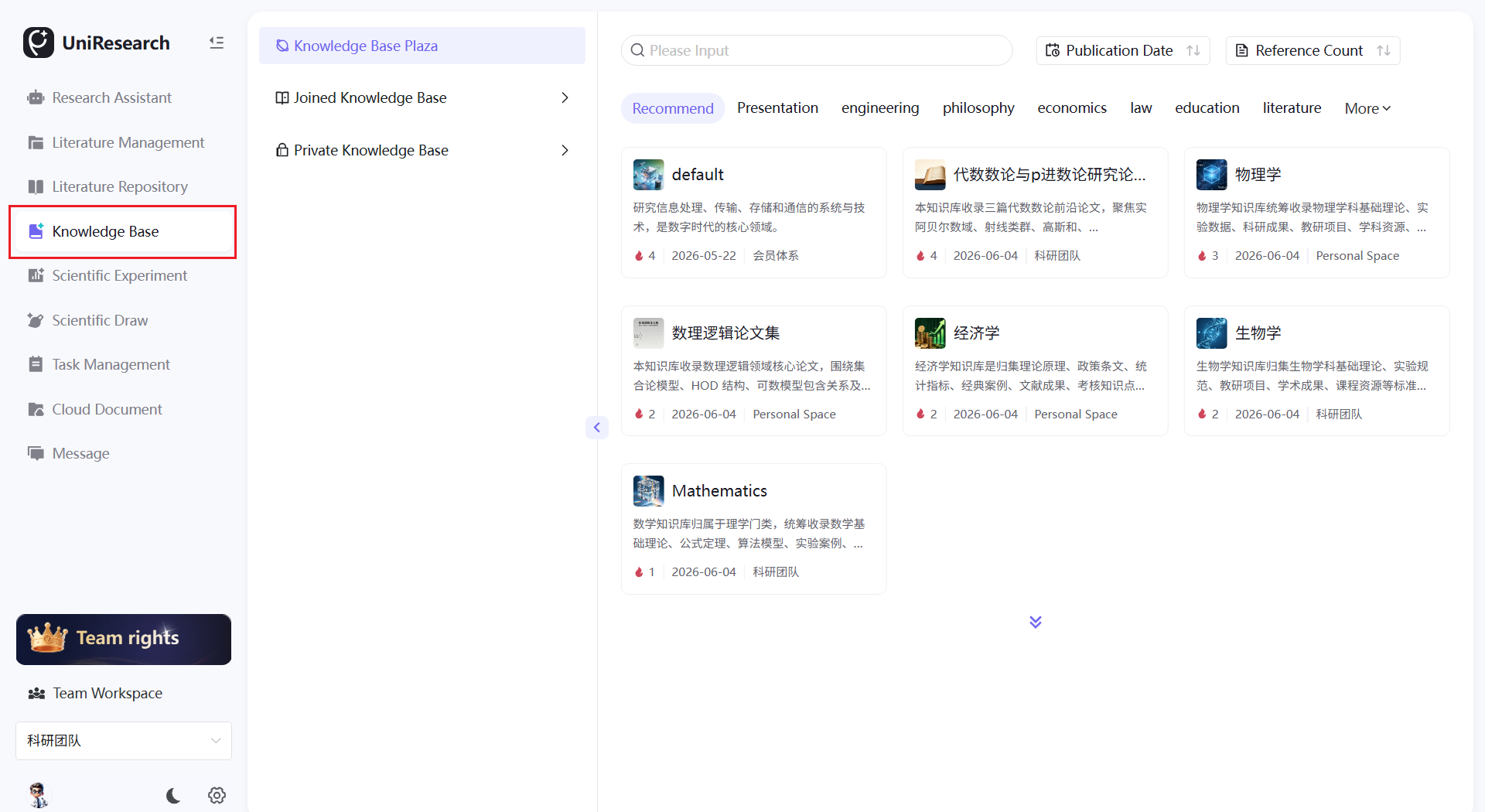
Click the Knowledge Base icon on the left navigation bar. The page defaults to the Knowledge Square, with the knowledge base list displayed on the left.
Create a New Private Knowledge Base
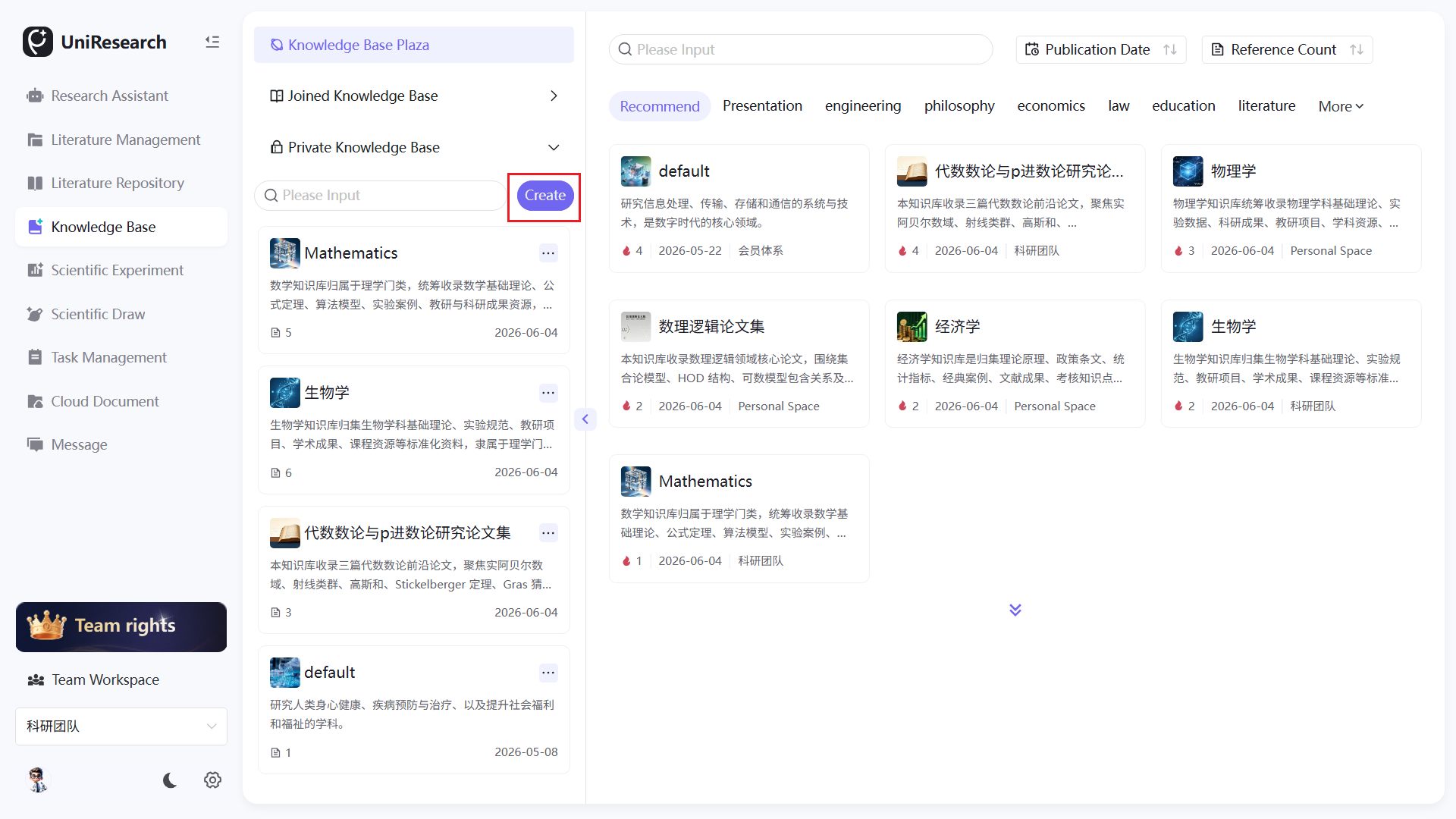
- In the left Private Knowledge Bases section, click the purple New button;
- Fill in the knowledge base name, select discipline classification and enter an introduction in sequence;
- Click Confirm to complete creation, and the new base will be automatically added to the Private Knowledge Bases list.
Right-click Quick Operations for Private Knowledge Bases
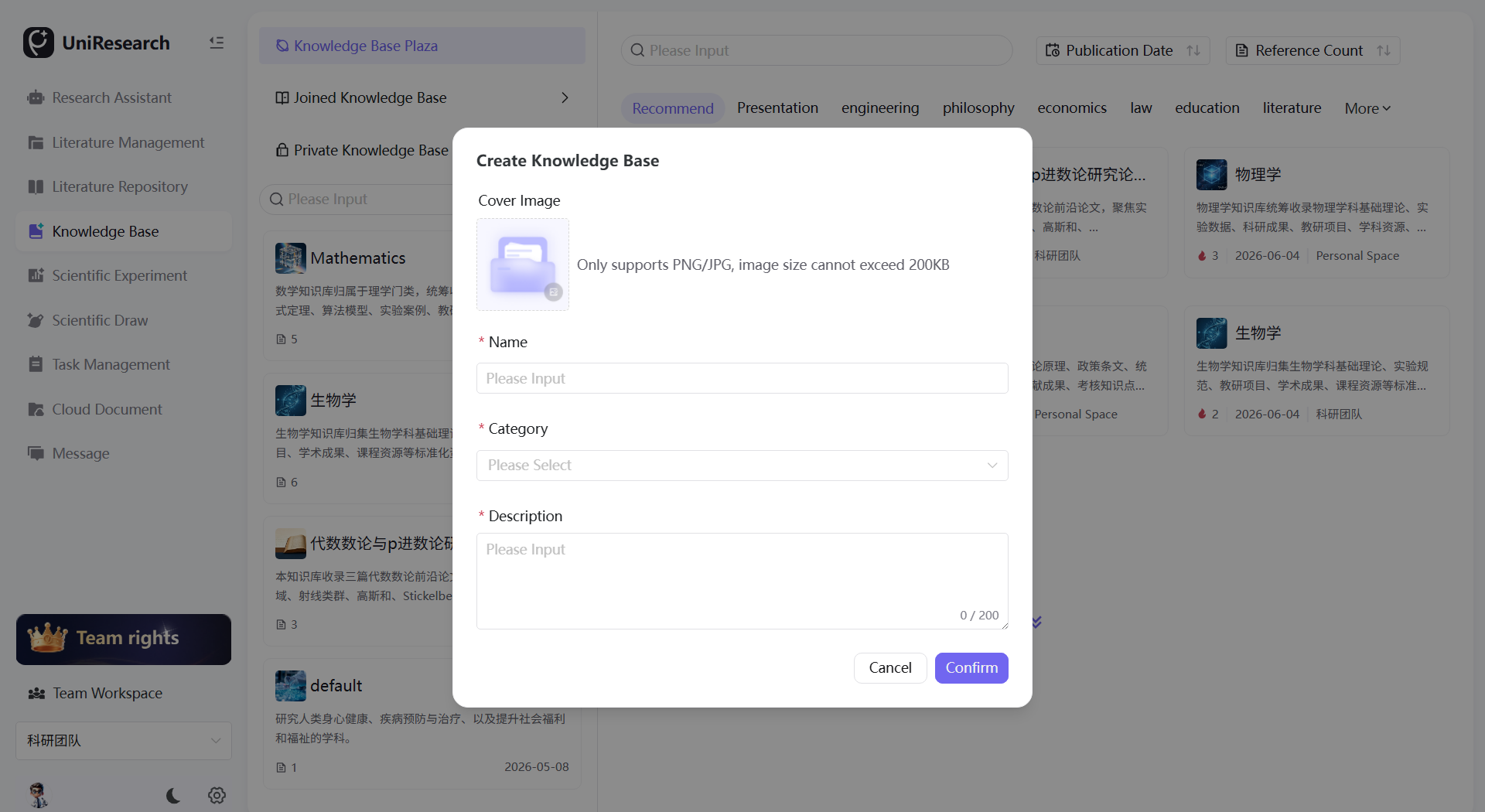
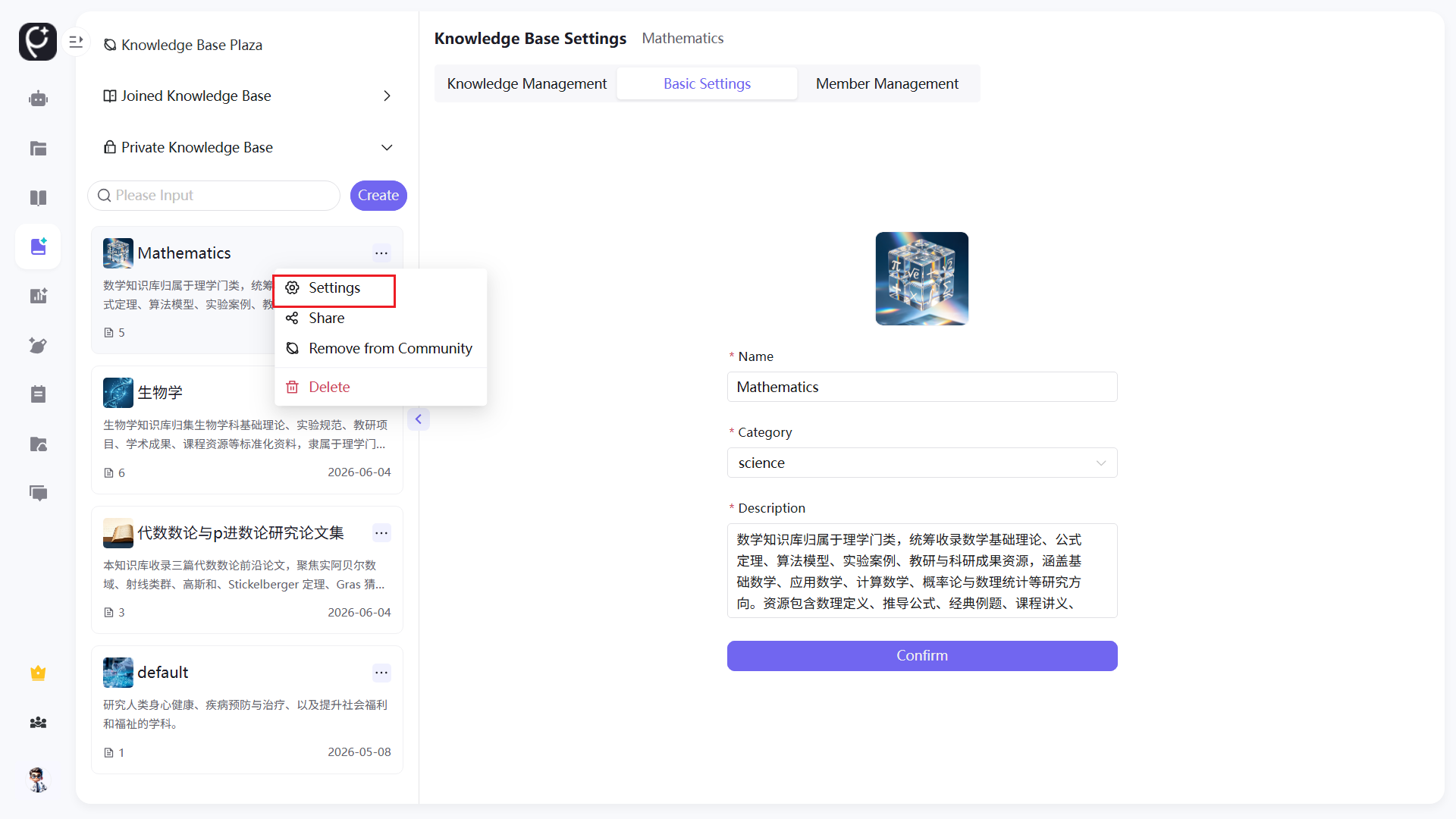
- Right-click a private knowledge base entry on the left to pop up the operation menu;
- Menu function descriptions:
- Settings: Jump to the knowledge base settings page, divided into three tabs: Basic Settings, Knowledge Management, Member Management;
- Share: Generate a share link to invite other users to join the knowledge base;
- Unpublish from Square: If the base has been released to Knowledge Square, this operation restricts visibility to private owners and invited members only;
- Delete: Remove the current knowledge base after secondary confirmation, and all files inside will be cleared synchronously.
- Knowledge Bases I Joined only supports the Leave operation with no management permissions.
Configure Basic Information of Knowledge Base
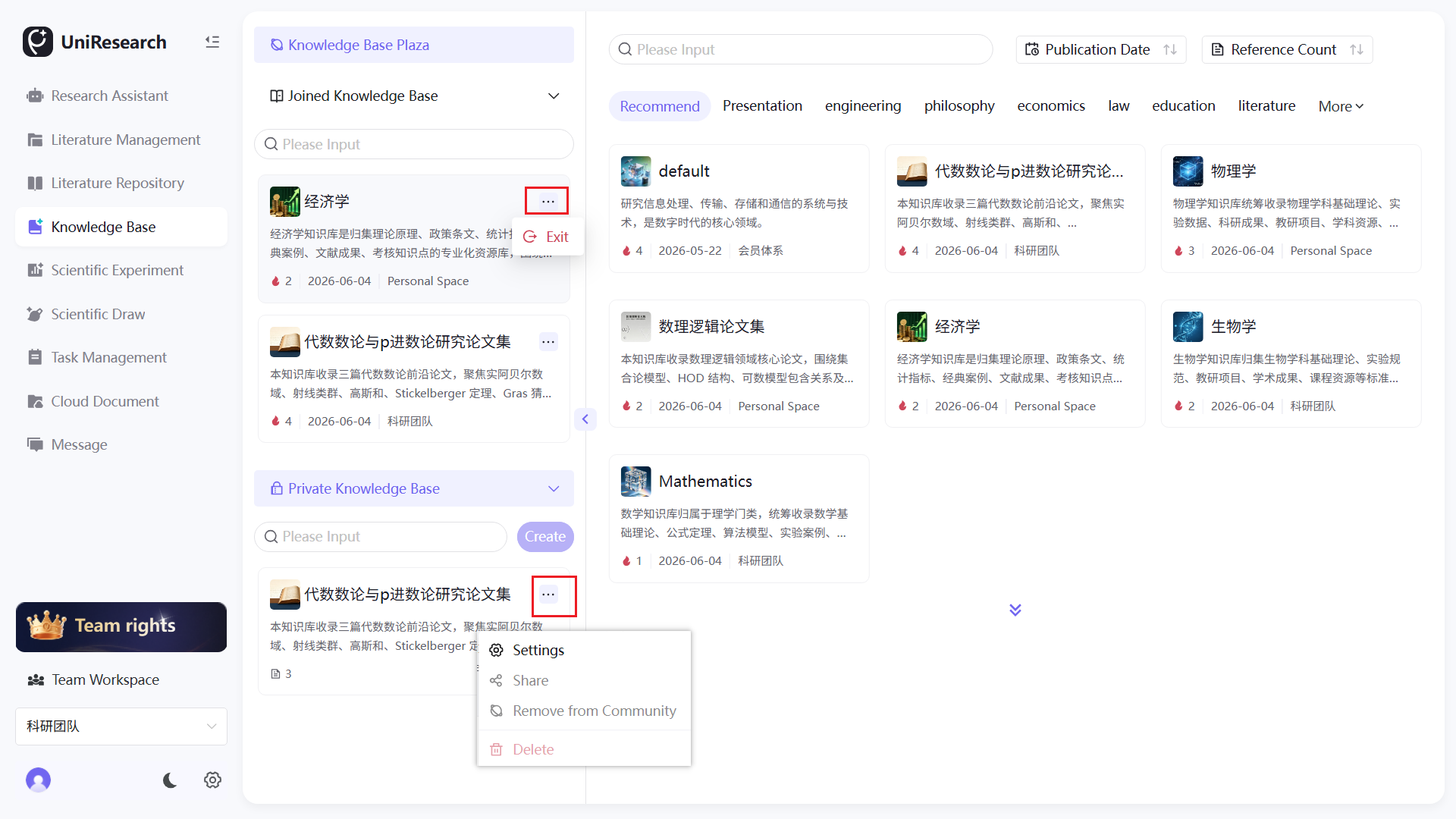
- Right-click the target knowledge base → click Settings, the Basic Settings tab opens by default;
- Editable fields:
- Name (Required): Modify the display name of the knowledge base;
- Affiliated Classification (Required): Switch discipline tags such as Engineering, Philosophy and Economics;
- Introduction (Required): Describe the collected materials and applicable research fields of the knowledge base;
- Click Confirm at the bottom after editing to save all changes.
Upload and Manage Knowledge Files
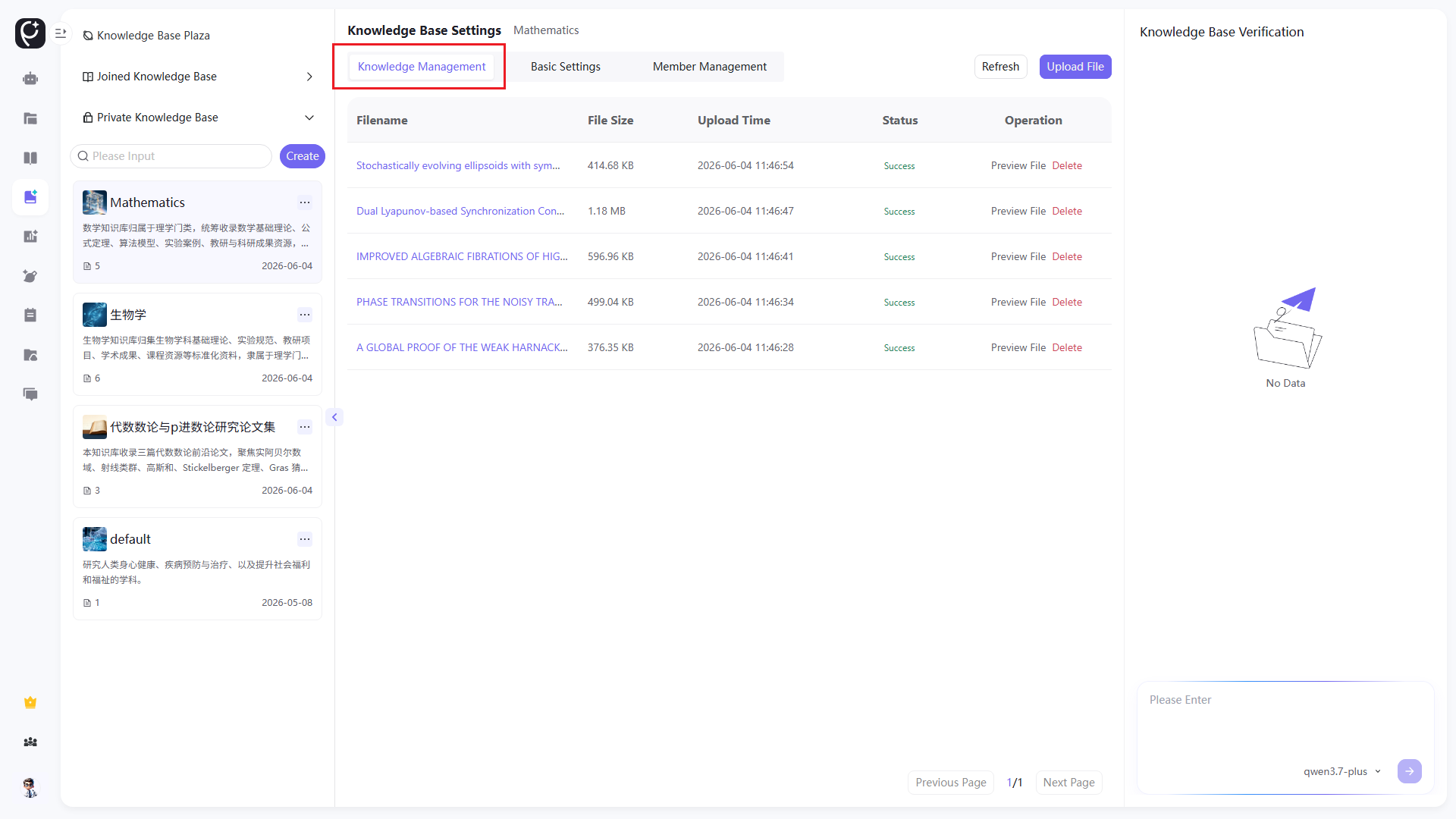
- Enter knowledge base settings → switch to the Knowledge Management tab;
- Upload Files: Click Upload Files at the top right to select local research documents such as PDFs for batch import;
- Refresh List: Click the Refresh button to reload the full file list of the current base;
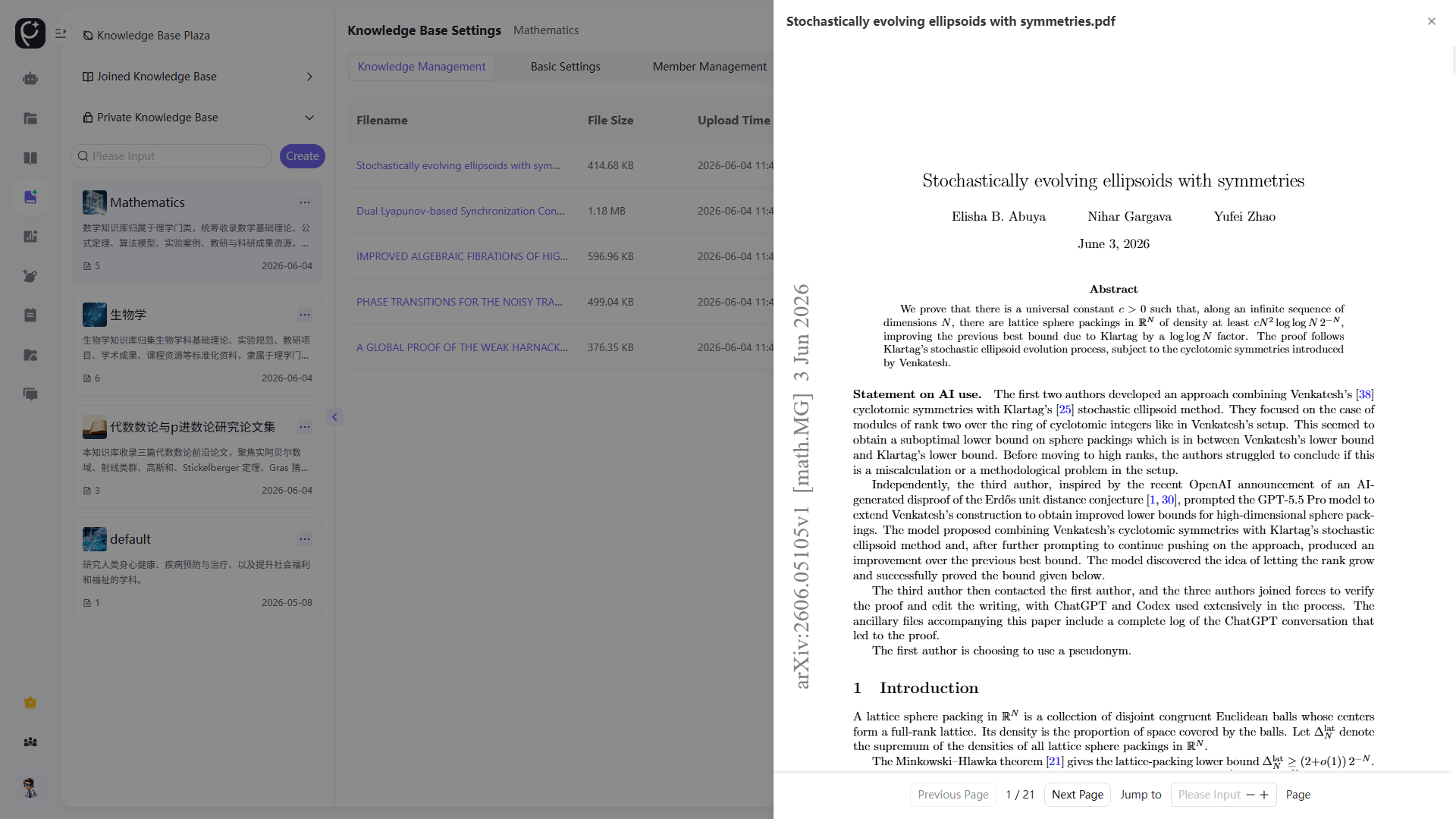
- File Operations: Click Preview File on the right of each file entry to open and view the original text online;
- Paginated Browsing: Switch between previous/next pages at the bottom for multi-page file lists;
- Knowledge Base Verification Panel on the right: Input questions to execute dedicated knowledge Q&A based on all files stored in the current base.
Knowledge Management
File Preview
Member Management Operations
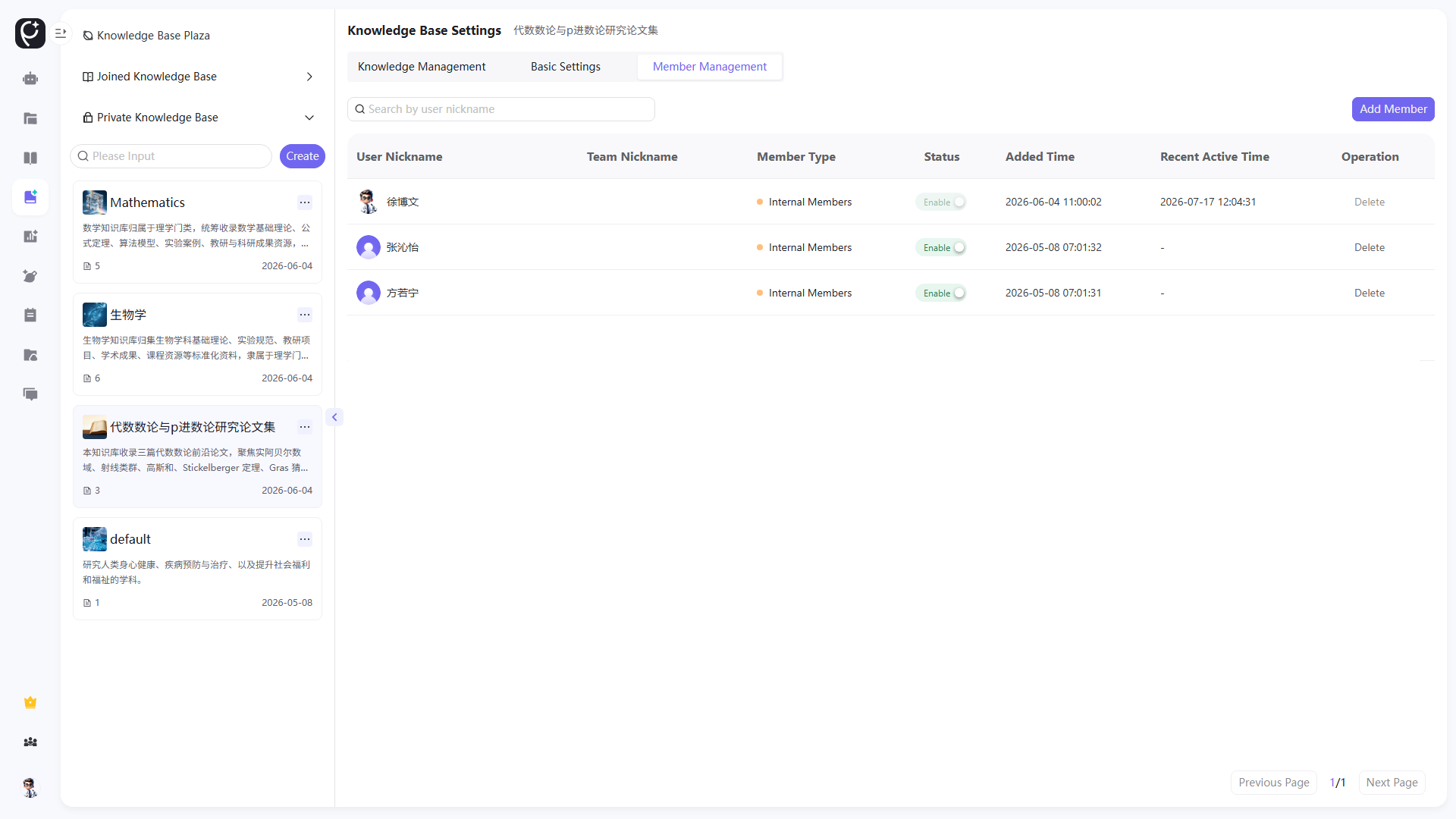
- On the knowledge base settings page, switch to the Member Management tab;
- Use the top search box to search for members by nickname;
- List display fields: User nickname, team nickname, member type (Internal Member / External Member), activation status, join time and last active time;
- Permission Control: Toggle member status between Activated / Disabled. Disabled members cannot access this knowledge base.
Browse Public Knowledge Bases in Knowledge Square
- Use the search box at the top of the page to input keywords and retrieve public knowledge bases across the entire platform;
- Filter by discipline tags at the top: Recommended, Demo Report, Engineering, Philosophy, Economics, Law, Education, Literature, History, Science, Agriculture, Medicine, Art, Business & Management;
- Sort Switch: Reorder public bases by publish time or citation count in ascending/descending order;
- Click a public knowledge base card to view its introduction, creator and publish time, and submit an application to join.
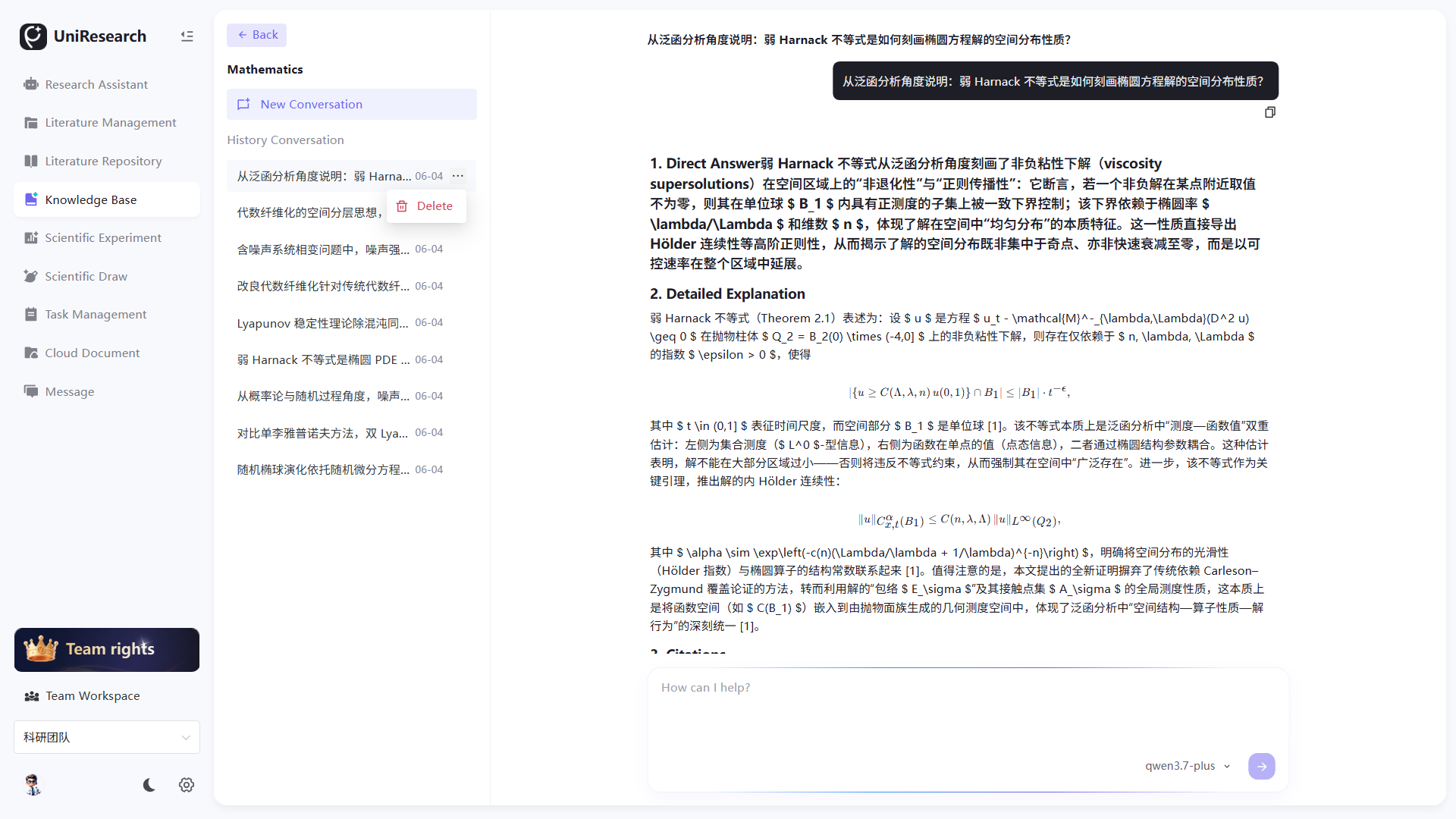
Knowledge Base Detail Page & AI Q&A Operations
- After entering the target knowledge base, the left side displays base information and the list of imported files;
- The middle/right area shows detailed base information including name, discipline classification, introduction and creation records;
- A Knowledge Base AI Q&A Input Box is provided at the bottom or right of the page for entering questions related to content inside the current base;
- Input a question and click Send, the system will generate answers based on parsed file contents stored in this knowledge base;
Function Specifications
Knowledge Base List
| Section Name | Function Description |
|---|---|
| Private Knowledge Bases | Knowledge bases independently created by the currently logged-in user with full management permissions; supports creation and right-click operations including Settings, Share and Delete |
| Knowledge Bases I Joined | Knowledge bases shared by others or the team; users only have viewing permissions, with only the Leave operation available and no management entries |
| Search Box | Filter matching list entries in real time by inputting keywords of knowledge base names |
Quick Operations for Knowledge Bases
| Function Item | Function Description |
|---|---|
| Settings | Enter the three-tab configuration page of the knowledge base: Basic Settings, Knowledge Management, Member Management |
| Share | Generate an accessible share link to invite internal/external members to view the knowledge base |
| Unpublish from Square | Remove public display on Knowledge Square; only invited users can access the base afterwards |
| Delete | Permanently delete the knowledge base and all uploaded files inside; deleted data cannot be recovered |
| Leave (Only for Joined Bases) | Voluntarily exit the shared knowledge base and lose viewing permissions |
Knowledge Base Settings
(1) Basic Settings
Manage core metadata of the knowledge base. Name, discipline classification and introduction are mandatory fields; modifications take effect immediately upon saving. Discipline classifications are synchronized with filter tags on Knowledge Square.
(2) Knowledge Management
- File List: Displays file name, file size, upload time and parsing status after import;
- Refresh: Reload the file list of the current knowledge base with anti-shake logic to avoid duplicate requests;
- Upload Files: Batch import local research documents, which are automatically chunked and stored into the vector database of the knowledge base for AI Q&A;
- Preview File: Open the original document online with full-text page flipping support;
- Knowledge Base Verification Panel: Dedicated Q&A window that only retrieves materials inside the current base and prompts users if questions are out of scope.
(3) Member Management
- Member Classification: Internal Members (users within the same team), External Members (invited users from other teams);
- Status Control: Toggle member access permissions between Activated and Disabled; disabled members cannot view any files in the base;
- Data Records: Retain member join time and last active time for traceability of collaboration behaviors.
Knowledge Square
- Global Search: Retrieve titles and introduction keywords of all public knowledge bases on the platform;
- Discipline Classification Tags: Quickly filter public research knowledge bases of corresponding fields;
- Sorting Rules: Two sorting dimensions: publish time and citation count;
- Public Base Card Information: Displays base name, introduction, citation count, publish date and creator identity (Personal Space / Research Team).
Knowledge Base Detail Page Function Specifications
| Function Item | Function Description |
|---|---|
| Knowledge Base Name | Displays the name of the current knowledge base, editable in Settings |
| Discipline Classification | Shows the affiliated discipline of the knowledge base, such as Physics, Economics and Engineering |
| Knowledge Base Introduction | Describes collected content, research directions or usage purposes of the base |
| Imported File List | Shows files uploaded and fully parsed in the current knowledge base |
| File Entry | Click to view file details, preview original text or check parsing status |
| AI Q&A Input Box | Conduct dedicated knowledge Q&A based on content inside the current knowledge base |
| Q&A Result Area | Displays answers retrieved and summarized from materials in the knowledge base |
| Out-of-scope Prompt | Reminds users that answers cannot be provided when questions are irrelevant to the knowledge base |
Rules for Knowledge Base AI Q&A
- Q&A scope is limited exclusively to contents of files imported into the current knowledge base;
- Answers shall prioritize citing materials stored in the knowledge base instead of arbitrarily generating external content;
- If multiple files contain relevant information, the system shall synthesize and summarize clear conclusions;
- If the question is irrelevant to the current knowledge base, clearly prompt that it is out of scope without fabricating answers;
- Q&A results can serve as auxiliary research references, but key contents are recommended to be traced back to original literatures or files.
Typical Usage Scenarios
- Check whether relevant materials for a specific knowledge point exist in the knowledge base;
- Rapidly summarize consensus viewpoints across multiple literatures;
- Locate specific experimental methods, theoretical models or author viewpoints;
- Compile research summaries or literature notes based on imported materials;
- Verify whether newly uploaded files have been successfully parsed and invoked by Q&A functions.