Cloud Document
Overview
The Cloud Document module is a workspace for online collaborative editing and structured storage of research documents. It supports multi-level document library classification, online rich text/code collaborative editing, permission control, document sharing for collaboration, and multi-format export. It can uniformly store research materials such as paper reviews, experimental records, project proposals and code notes, realizing hierarchical document archiving, multi-person online collaborative creation, permission approval, operation traceability and linkage with other functional modules.
Applicable Roles
- Individual Research User: Can create private document libraries, create/edit personal documents, and hold full management permissions for personal documents;
- Document Library Creator (Library Administrator): Full control permissions over the document library, including configuring library name, description, cover and access permissions, and managing all documents inside the library;
- Document Owner: Full operation permissions for a single document, including renaming, moving, transferring ownership, deleting, sharing for collaboration, approving permission applications, enabling exclusive editing and archiving;
- Collaborator: Only granted online document editing and comment permissions, without access to deletion, transfer, ownership transfer or approval operations;
- Read-only Shared Member: Only allowed to preview and download documents, unable to edit or modify contents;
- Team Administrator: Control global permissions of team document libraries and manage the scope of document access for team members.
Core Functions
- Document Library Lifecycle Management: Create document libraries, configure basic information (Name/Description/Cover/Permissions), rename/move/share/delete document libraries;
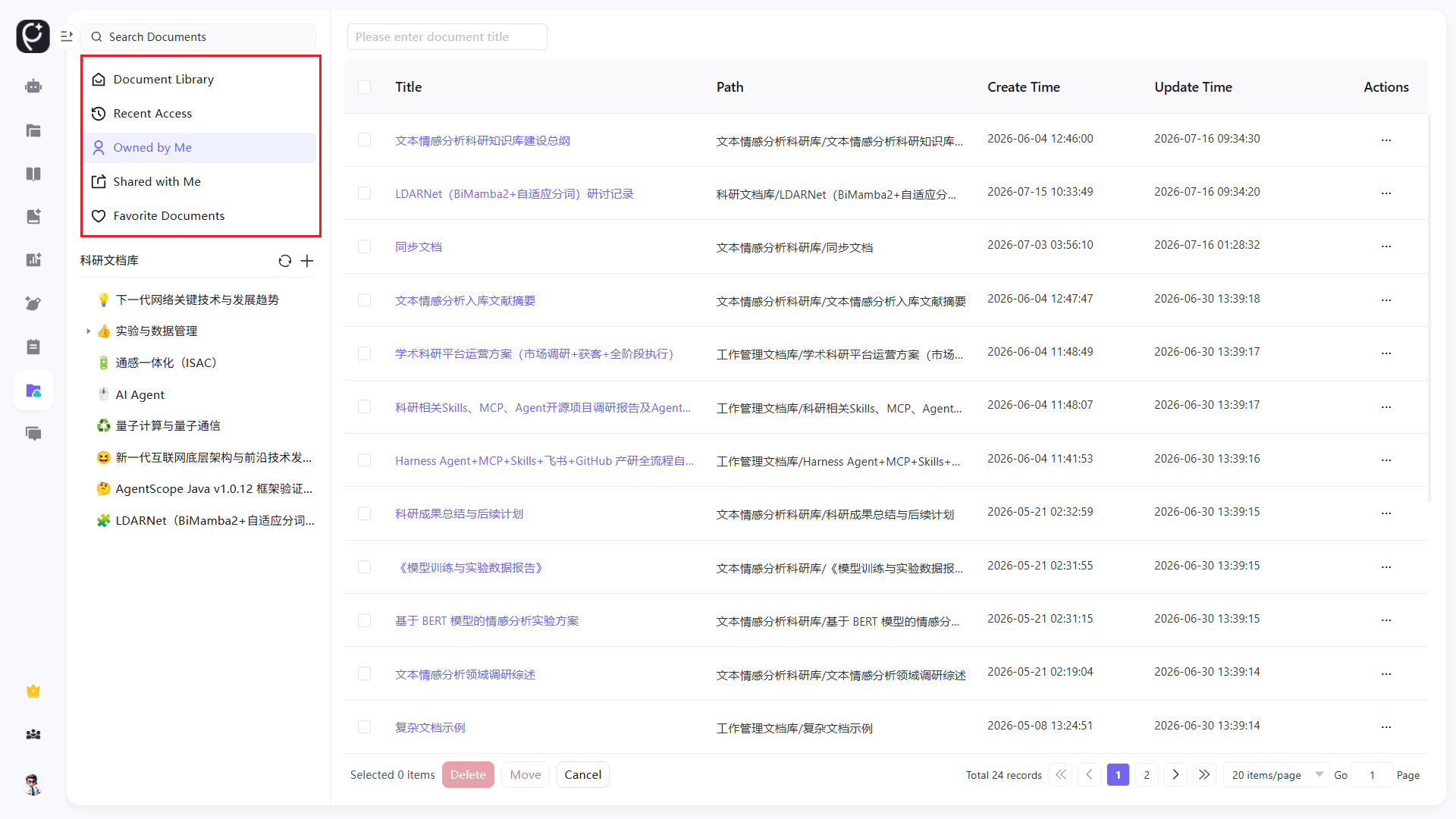
- Left-side Document View Classification: Document Libraries, Recently Visited, Owned By Me, Shared With Me, Collected Documents for quick document filtering;
- Full Document Lifecycle Operations: Create new documents, manage single/batch documents (collaborate, archive, share, duplicate, rename, transfer ownership, move, delete, view details);
- Document Detail Control Panel: Overview, Permission Management (permission approval), Sharing & Version, Access Log; supports enabling exclusive editing and archiving;
- Online Collaborative Editor: Rich text headings, code blocks, formulas, tables and insert components, supporting real-time multi-person collaborative editing;
- Document Export & Distribution: Export in multiple formats including PDF/Word/Markdown, generate share links;
- Hierarchical Permission Control: Two permission levels for document libraries: Private / Visible to All Members; single documents support multi-person collaboration, ownership transfer, external permission application approval and exclusive editing lock;
- Search & Pagination: Global document title search, paginated list display, supports batch selection for batch moving/deletion;
- Traceable Operations: Complete access logs recording all members' viewing, editing and exporting behaviors.
Operation Guide
Access the Cloud Document Module
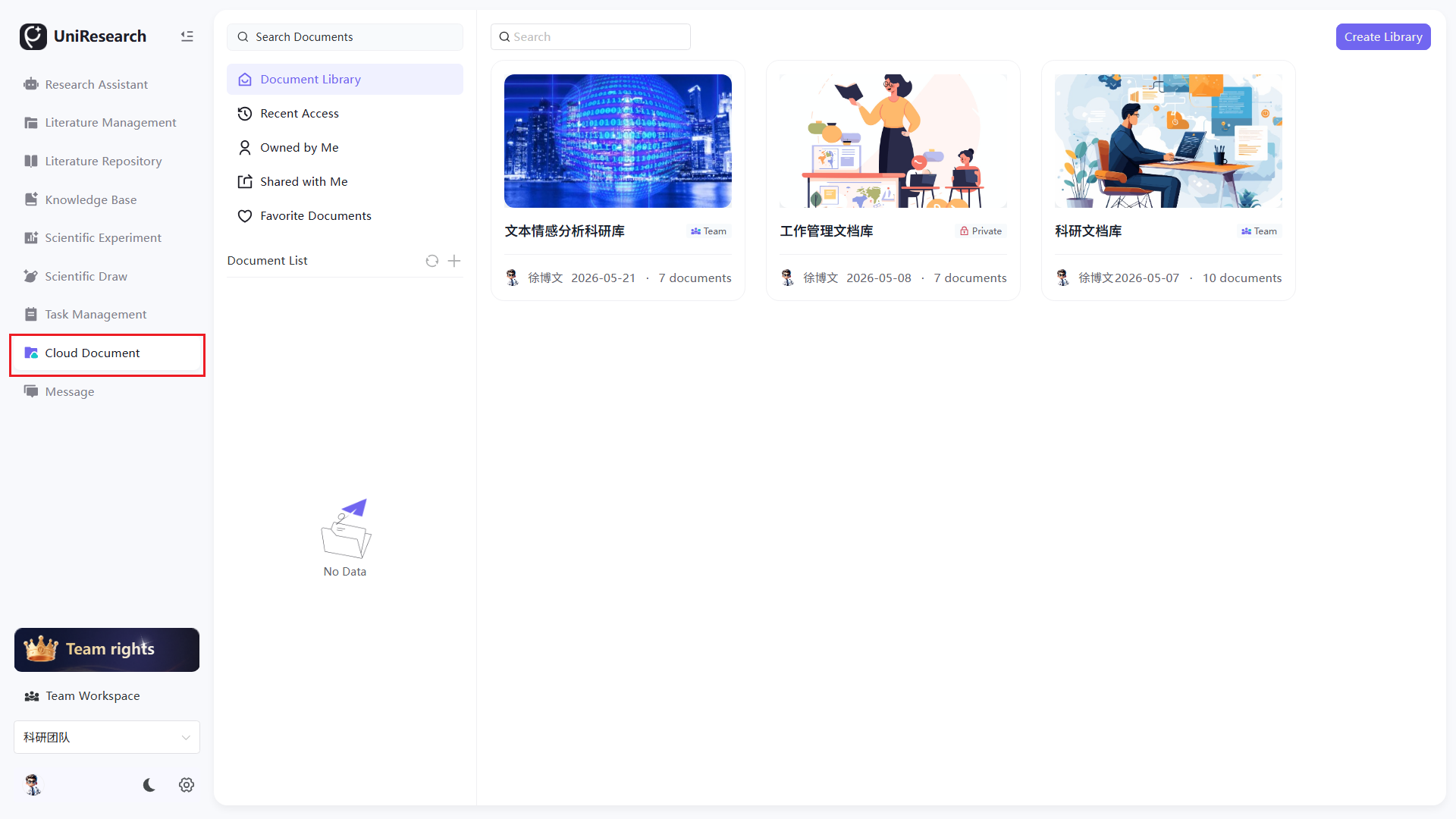
Click Cloud Document on the left navigation bar, and the document library homepage is displayed by default.
Create a New Document Library
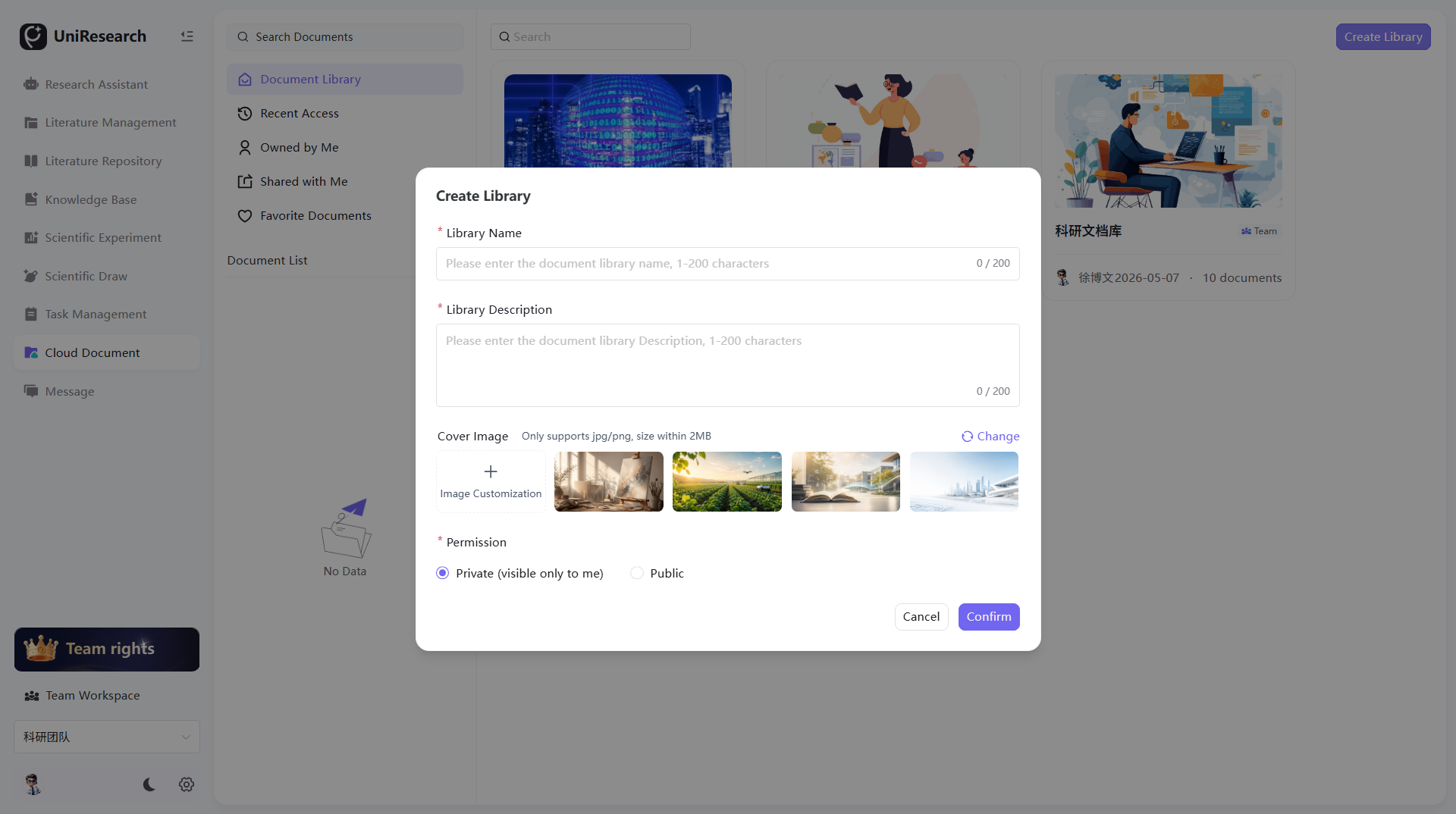
- Click New Document Library at the top right of the page to pop up the configuration window;
- Fill in mandatory items: Document Library Name (1-200 characters), Document Library Description (1-200 characters);
- Cover Image Configuration: Custom upload jpg/png (≤2MB) or select system preset discipline covers;
- Permission Selection: Private (Only visible to creator) / Visible to All Members;
- Click Confirm to finish creation.
Document Library List Operations
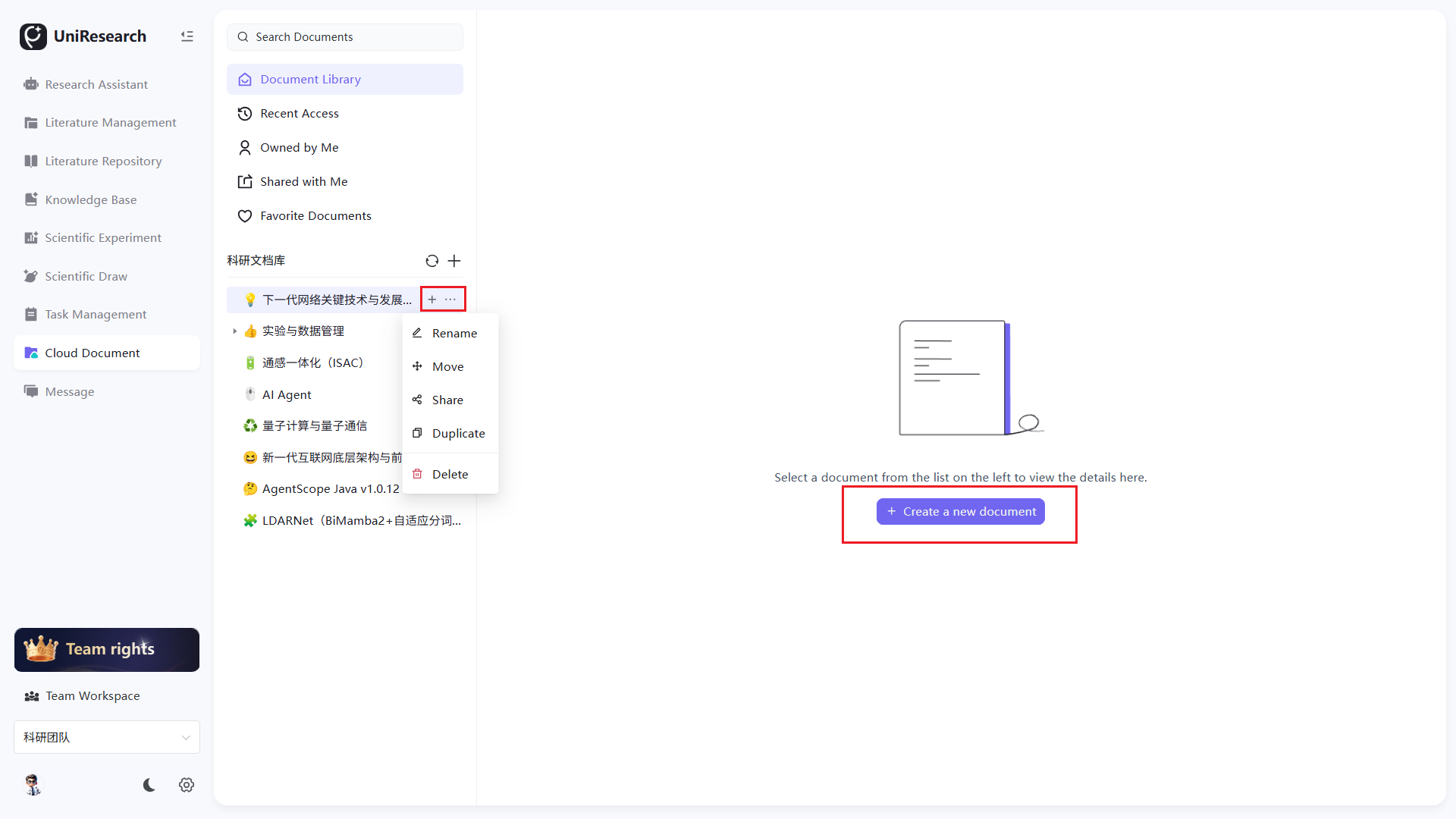
- Select the target document library and click the … More button on the document list;
- Optional operations: Rename, Move Documents, Share Documents, Create Document Duplicate, Delete Documents;
- Click the + button next to the document list, enter the document title in the pop-up window to quickly create a new document in the current library.
Create a Single New Document
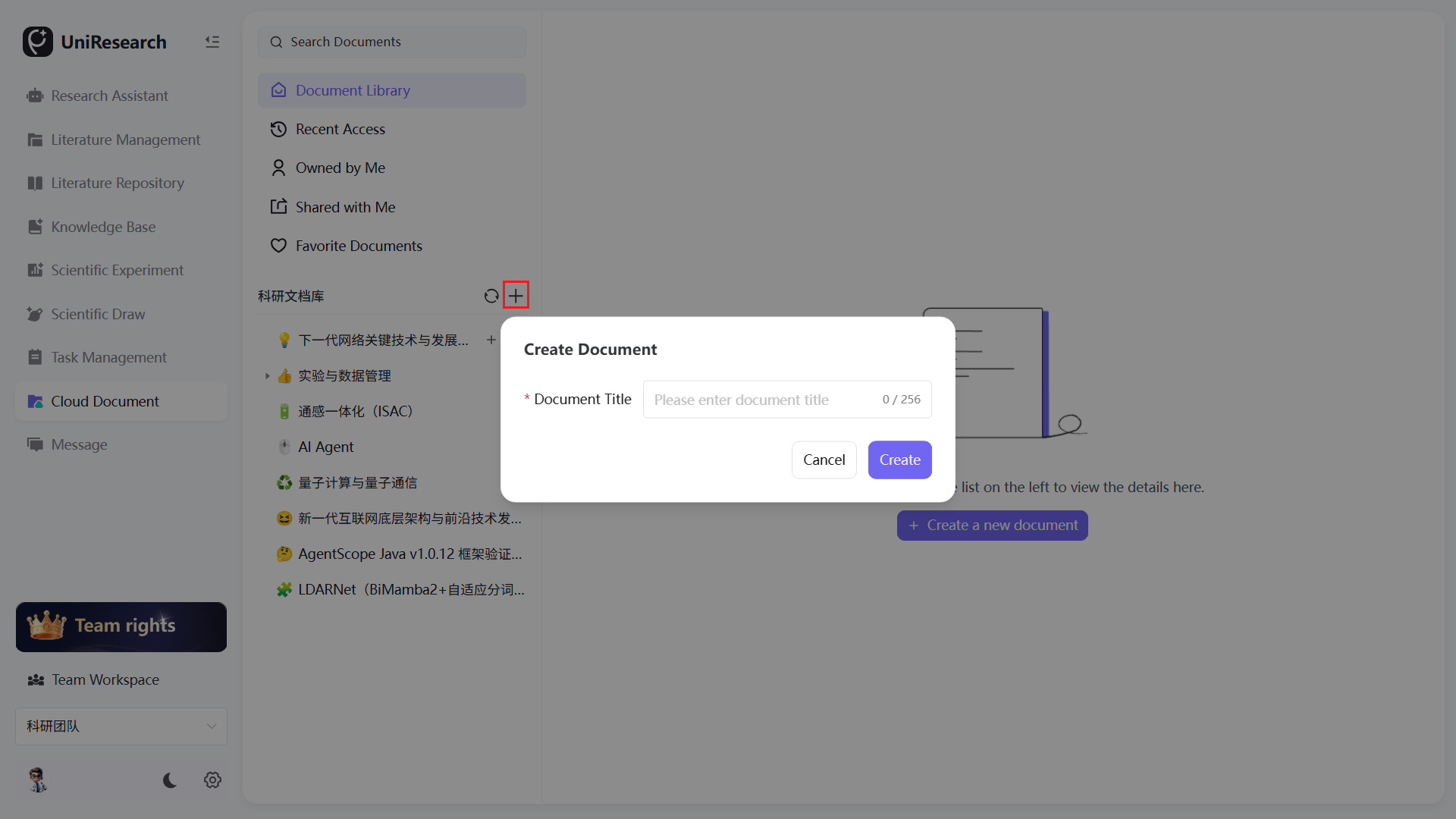
- Two entrances:
- The + button at the bottom of the document list page;
- The + button on the left directory tree;
- Enter the document title (0-256 characters) in the pop-up window and click New to enter the online editor.
Document List Management Operations
- Enter title keywords in the top search box for fuzzy search of all documents;
- List display fields: Title, Storage Path, Creation Time, Modification Time;
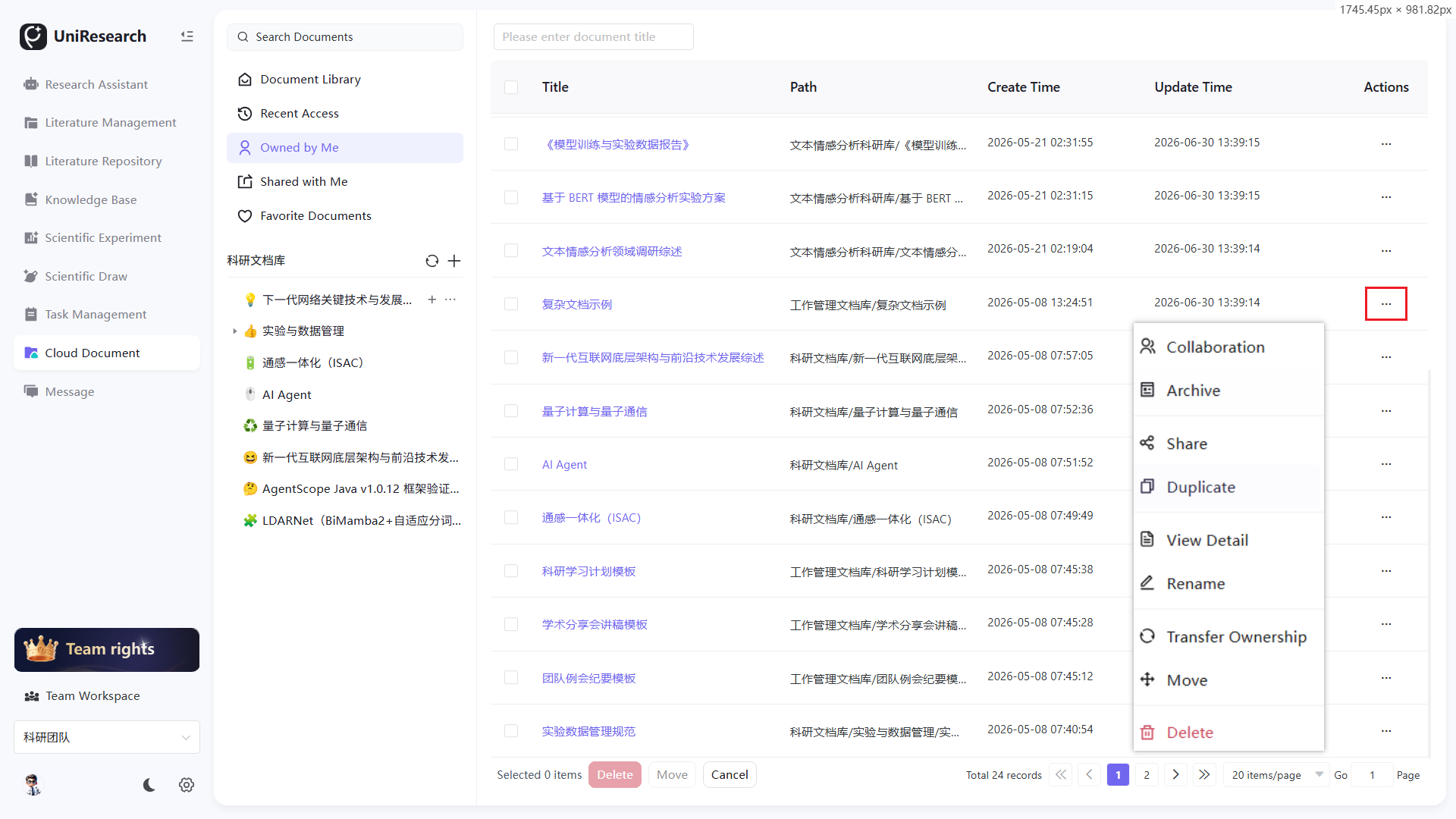
- Single Document Operations: Click the … button on the right to pop up the operation menu, supporting Collaborate, Archive, Share, Create Duplicate, View Details, Rename, Transfer Ownership, Move and Delete;
- Batch Operations: Check multiple documents and perform batch move or batch delete at the bottom;
- Pagination Control: Switch page numbers and customize items displayed per page.
Operations in Document Detail Panel
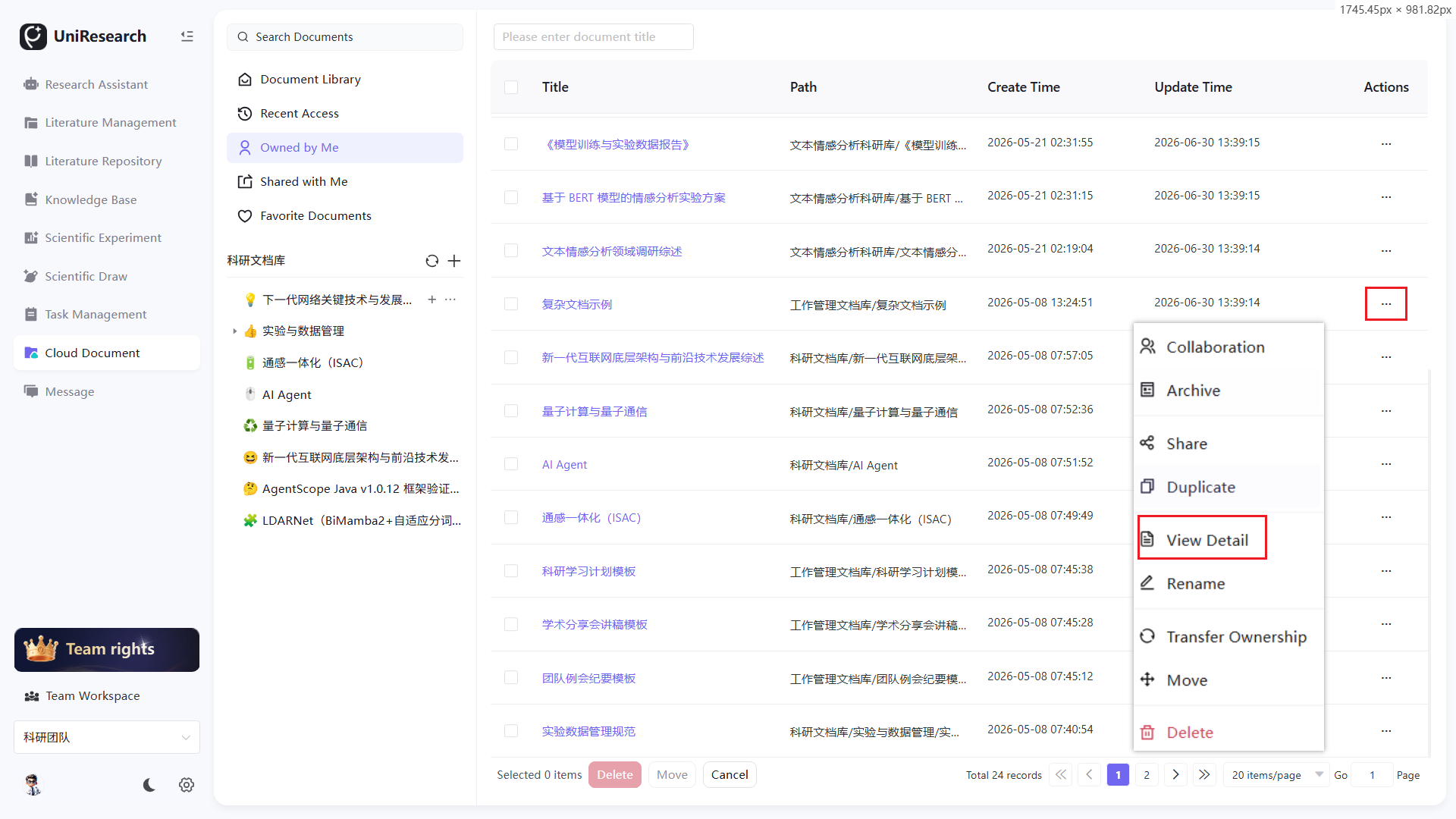
- Access Method: Click View Details in the operation menu on the right of the document list to pop up the detail panel on the right;
- Four functional tabs on the top: Overview, Permission Management, Sharing & Version, Access Log;
- Overview: Display basic information such as document owner, creation time and storage path;
- Permission Management
- Permission List: Display existing members, divided into two permission levels: Editable and Administrator;
- Approval List: Show external members' permission applications, support Approve / Reject for pending applications and view application details;
- Top-right buttons:
- Enable Exclusive Editing: After enabling, only one user can edit at the same time to avoid content conflicts caused by concurrent multi-person editing;
- Archive: Move the document to archive status; no one can edit it, and archiving can be cancelled to restore editing permissions;
- Sharing & Version: Manage external share links, configure link permission validity period; view historical versions and support version rollback;
- Access Log: Fully record all members' operations including opening, editing, exporting and downloading, with full traceability.
Online Editor Usage
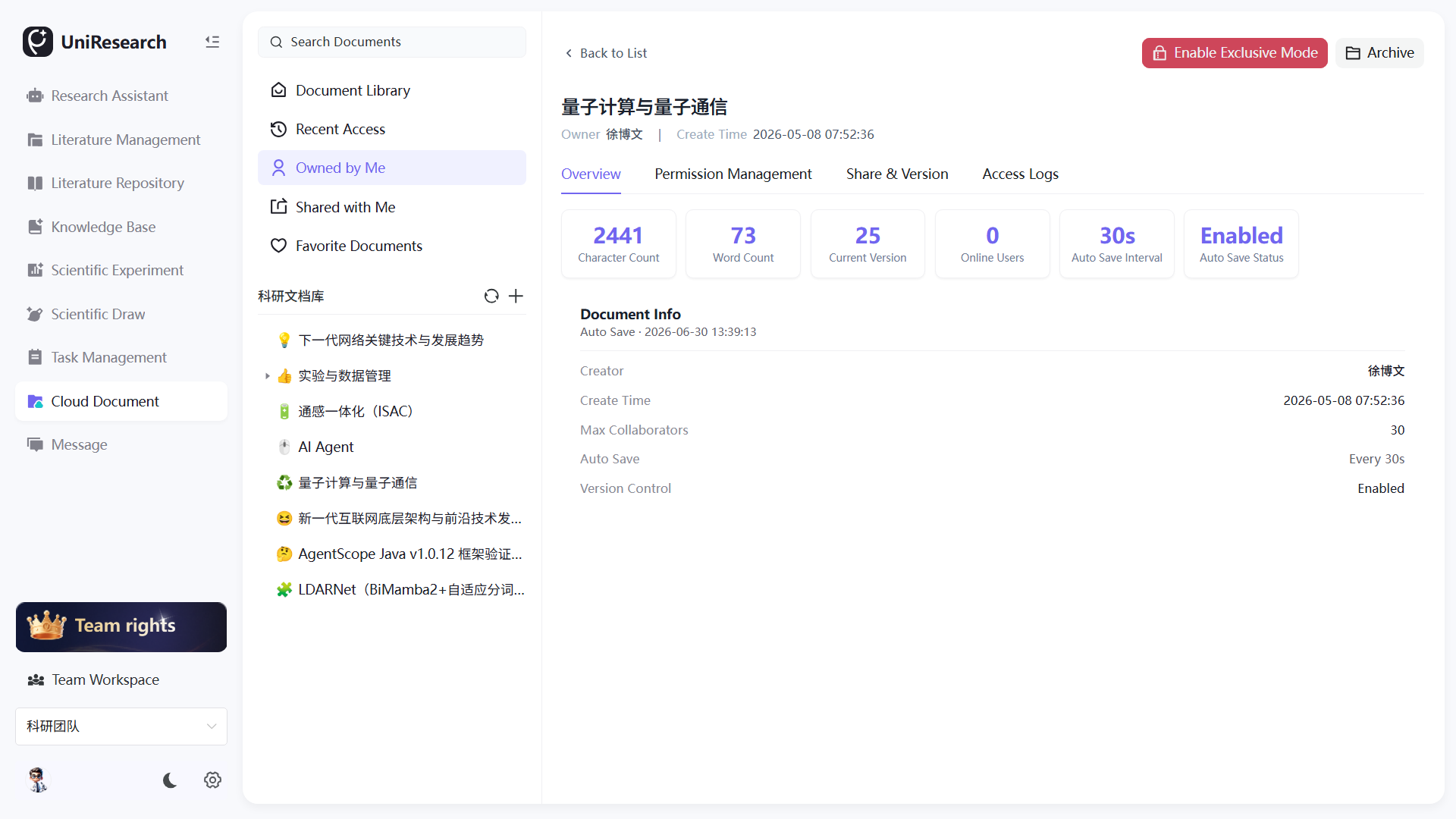
- Left Directory Tree: Quickly switch other documents in the same library;
- Editing Toolbar: Rich text components including heading levels, bold/italic/code/table/formula/code blocks;
- Code Editing: Multi-programming language code blocks with automatic line wrapping;
- More Operations at Top Right: Collect, multi-format download, copy link, collaborate, create duplicate, delete;
- Share Button: Generate share links and configure read-only/editable permissions;
- Manage Button: Jump to the basic configuration page of the current document library.
Switch Left Classification Views
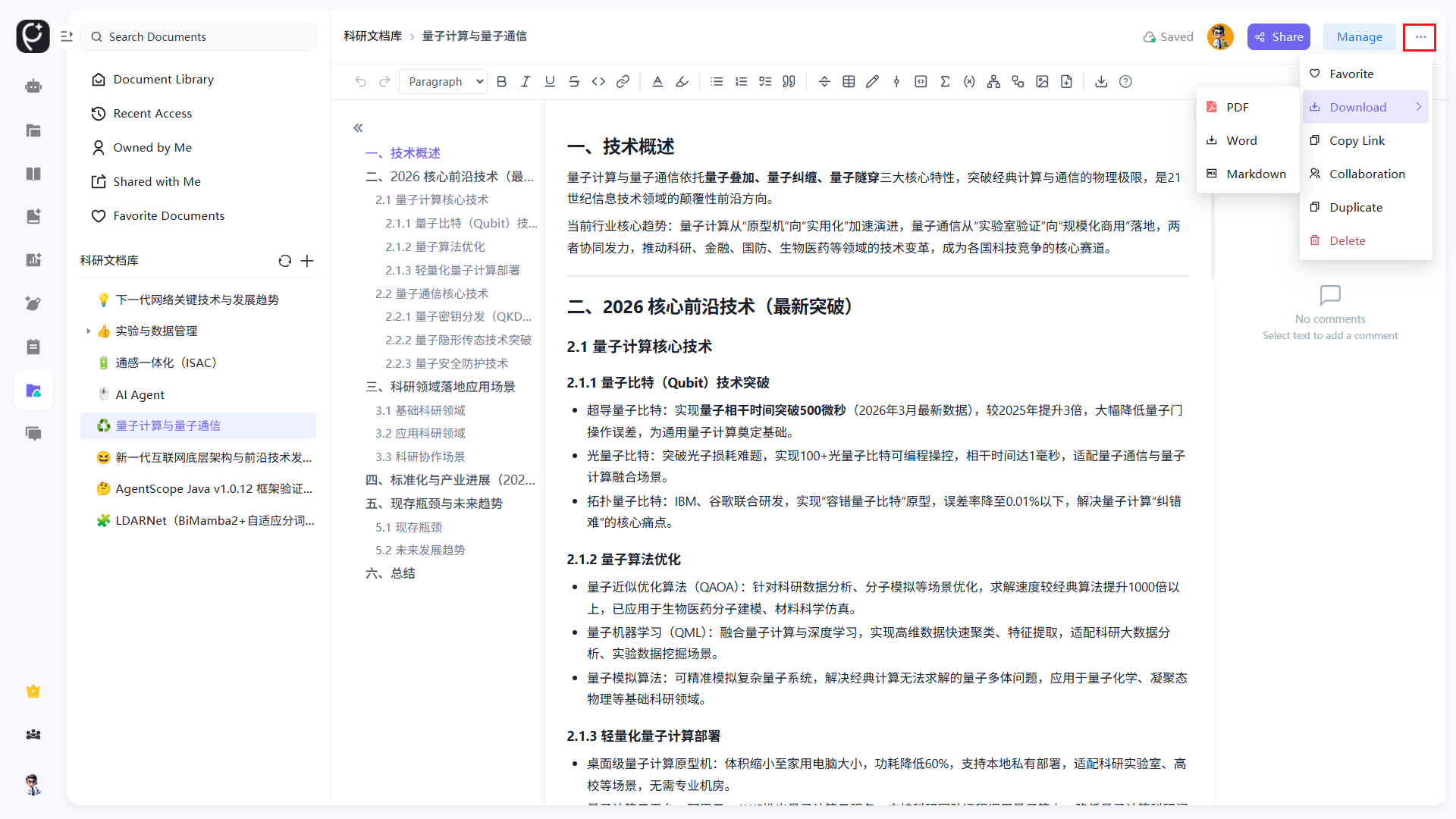
- Document Libraries: All self-built / team-shared document libraries;
- Recently Visited: Quick entry for recently opened and edited documents;
- Owned By Me: All documents with ownership held by the current user, with full management and approval permissions;
- Shared With Me: Collaborative / read-only documents shared by others;
- Collected Documents: Manually collected frequently-used documents for quick access.
Function Specifications
Configuration Items for New Document Library
| Configuration Item | Constraints & Description |
|---|---|
| Document Library Name | Mandatory, 1~200 characters, used to distinguish research topics or project categories |
| Document Library Description | Mandatory, 1~200 characters, explain the purpose and research field of documents stored in the library |
| Cover Image | Optional, jpg/png format with maximum file size 2MB; support custom upload or selection of system templates |
| Document Library Permission | Private: Only accessible to the creator; Visible to All Members: All team members can view documents inside the library |
Right-click Operations for Document Libraries & Document Lists
| Function Item | Function Description |
|---|---|
| Rename | Modify the display name of the document library or document |
| Move | Migrate documents to other document libraries for hierarchical storage |
| Share | Generate document share links to batch share all documents in the library |
| Create Duplicate | Fully copy the current document to generate a new independent document |
| Delete | Remove documents after secondary confirmation; all sub-documents will be cleared synchronously |
Single Document Operation Menu in Document List
| Function Item | Function Description |
|---|---|
| Collaborate | Add team members, assign edit/read-only permissions and enable multi-person collaboration |
| Archive | Archive the document; no users can edit it, and archiving can be cancelled to restore editing permissions |
| Share | Generate an independent share link for a single document with configurable access validity and permissions |
| Create Duplicate | Copy full document content to generate a new independent document |
| View Details | Open the right-side detail panel to uniformly manage permissions, approvals, sharing, access logs, exclusive editing and archive settings |
| Rename | Modify the document title without affecting internal document content |
| Transfer Ownership | Hand over full document management permissions to other team members |
| Move | Migrate the document to other document libraries/sub-documents |
| Delete | Remove the document; files can be restored from recycle bin within a short period, and permanently deleted data cannot be recovered |
Sub-functions of Document Detail Panel
Permission Management - Approval Capability
- Automatically receive external members' access permission applications for documents;
- Support operations on application forms: Approve to grant corresponding permissions, Reject to turn down applications;
- View applicant, applied permission, application time and application details.
Exclusive Editing Lock
After enabling, only one user is allowed to edit the document online at the same time, and other online users are restricted to read-only mode to prevent content coverage conflicts caused by simultaneous editing; the owner can disable exclusive editing at any time.
Access Log
Fully record all users' access, editing, export and download behaviors, including operator, operation time and operation type, meeting the traceability requirements of research data.
Capabilities of Online Editor
- Rich Text Editing: Academic layout components including multi-level headings, text styles, lists, tables, formulas, pictures and dividing lines;
- Code Block Editing: Syntax highlighting for multiple programming languages and automatic line wrapping, suitable for algorithm and experimental code notes;
- Real-time Multi-person Collaboration: Real-time synchronization of cursors and text changes during simultaneous editing by multiple users, with editing records retained;
- Export Capability: One-click export to three general research document formats: PDF, Word and Markdown;
- Comment & Annotation: Select text to add comments for team online communication of revision suggestions;
- Collect: Add documents to the Collected Documents category for quick opening on the left sidebar.
Description of Document View Classifications
| Classification Name | Function Description |
|---|---|
| Document Libraries | Hierarchically display all private and team-shared document libraries and sub-documents for structured archiving of research materials |
| Recently Visited | Record recently opened and edited documents to reduce repeated search operations |
| Owned By Me | All documents with ownership held by the current user, with full editing, approval and management permissions |
| Shared With Me | Collaborative or read-only documents shared by others; users only hold assigned permissions without approval or exclusive editing permissions |
| Collected Documents | Manually collect frequently-used papers, project proposals and code notes for quick access |