Messages
Overview
The Messages module is a dedicated collaborative communication tool for research teams, divided into two sections: Chats and Channels. It supports one-on-one private chats, multi-person research group chats, team announcement channels and hierarchical permission channels, covering scenarios such as supervisor-student project communication, team academic seminars, institutional announcement release and real-time exchange of experimental issues. Equipped with session management, member control, message marking and channel permission configuration capabilities, it forms a closed-loop online communication workflow for research collaboration.
Applicable Roles
- Ordinary Research Member: Initiate private chats, join group chats/channels, send messages, mark messages as unread and view channel content;
- Group Owner: Create group chats, view group members and remove ordinary group members;
- Channel Administrator / Creator: Create new channels, configure channel permissions, add or remove channel members, edit channel information, delete channels and enable administrator-only posting mode;
- Team Administrator: Control permissions of all group chats and channels within the team, and coordinate distribution channels for team announcements.
Core Functions
- Dual-section layout: Chats (private/group chats) and Channels (public/private announcement channels);
- Session Creation: Launch one-on-one private chats, create multi-person research group chats and build hierarchical permission channels;
- Session Management: Search session lists, mark messages as unread and view online status;
- Group Member Control: View group member list; group owners can remove ordinary members;
- Fine-grained Channel Permission Configuration: Distinguish public and private channels, enable Administrators Only Posting; add/remove channel members, edit channel information and delete channels;
- Real-time Communication: Send text messages and display online member status for instant exchange of academic issues.
Operation Guide
Access the Messages Module
Click Messages on the left navigation bar. The Chats page opens by default, and you can switch between the Chats / Channels tabs at the top.
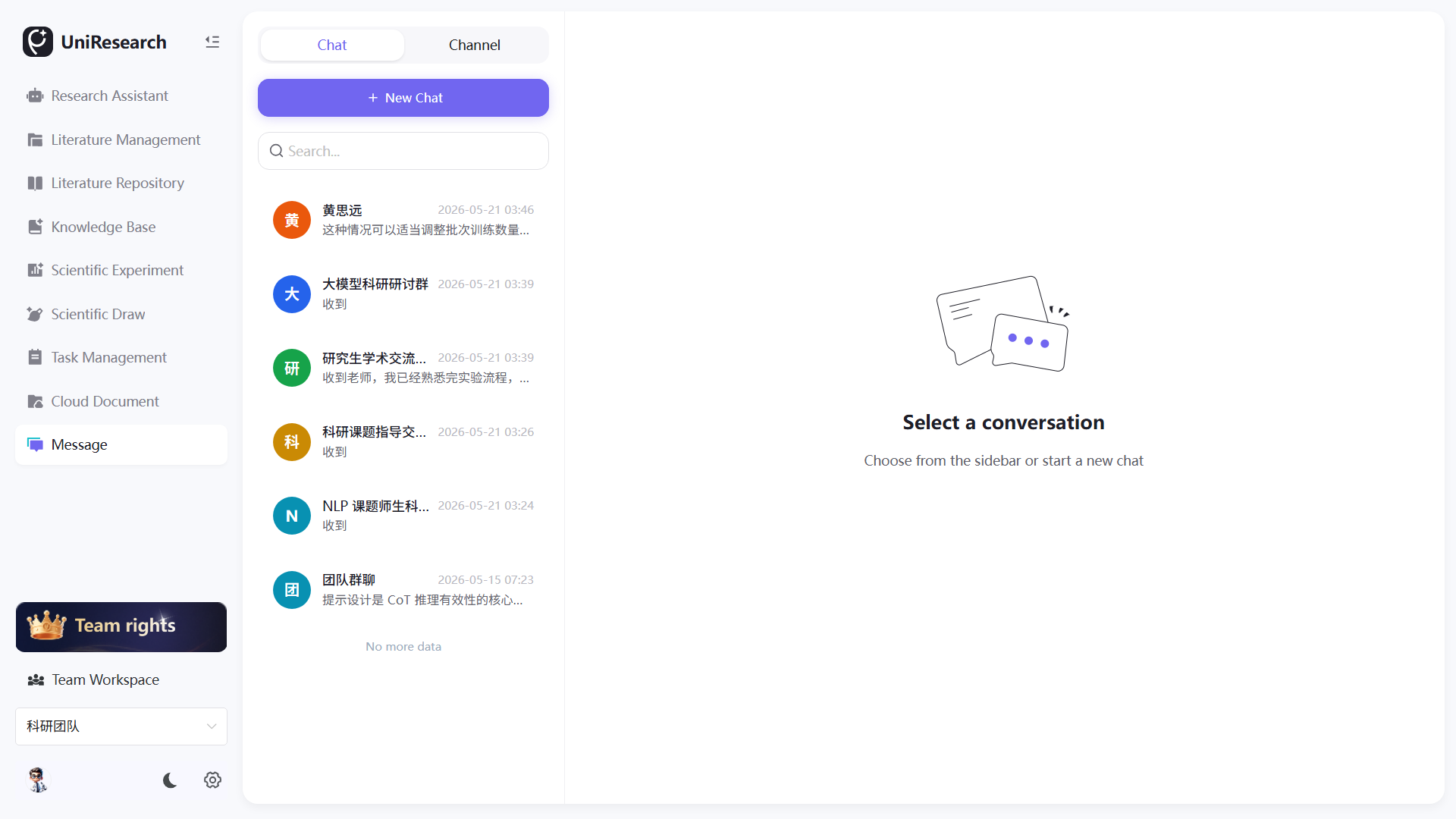
Operations in Chats Section
Create New Sessions
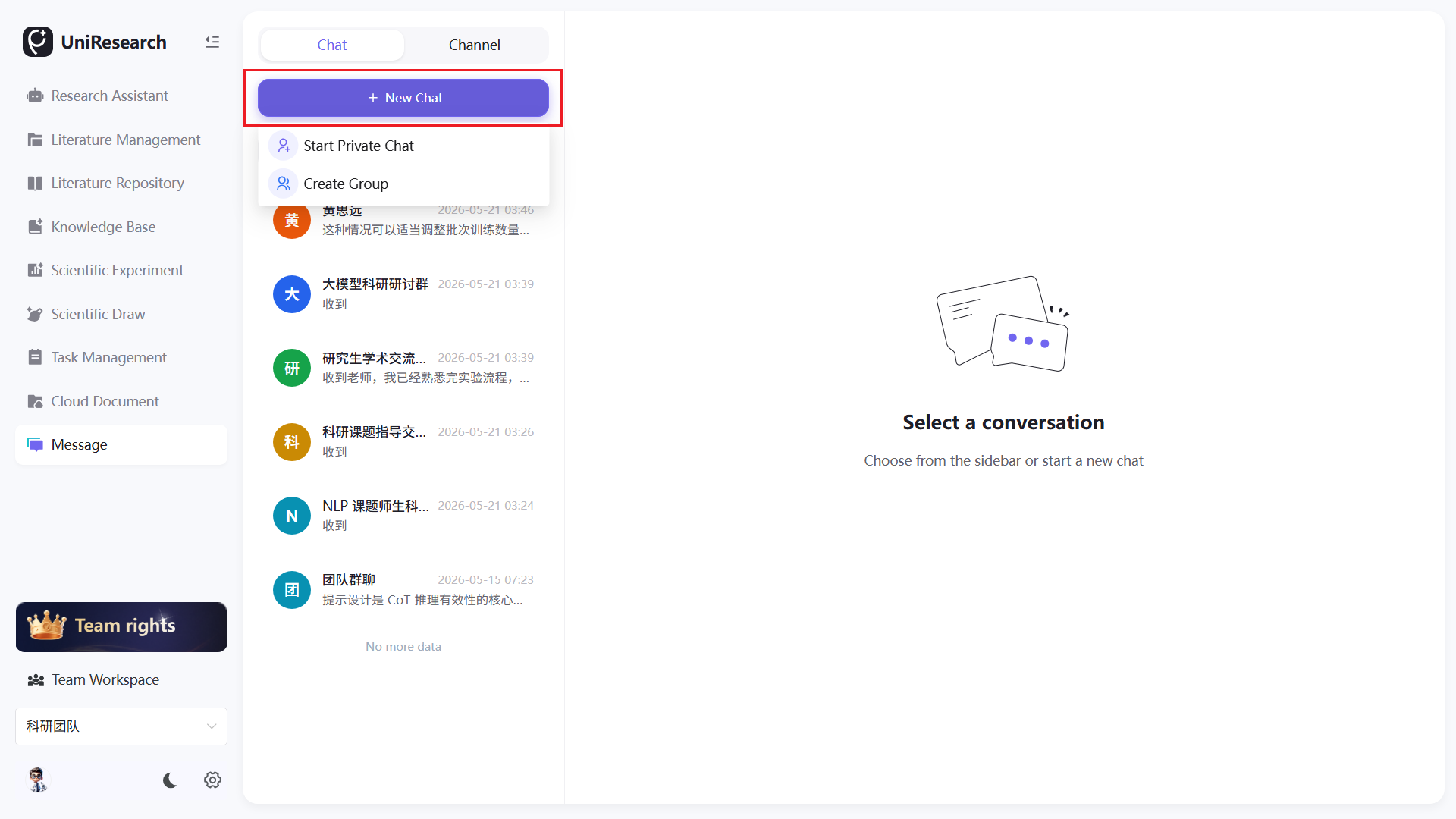
- Click the purple + New Chat button at the top of the page;
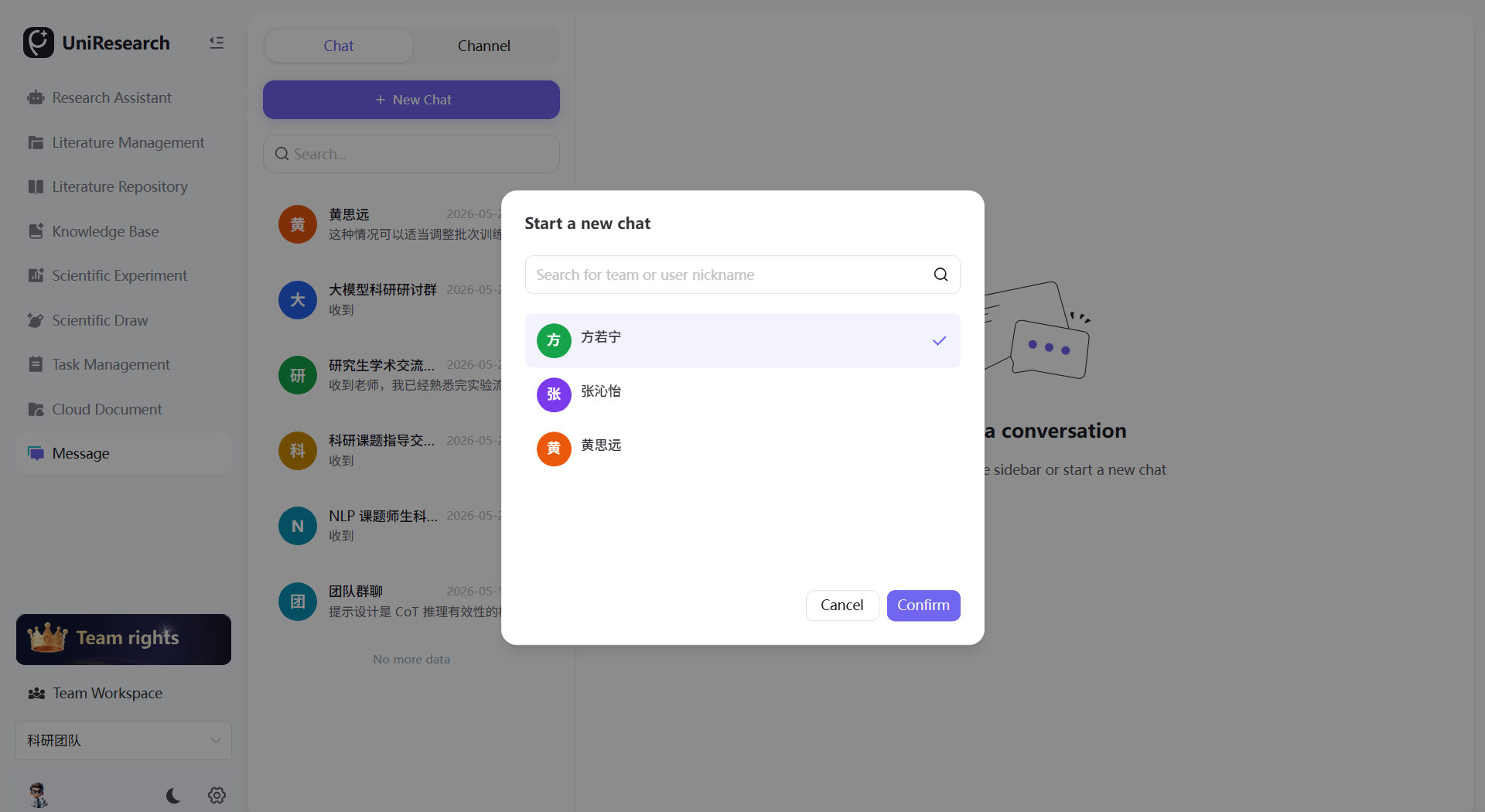
- Start Private Chat: Search user nicknames, select target members and click Confirm in the pop-up window to create a one-on-one private chat;
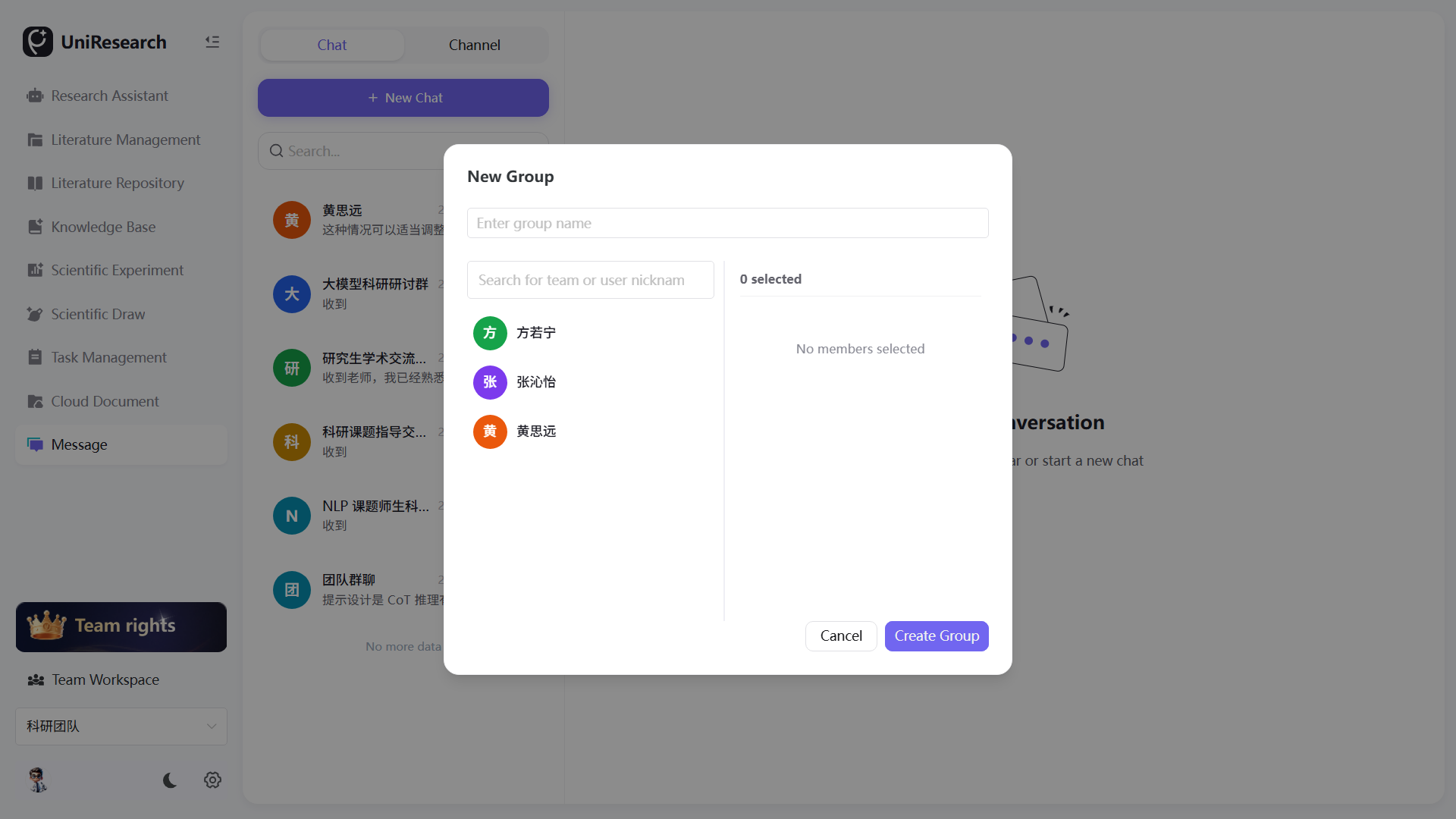
- Create Group Chat: Enter the group name, tick multiple team members and click Create Group Chat to generate a multi-person discussion group.
Create Private Chat
Create Group Chat
Basic Operations on Session List
- Enter nicknames in the top search box to quickly retrieve corresponding private/group chat sessions;
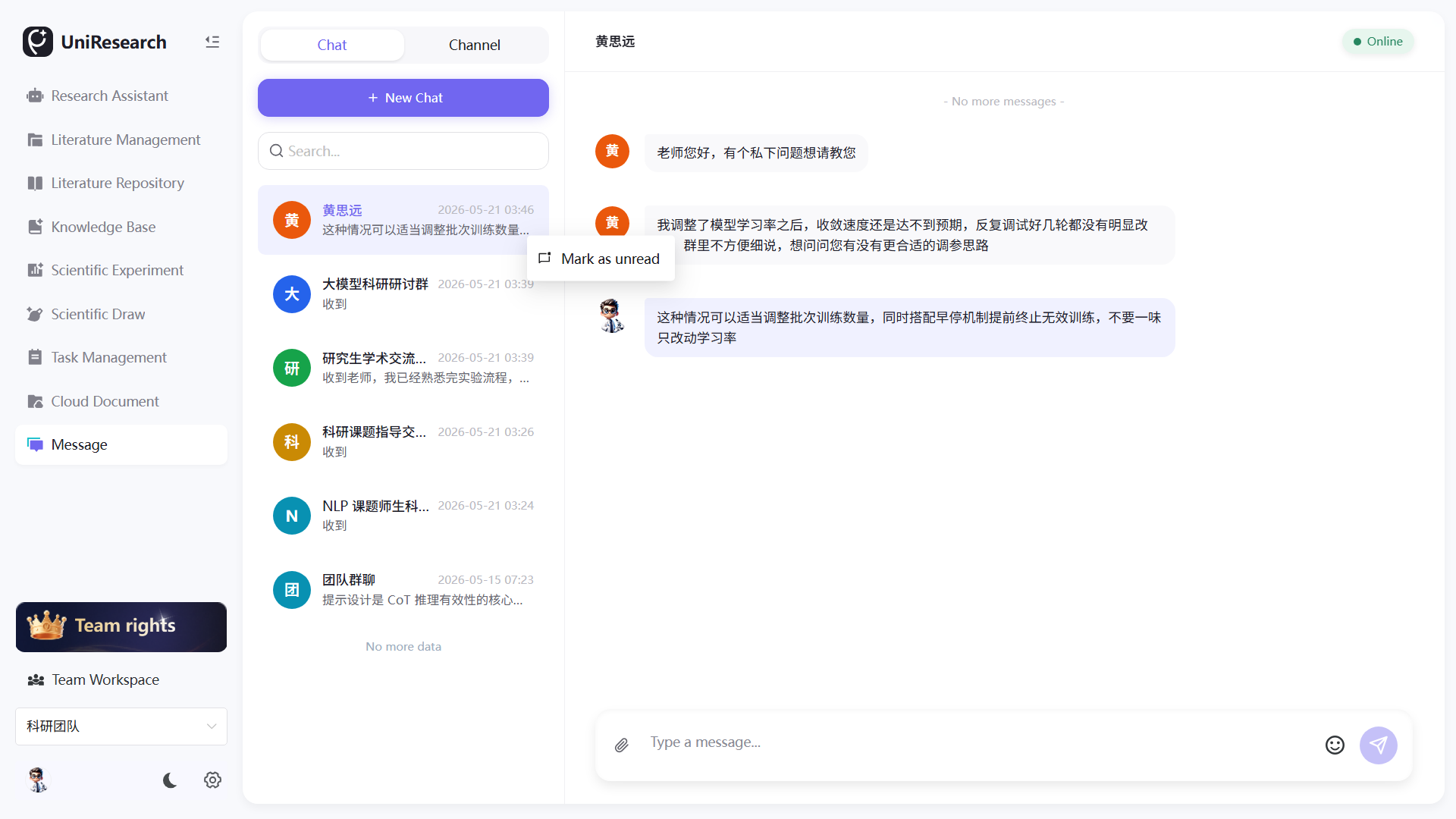
- Hover the mouse over a session entry and click Mark as Unread to reset the unread red dot reminder;
- Open the chat panel on the right of the session, send text messages via the input box at the bottom, and view members' online status at the top right.
Group Member Management
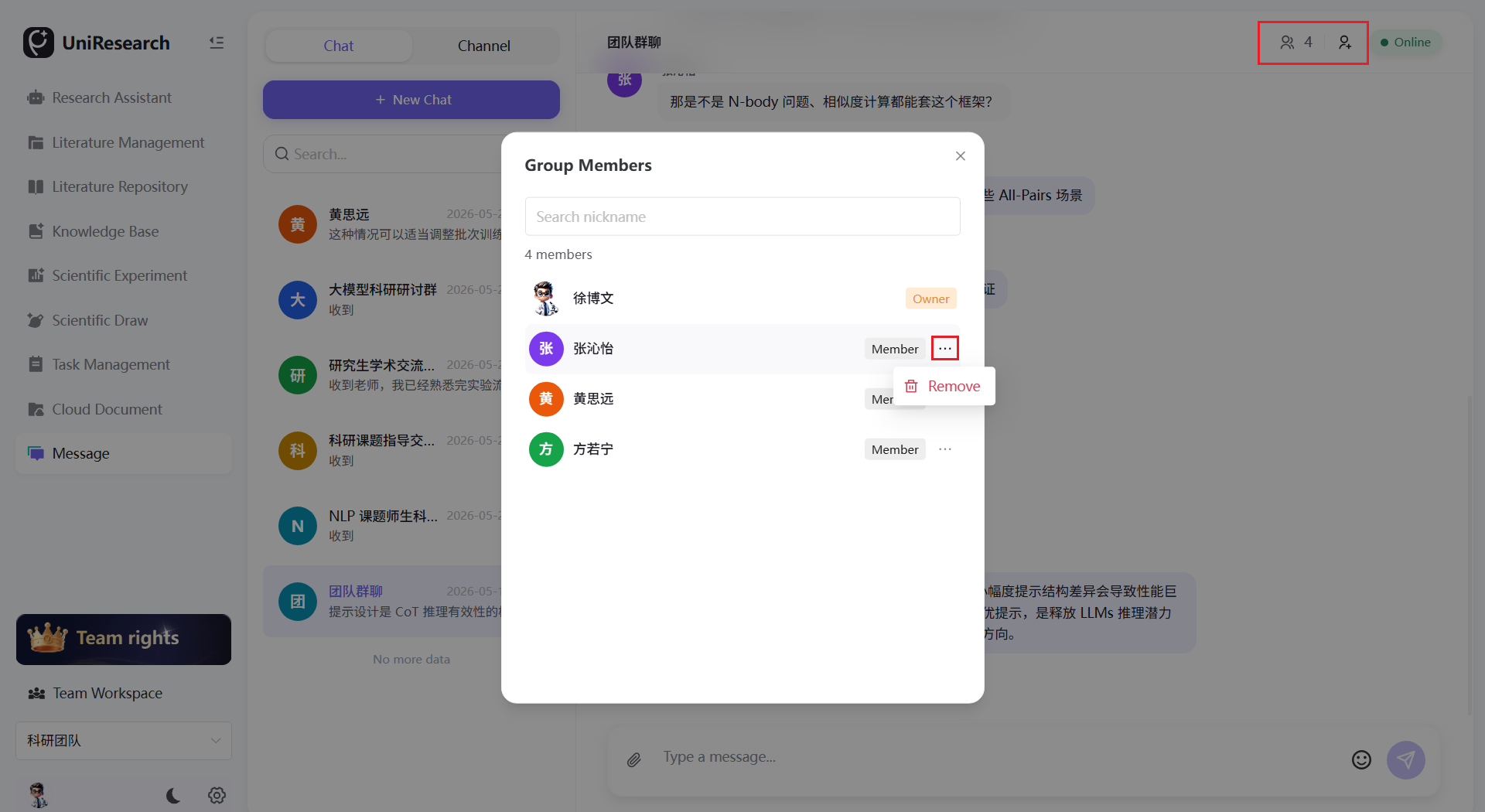
- Enter the target group chat and click the member avatar icon at the top right;
- The pop-up window displays all group members, marked as Group Owner or Member;
- Hover the mouse over the … button next to an ordinary member and click Remove to kick the member out of the group.
Operations in Channels Section
Create New Channel
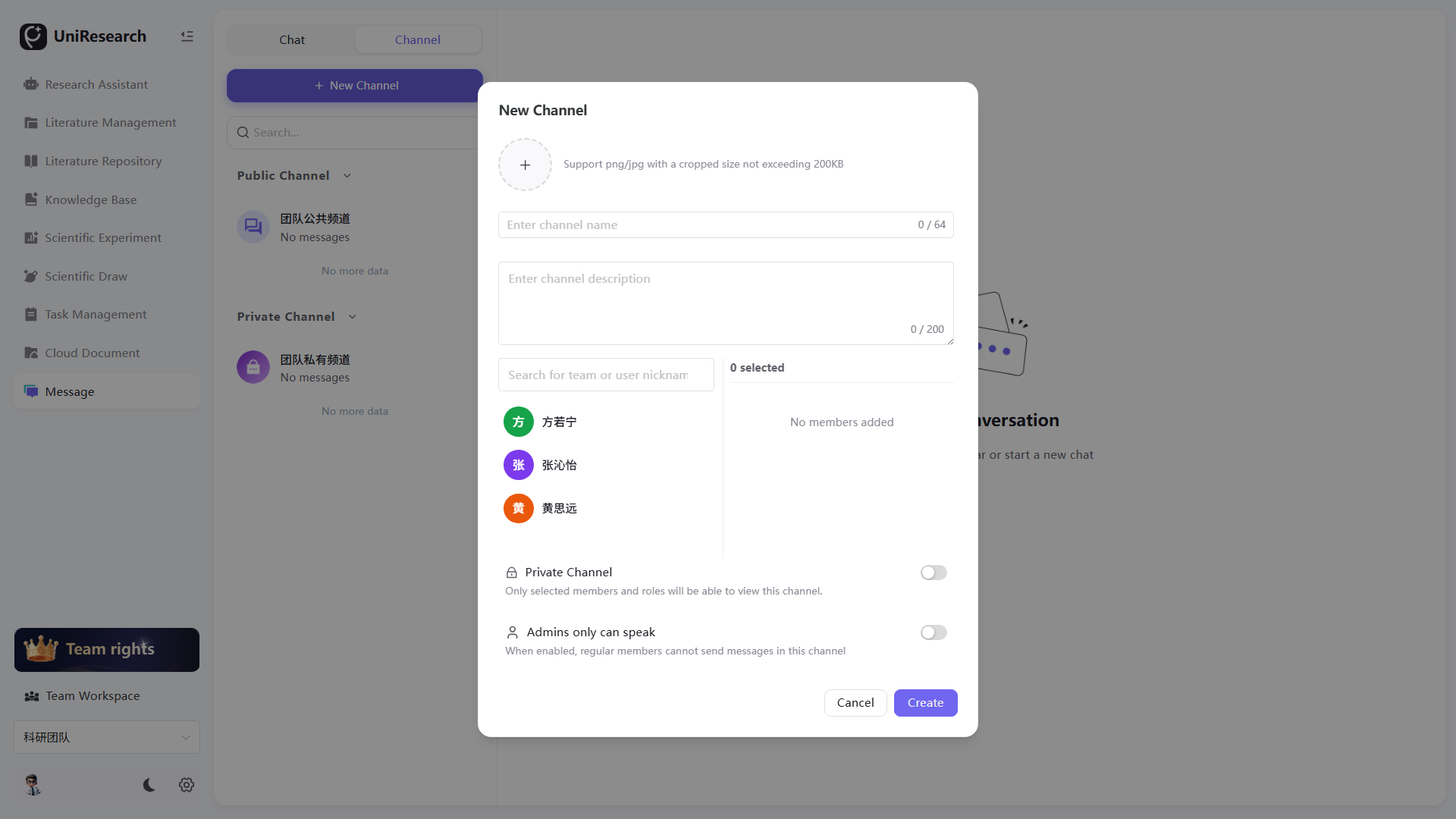
- Switch to the Channels tab at the top and click + New Channel to pop up the configuration window;
- Fill in configuration items:
- Channel Avatar: Upload cover image (png/jpg, cropped size ≤200KB);
- Channel Name (0-64 characters), Channel Description (0-200 characters);
- Tick channel members;
- Permission switches: Private Channel, Administrators Only Posting;
- Click Create after configuration, and the channel will be automatically categorized under Public Channels / Private Channels.
Channel Management Operations
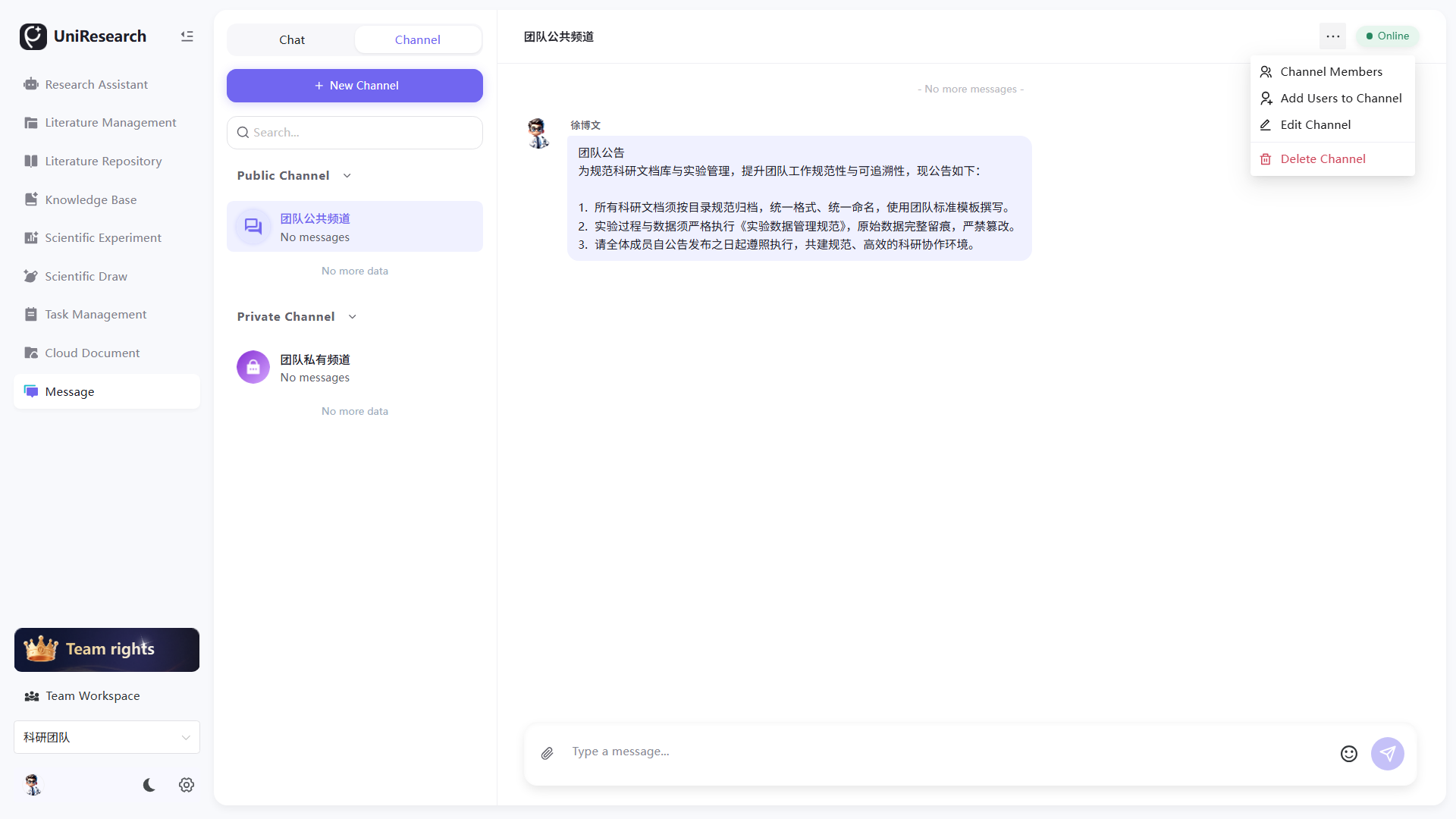
- The left sidebar is divided into two groups: Public Channels and Private Channels. Click a channel to enter the message panel;
- Click the … More button at the top right of the channel panel for operations: View Channel Members, Add Channel Members, Edit Channel and Delete Channel;
- Private channels are only visible to ticked members; after enabling Administrators Only Posting, ordinary members can only view messages without sending permissions, suitable for releasing team institutional announcements.
Function Specifications
Chats Section
| Function Item | Function Description |
|---|---|
| Start Private Chat | One-on-one private communication for private consultation between supervisors and students, or two-person project coordination |
| Create Group Chat | Multi-person academic discussion groups for project teams and full-laboratory communication |
| Mark as Unread | Reset the unread tag of the session to trigger message reminders for later review |
| Group Member Management | Only group owners can view all members and remove ordinary members; group ownership cannot be transferred |
| Session Search | Fuzzy matching by user nickname to quickly locate target chat sessions |
| Online Status Display | An Online label is shown at the top right of the session to check in real time whether the other party is available for instant communication |
Channels Section
Configuration Items for New Channels
| Configuration Item | Constraints & Description |
|---|---|
| Channel Avatar | Optional, png/jpg format with cropped file size ≤ 200KB, used to distinguish channel purposes |
| Channel Name | Mandatory, maximum 64 characters to identify announcement or discussion themes |
| Channel Description | Optional, maximum 200 characters to explain channel positioning and usage rules |
| Member Selection | Tick team members who can access this channel |
| Private Channel Switch | Off = Public Channel: accessible to all team members; On = Private Channel: only visible to ticked members |
| Administrators Only Posting | After enabling, only channel creators/administrators can send messages, and ordinary members have read-only access, applicable to team institutional announcement scenarios |
Channel Operation Menu
| Function Item | Function Description |
|---|---|
| View Channel Members | Display all personnel with access permissions to this channel |
| Add Channel Members | Supplement new team members to the channel access list |
| Edit Channel | Modify channel avatar, name, description, permission switches and member list |
| Delete Channel | Permanently delete the channel after secondary confirmation, with all historical messages cleared |
Scenario Differentiation Between Chats and Channels
- Chats (Private/Group Chats): Real-time two-way academic communication with free message sending, for instant discussion of daily experimental problems and paper ideas;
- Channels: Focus on one-way announcements and long-term classified storage, with controllable read-only permissions, suitable for releasing team rules, unified project notifications and archiving long-term academic materials.