Task Management
Overview
The Task Management module provides capabilities for task breakdown, progress tracking and team collaboration control covering the full lifecycle of research projects. It supports creating task lists by project, splitting multi-level subtasks, displaying tasks in multiple views, assigning assignees and watchers, setting priorities and time milestones. Equipped with collaborative operations such as comments, sharing and deletion, it realizes visual progress management for the whole workflow of research projects, experiments and paper writing.
Applicable Roles
- Individual Research User: Can create private tasks, manage personal tasks, assign themselves as assignees and view all task views;
- Task Creator: Possesses full management permissions for tasks, including creating/editing/sharing/deleting tasks, assigning assignees and watchers, and adding subtasks;
- Task Assignee: Can update task status, fill in progress, add comments and manage subtasks, without deletion permissions;
- Task Watcher: Only allowed to view task details and comments, with no editing or assignment permissions;
- Team Administrator: Can batch-manage all team task lists and control member task assignment permissions.
Core Functions
- Task Group Management: Create project task lists to categorize tasks by research topics;
- Multi-view Display: Switch between five views: List Mode, Kanban Mode, Gantt Chart, Statistical Analysis and Task Activity Log;
- Full Task Lifecycle: Create main tasks, add subtasks, mark as completed, modify status, share and delete tasks;
- Task Attribute Configuration: Task name, start & end date, deadline, assignees, watchers, priority and progress description;
- Filter & Group Capabilities: Sort by priority, task status and deadline, support custom filtering and grouped categorization;
- Collaborative Panel in Task Details: Subtask management, comment messages, progress filling and completion marking;
- Quick Sidebar Operations: Right-click to share or delete tasks, one-click to mark tasks as completed.
Operation Guide
Access the Module
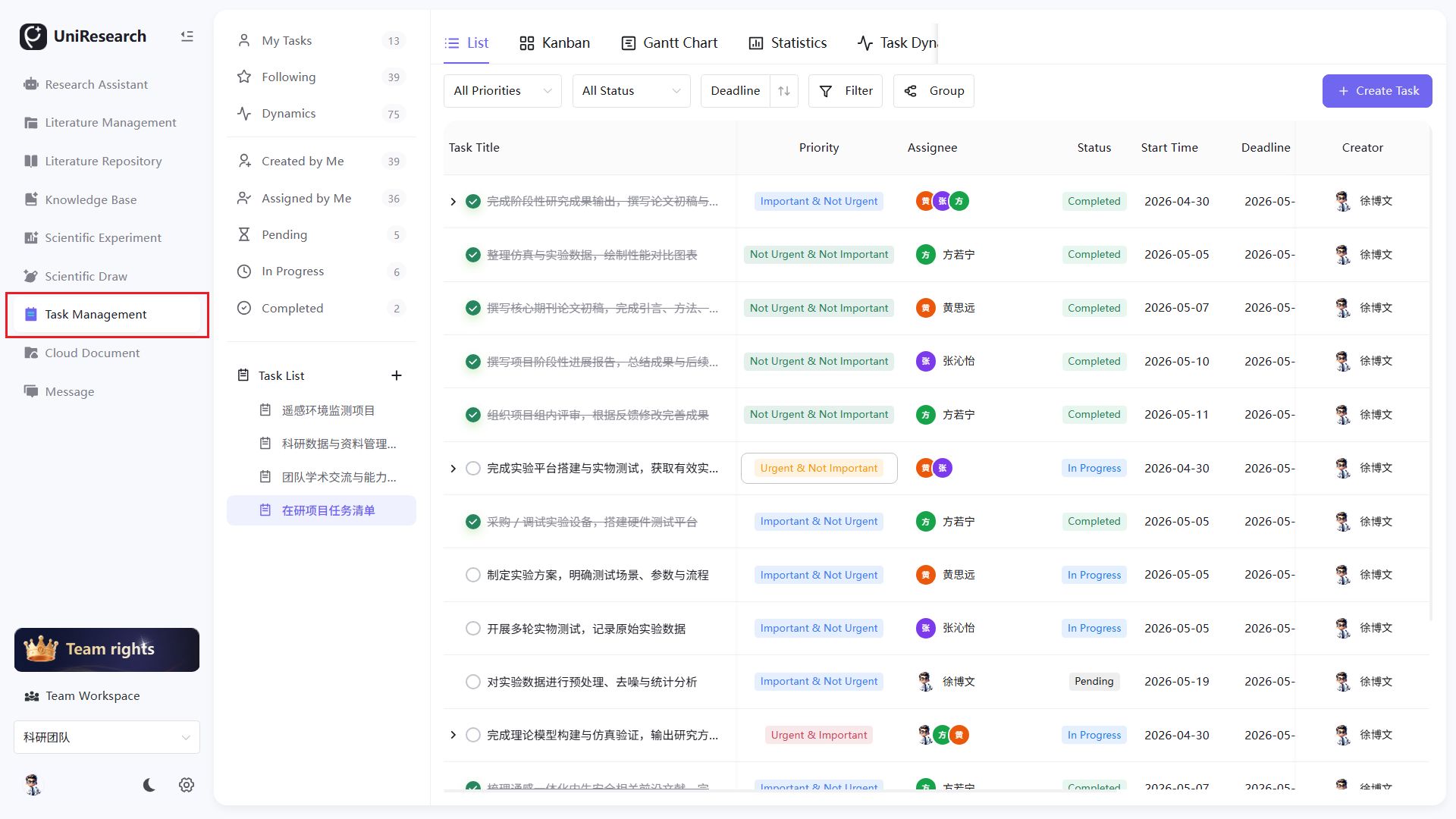
Click Task Management on the left navigation bar to enter the task management homepage.
Create a New Task List
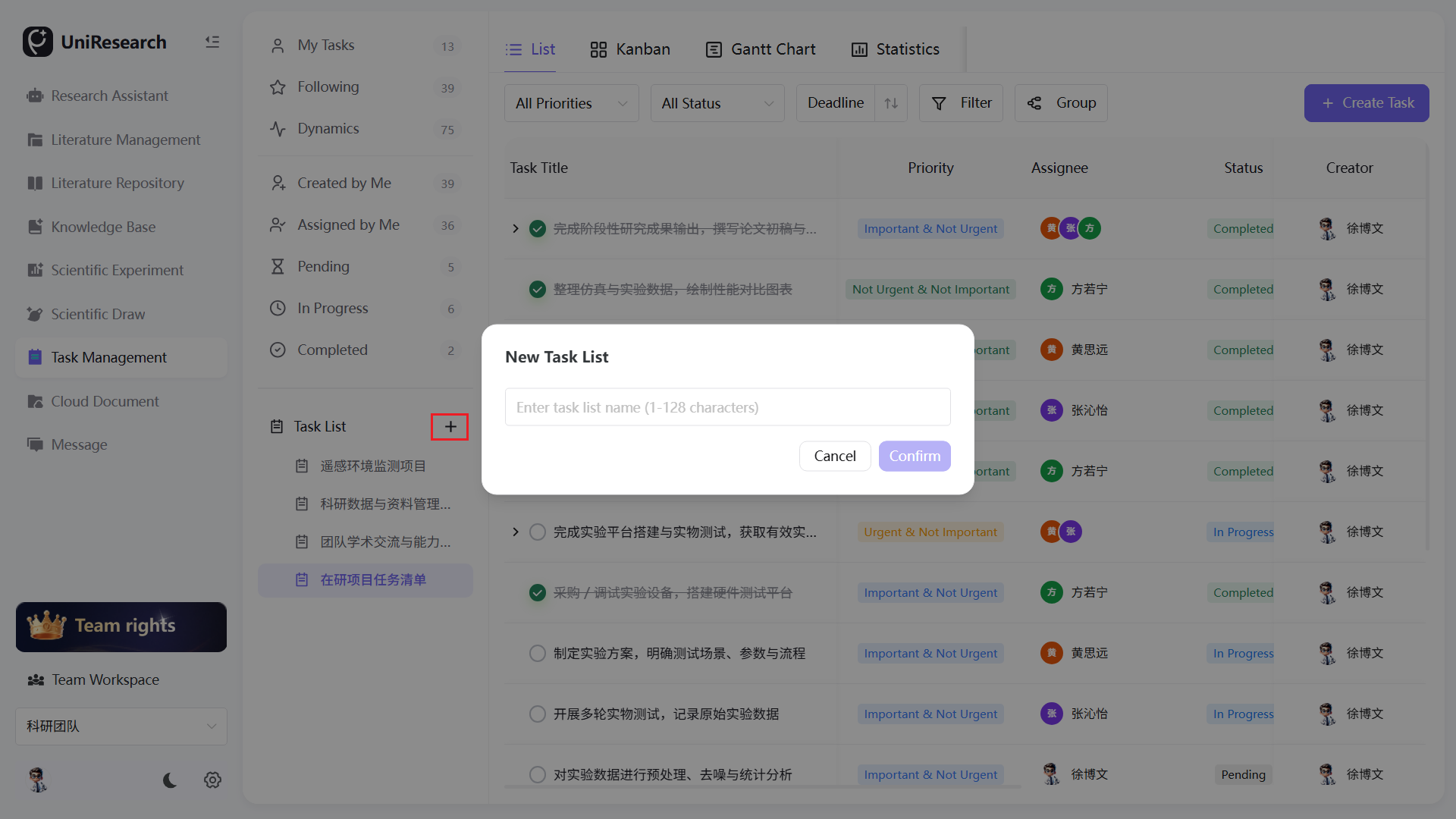
- Click the purple + button in the left "Task Lists" section;
- Enter the list name (1–128 characters) in the pop-up window;
- Click Confirm to generate an independent project task folder for categorizing all tasks of the same research topic.
Create a Main Task
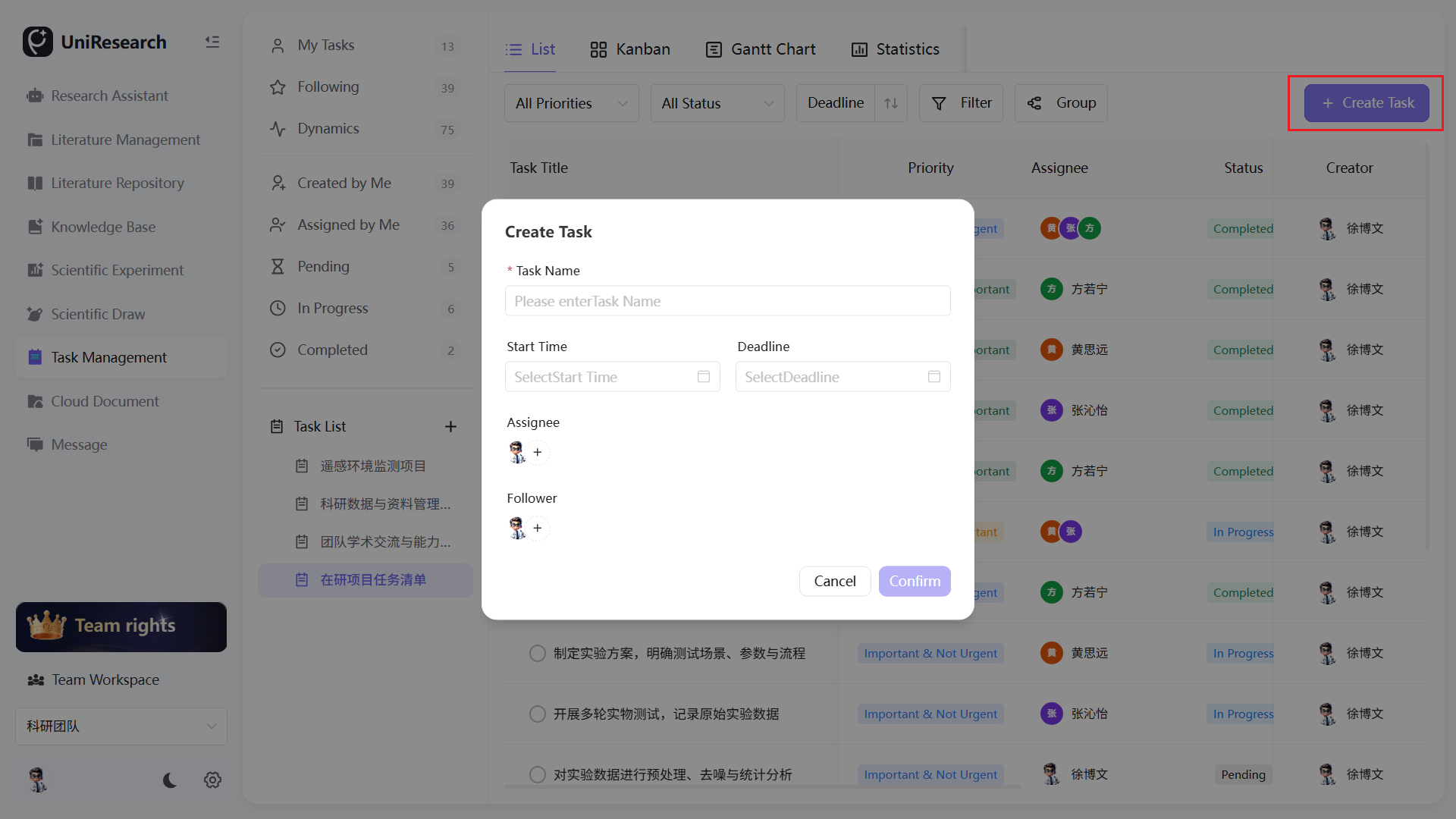
- Click + New Task at the top right of the page to pop up the creation window;
- Fill in mandatory item: Task Name;
- Optional configurations: Start Date, Deadline, Assignees, Watchers;
- Click Confirm, and the task will be automatically added to the currently selected task list.
Switch Multiple Views & Filter
- Switch view tabs at the top: List / Kanban / Gantt Chart / Statistical Analysis / Task Activity Log;
- Filter conditions: All Priorities, All Statuses, Sort by Deadline Ascending/Descending;
- Support custom filtering and batch grouping of tasks.
Gantt Chart
Statistical Analysis
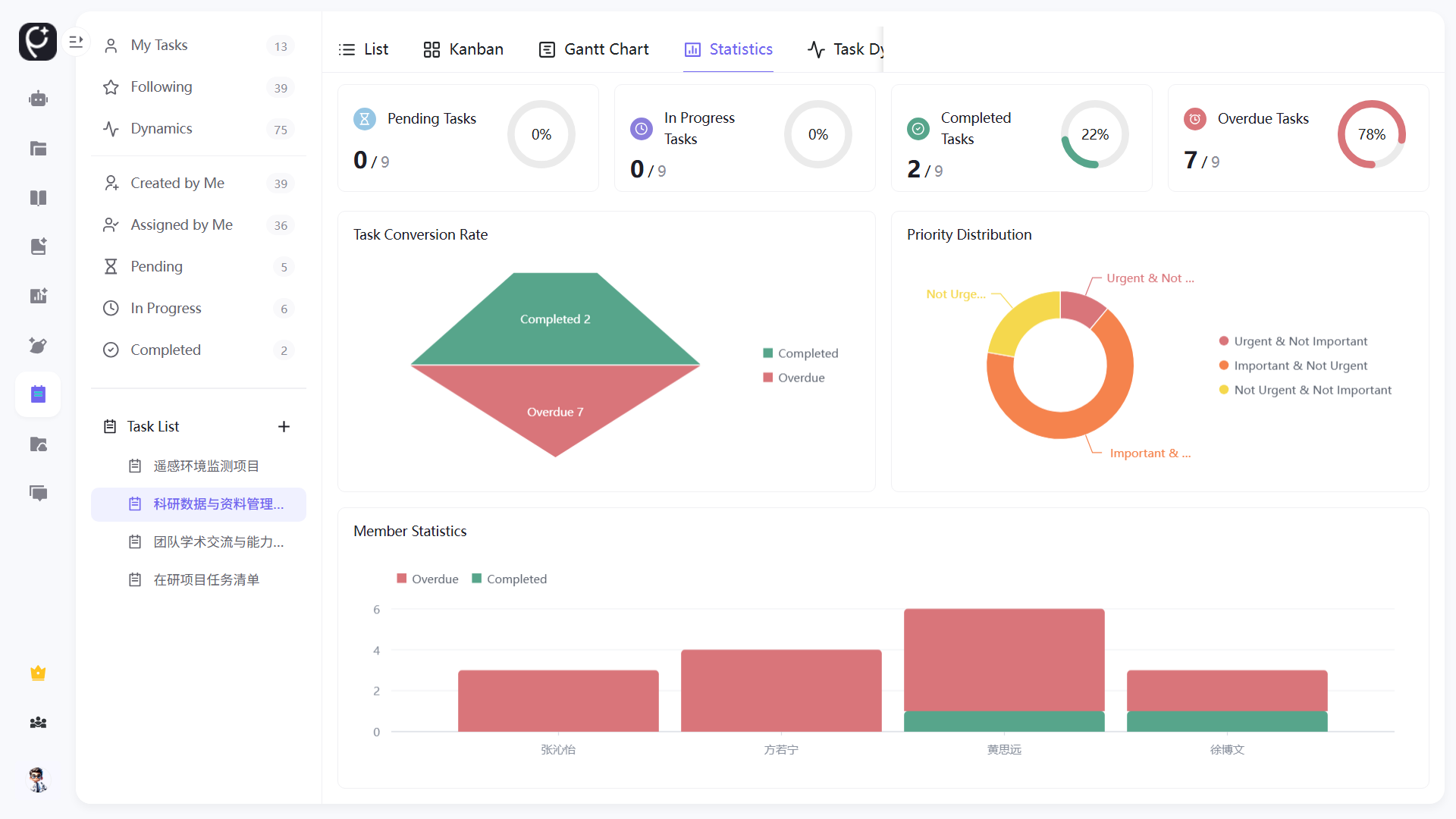
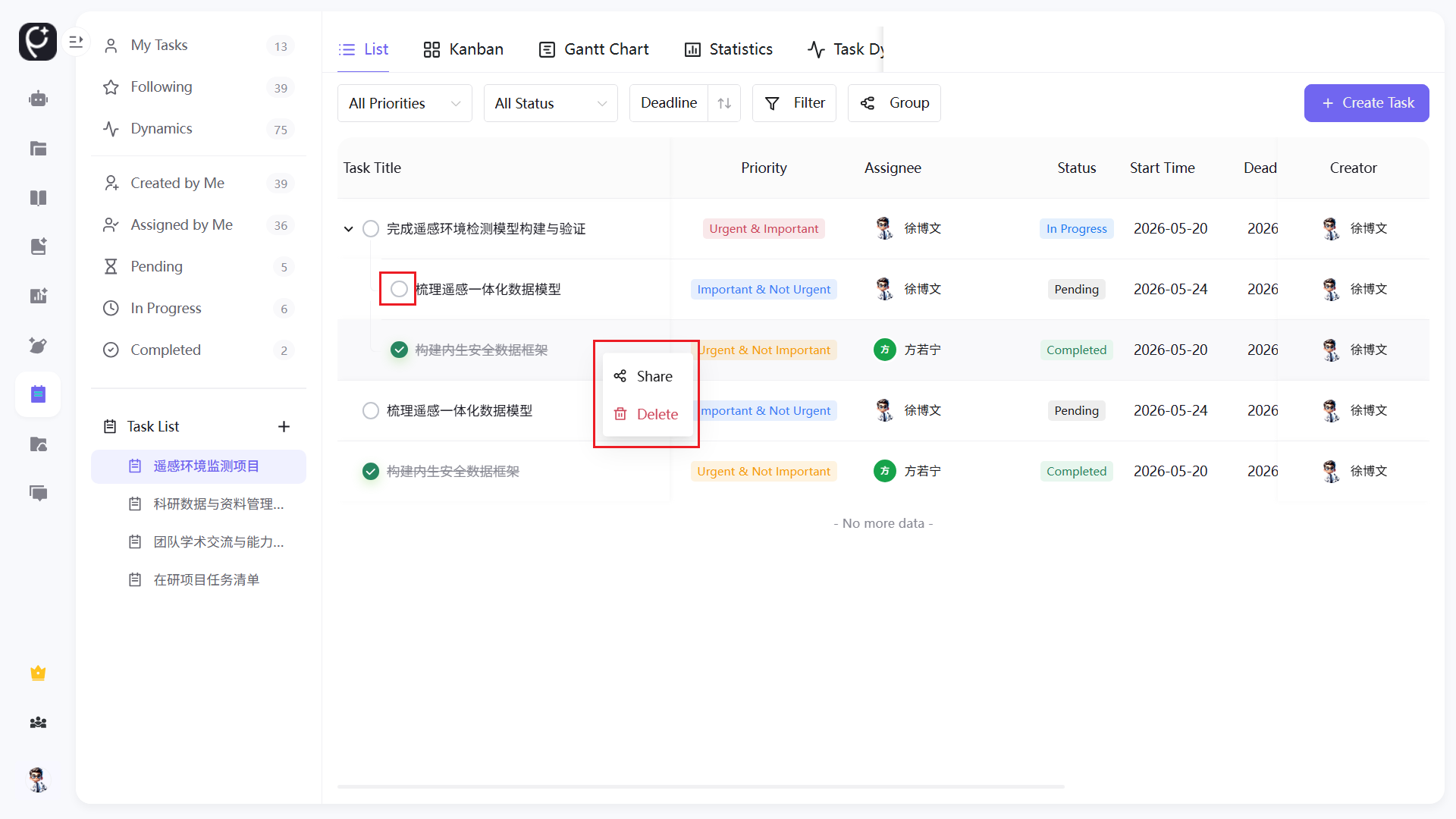
Quick Operations in Task List
- Hover the mouse over a task entry and right-click to pop up the menu: Share, Delete;
- Click the circle on the left of the task to mark it as Completed with one click;
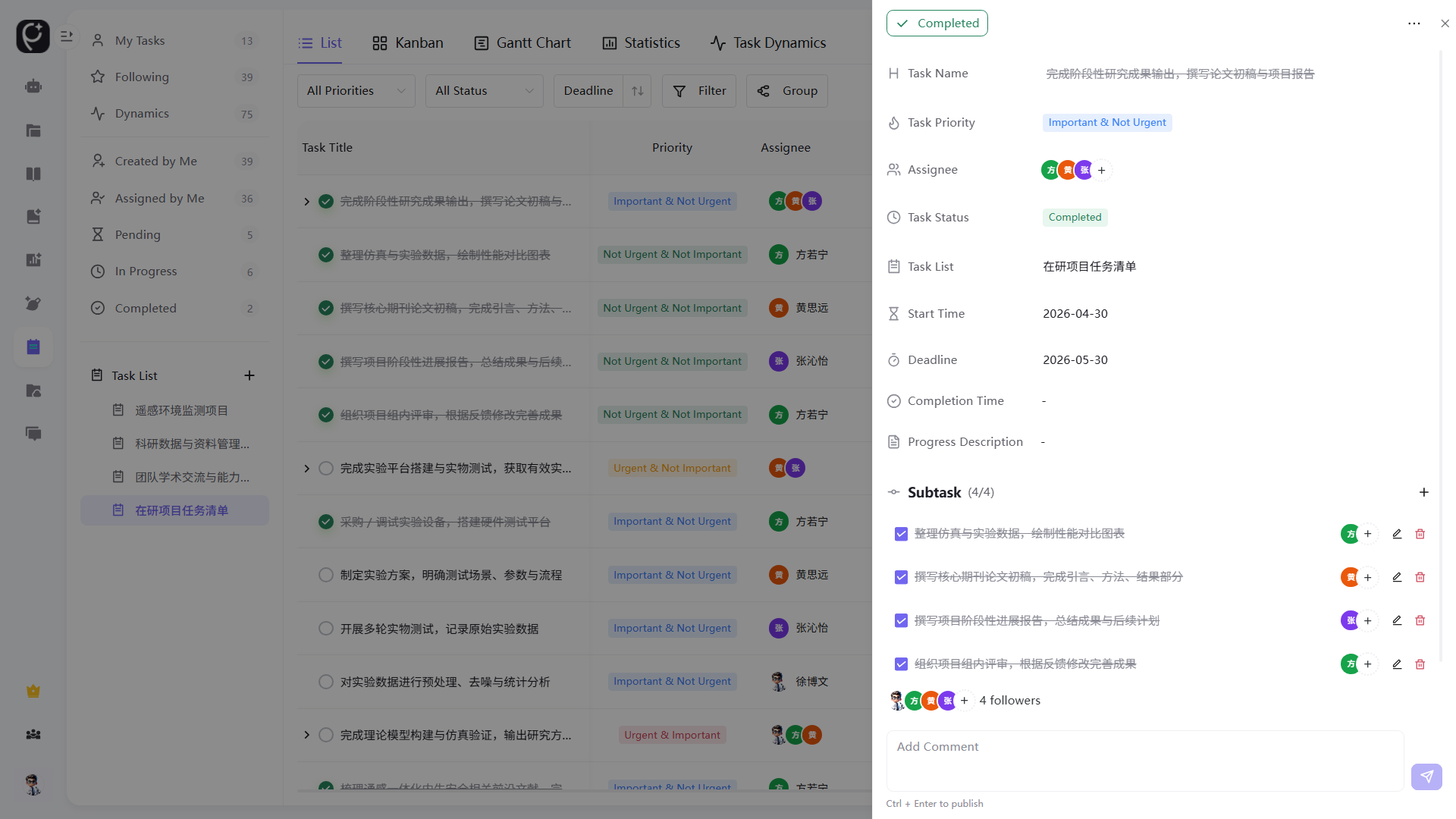
- Click the task title to expand the full detail panel on the right.
Operations in Task Detail Panel
- Modify Basic Attributes: Task priority, assignee, task status, affiliated task list, start/deadline date and progress description;
- Subtask Management: Add subtasks, assign subtask assignees, mark subtasks as completed, edit or delete subtasks;
- Collaborative Comments: Add task comments in the bottom input box for synchronous team communication;
- Share: Generate a share link to invite team members to view the task;
- Delete: Remove the task after secondary confirmation, and all subtasks will be cleared synchronously.
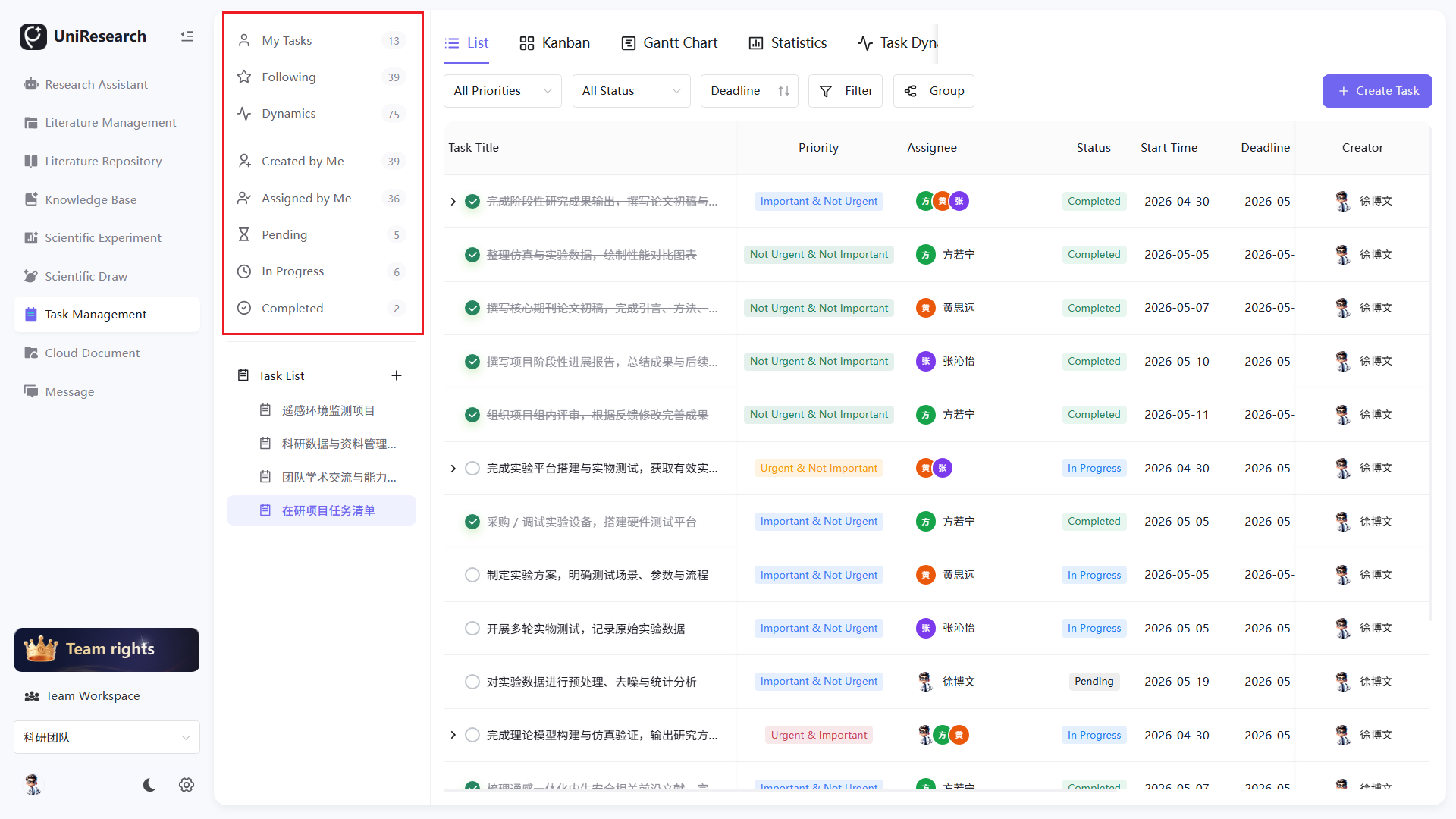
Left Task Classification Navigation
- Assigned To Me: All tasks assigned to the current user as assignee;
- Watching: Tasks where the current user is added as a watcher;
- Activity Log: Records of all team task changes and comment operations;
- Created By Me: All tasks created by the current user;
- Assigned By Me: Tasks assigned by the current user to other members;
- To Do / In Progress / Completed: Quick filter of tasks by status.
Function Specifications
Task List
| Function Item | Function Description |
|---|---|
| New List | Create project groups to uniformly store tasks related to the same research topic, experiment or paper; character limit: 1–128 characters |
| List Categorization | New tasks are automatically stored in the selected list; support moving tasks across different lists |
Field Description of New Task Pop-up Window
| Field | Description |
|---|---|
| Task Name | Mandatory, core description of the task to distinguish work items |
| Start Date | Planned launch date of the task |
| Deadline | Latest completion milestone of the task for overtime reminder |
| Assignee | Executor of the task; multiple assignees can be allocated |
| Watcher | Only have viewing and commenting permissions, not responsible for execution |
Multi-view Modes
- List Mode: All tasks are displayed in a table layout with fields including title, priority, assignee, status and time; support batch filtering and sorting;
- Kanban Mode: Drag and drop task cards across columns divided by status to visualize To Do / In Progress / Completed workflows;
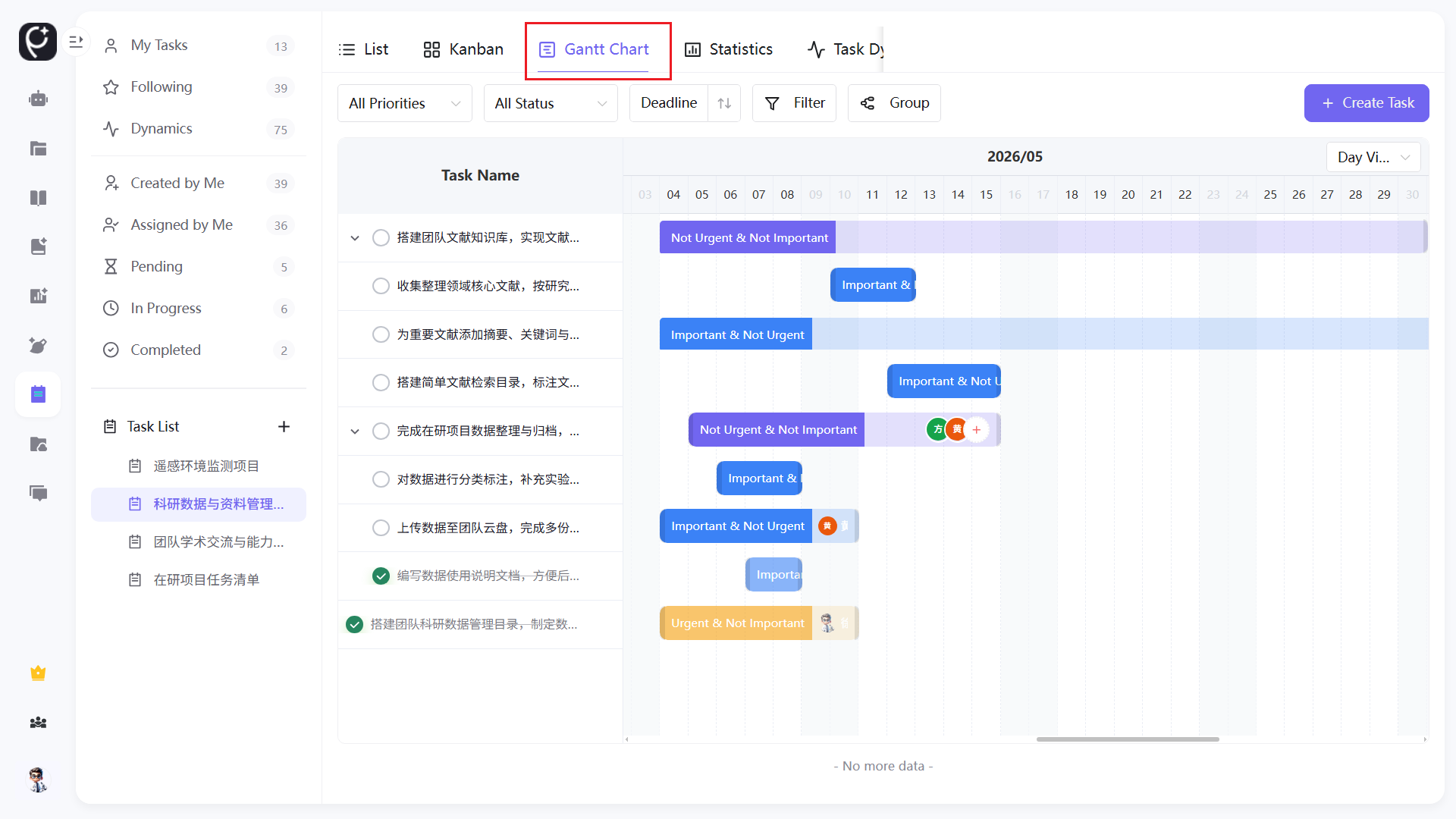
- Gantt Chart: Display task start-end cycles on a timeline to intuitively view project schedules and overlapping tasks;
- Statistical Analysis: Aggregated data of task completion rate, personnel workload and priority distribution;
- Task Activity Log: Full records of all task operations and comments for complete traceability of change history.
Task Detail Panel Functions
- Basic Information
- Task Priority: Two-level labels: Urgent & Important, Important Not Urgent;
- Task Status: To Do, In Progress, Completed, switchable with one click;
- Time Management: Start/deadline/completion date and editable progress description.
- Subtask Module Support splitting multi-level subtasks, independently assign assignees and mark subtasks as completed; the main task will automatically synchronize the overall completion progress.
- Collaborative Functions
- Share: Generate temporary links with read-only access to tasks;
- Comment Area: Team members leave messages for communication, retaining collaboration records;
- Quick Operations
- Complete Task: One-click archive via the top button;
- Delete Task: Only available to task creators; all tasks, subtasks and comments will be cleared after deletion with no data recovery.
Left Navigation Filter Classification
| Classification | Description |
|---|---|
| Assigned To Me | All tasks where the current user is the assignee, focusing on personal pending work |
| Watching | Team tasks subscribed for tracking, receiving change notifications |
| Activity Log | Real-time summary of global task operation logs and new comments |
| Created By Me | All tasks initiated by the current user with full management permissions |
| Assigned By Me | Tasks assigned by the current user to other members for follow-up on allocated work |
| To Do / In Progress / Completed | Quick filter by task status to distinguish unstarted, ongoing and finished work |