Workspace
Module Overview
The workspace is divided into Personal Space and Team Space, with completely isolated data that does not interfere with each other. Personal Space stores your private resources, while Team Space is for multi-person collaboration and sharing.
Access
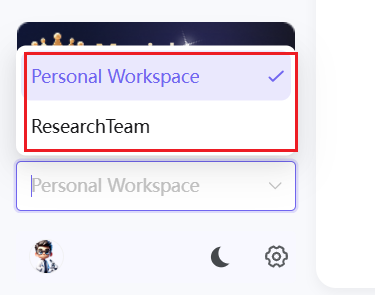
Use the dropdown menu at the bottom-left to switch between spaces.
Personal Space
Basics
- Activation: All registered accounts automatically have Personal Space activated by default — no manual creation required
- Data Isolation: All resources in Personal Space are visible only to you and do not automatically sync to any team. Sharing requires manual action
- Independent Quotas: Dedicated storage space, AI Tokens, and literature upload limits are independently calculated and do not consume team plan resources
- Resource Scope: Stores personal literature, private knowledge bases, individual cloud documents, personal research tasks, private drawing assets, experiment records, and all other personal research resources
Core Permissions
Users have full create, read, update, and delete permissions on all resources within their Personal Space, with no approval required from anyone.
Team Space
Purpose
A public collaboration resource pool for all types of research teams, study groups, and project teams. It breaks through personal resource isolation barriers to provide unified management of shared team literature, knowledge bases, documents, and tasks — enabling centralized accumulation of team outputs and efficient collaborative work.
Eligible Roles
Visible only to users who have joined a team. Team creators have full management permissions; regular members have only the browse and edit permissions assigned by the admin.
Core Features
Supports unified management of team public literature library and knowledge base; multi-person collaborative writing in shared team cloud documents; visual team public task kanban boards; granular team member management and permission assignment.
Create a Team
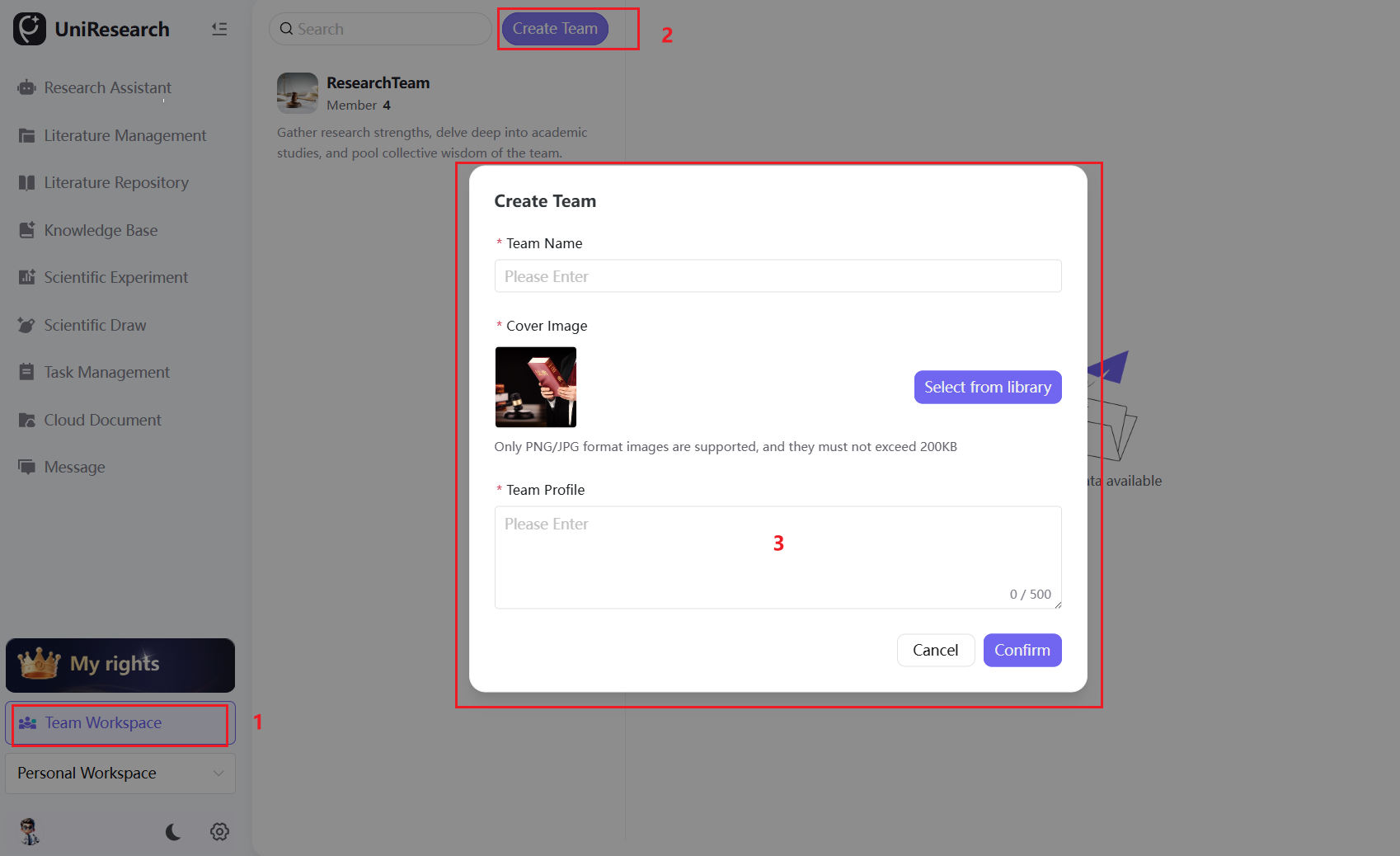
- Go to the Team Space homepage and click "Create Team" at the top
- Enter a team name, upload a PNG/JPG cover image (≤ 200KB), and write a team description (within 500 characters)
- Verify the information and click "Confirm" to complete team creation
Member & Permission Management
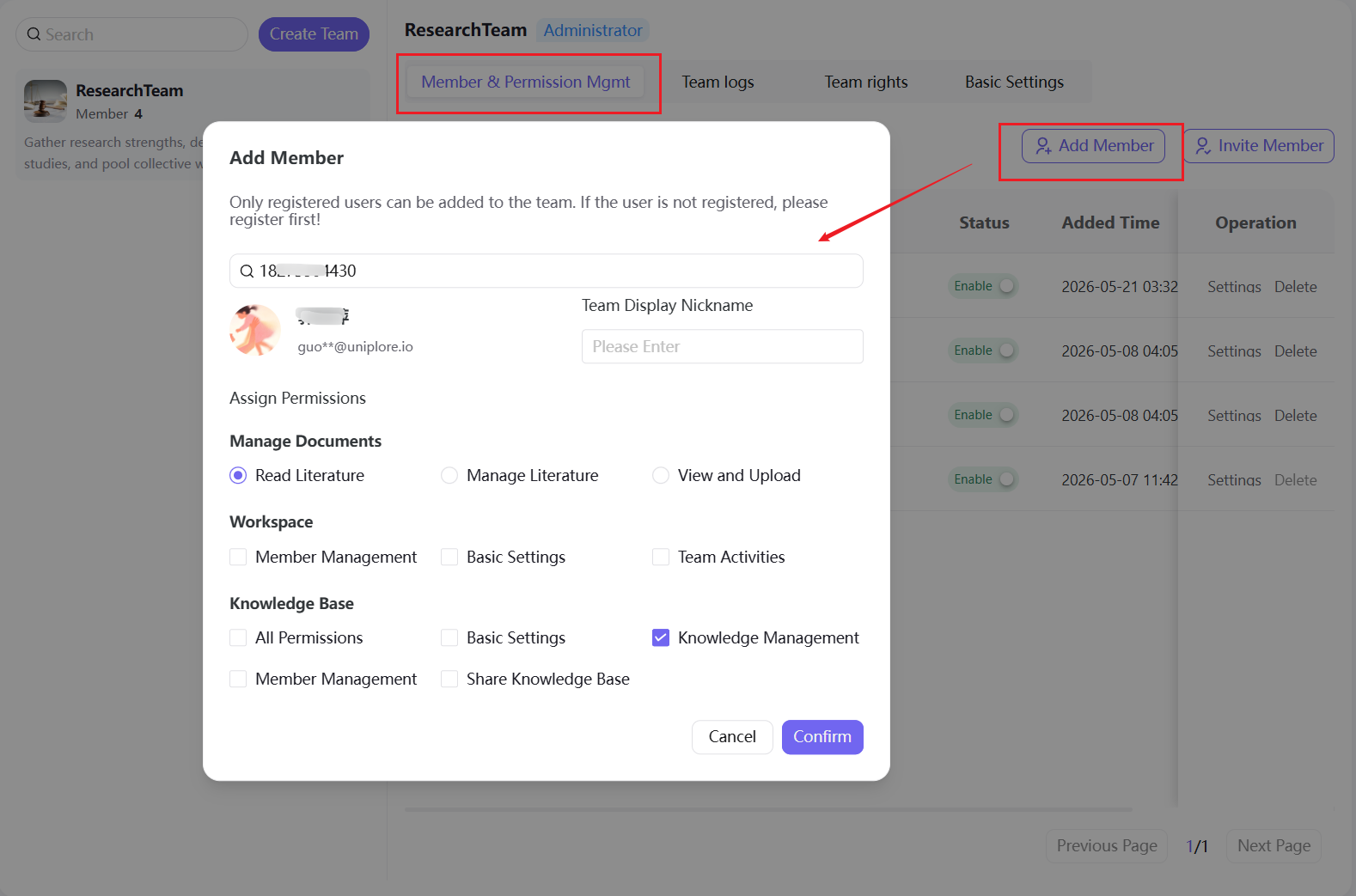
Add Members: Search by platform phone number/nickname to precisely add members. When adding, you can set a custom team nickname for the member and configure granular permissions as needed.
Invite Members: Click "Invite Members" to open the invitation dialog, supporting two join methods:
- Share Link with Everyone: Generate a team invite link, copy and share it with invitees — they can join the team via the link
- Join with Password: Set a custom password or click "Auto-Generate" to create a system-generated password — invitees enter the correct password to join the team
Granular Permission Details
1. Literature Permissions
| Permission Level | Description |
|---|---|
| Read Only | Can only view shared team literature and initiate AI Q&A; no upload, edit, delete, or annotation permissions |
| View & Upload | Full literature viewing permissions; can independently upload new literature; can only manage resources they personally uploaded |
| Manage Literature | Full control over team literature — can view, upload, edit, and delete all shared team literature |
2. Workspace Permissions: Includes member management, basic team settings, and team activity publishing and editing permissions.
3. Knowledge Base Permissions
| Permission | Description |
|---|---|
| Full Permissions | Full rights to create, edit, delete, share, and manage members for the team knowledge base |
| Basic Settings | Can modify team knowledge base name, tags, description, and other basic information |
| Knowledge Management | Can upload and organize team knowledge base resources |
| Member Management | Can add/remove knowledge base access members and control member read/write permissions |
Member Management: Admins can modify member permissions, remove team members, and view member nicknames, accounts, join dates, and activity status in real time.
Team Activity
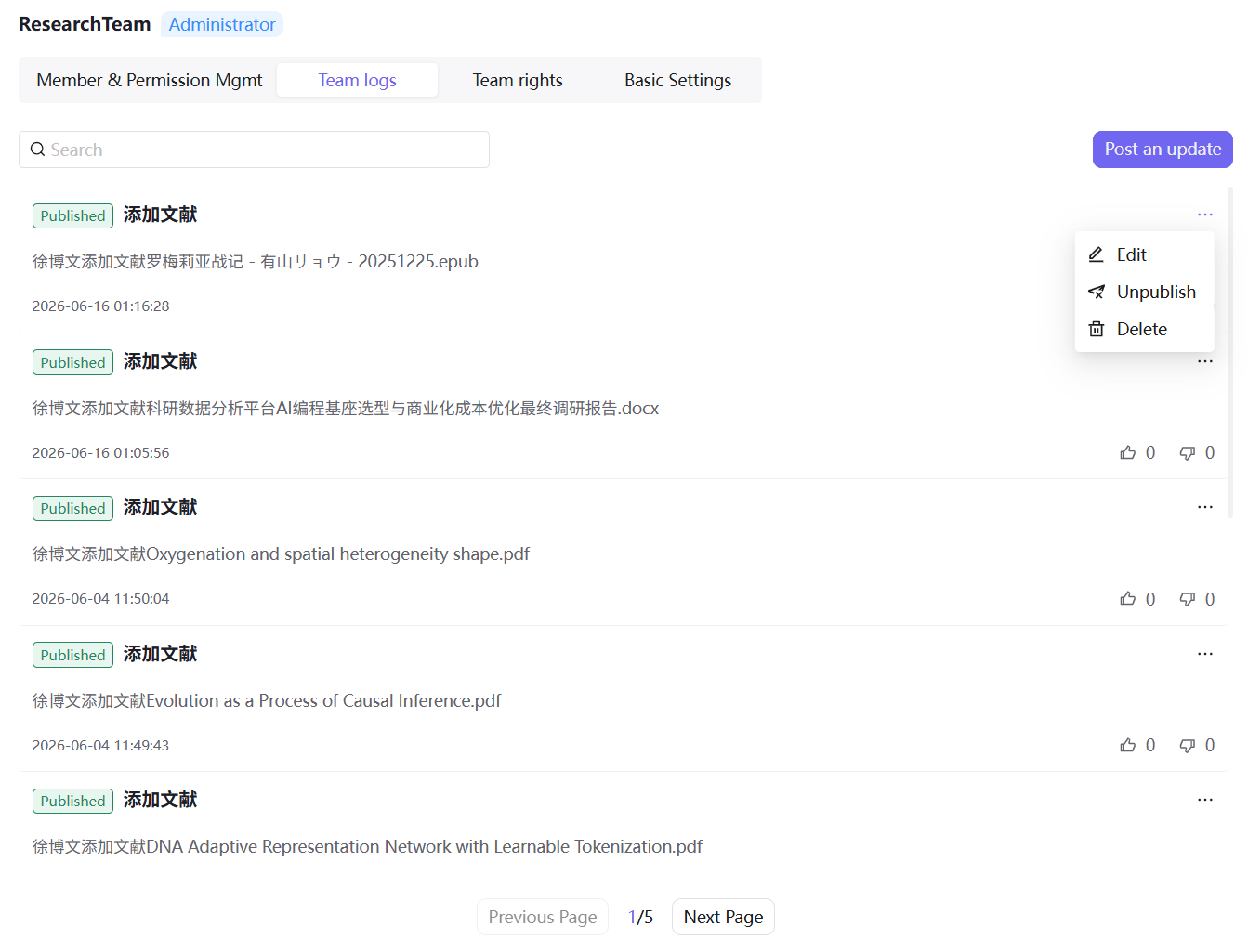
The system automatically records operations such as new member additions, literature uploads, and resource changes. Admins can publish, edit, and delete all team activities; regular users can only edit and delete their own activities.
Activity Operations: Switch to the Team Activity page to manually publish activities. Individual activities support editing, revoking, and deletion. All team activities are visible to all members.
Team Benefits
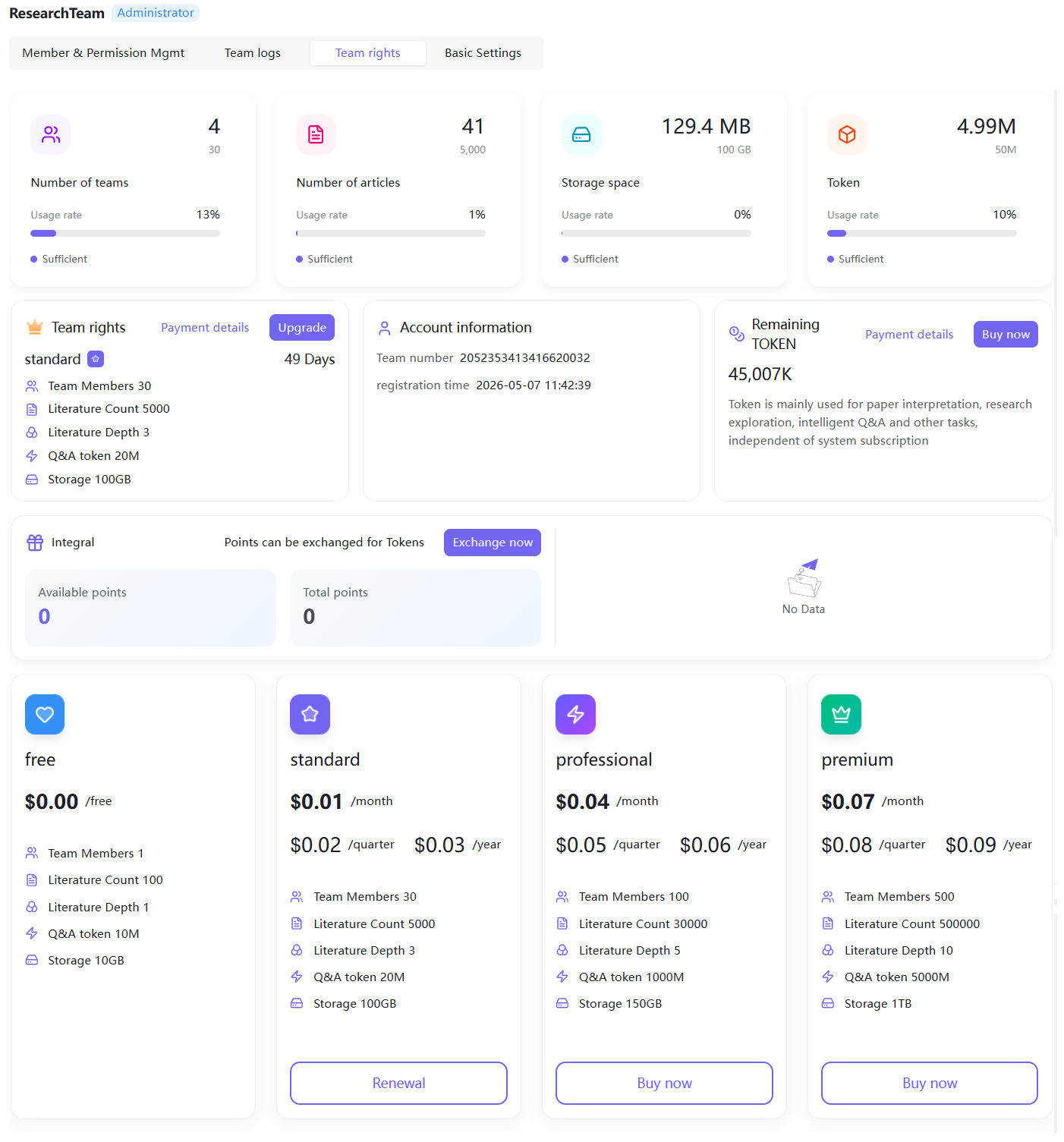
Real-time display of team member count, literature capacity, storage space, and Token usage statistics. Cards turn red when resources are at capacity. Supports team plan upgrades, bulk Token recharge, and historical order queries for unified management of overall team resource quotas. For detailed benefits information, see Membership Benefits.
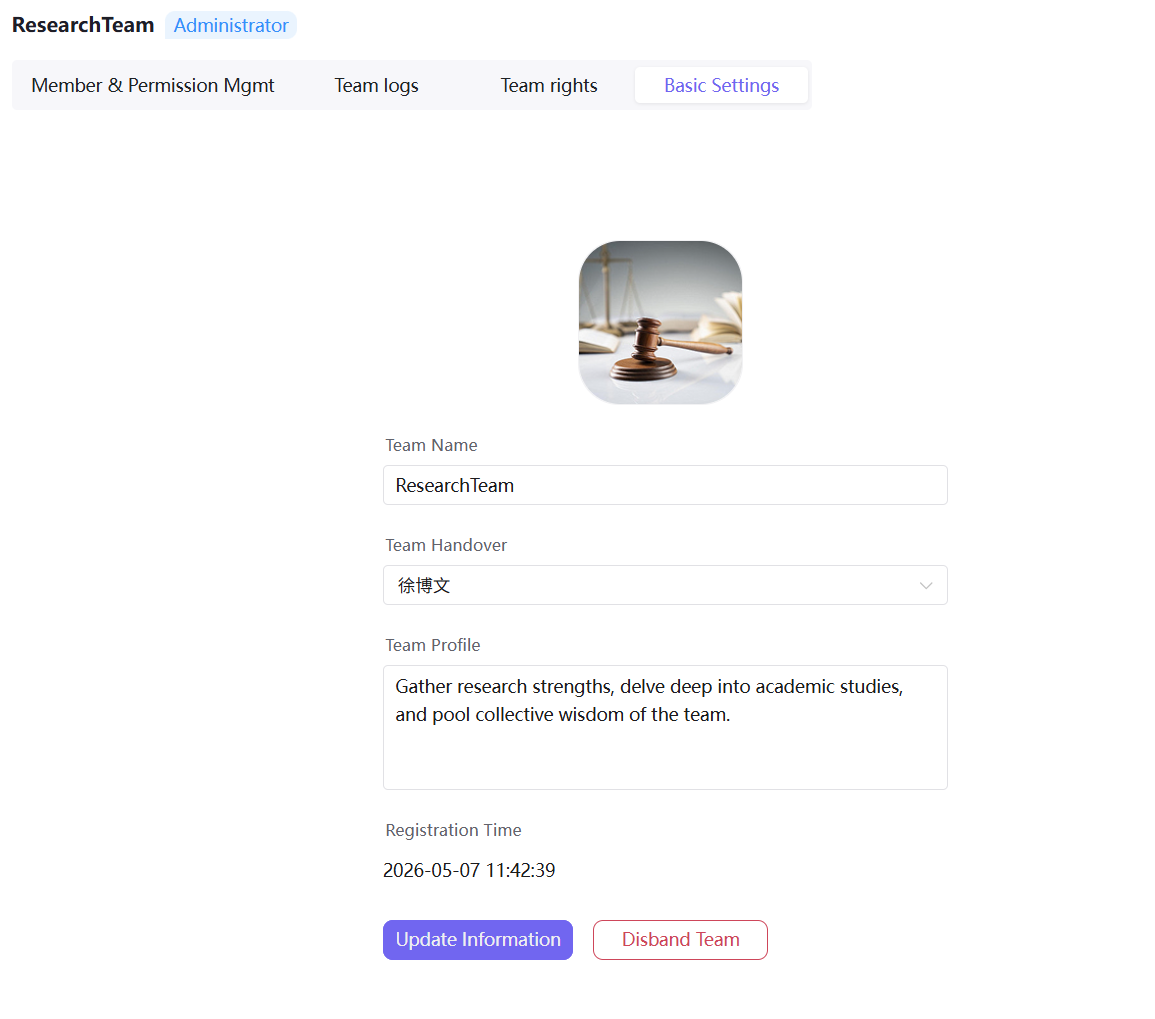
Basic Settings
Only team creators and admins can perform these operations. Supports modifying team name, cover image, and description; supports admin permission transfer; supports team dissolution (high-risk operation): submitting a dissolution request triggers a 30-day cooling-off period, during which it can be revoked at any time. If not revoked by the deadline, all team data will be permanently cleared and cannot be recovered — back up critical research materials before dissolution.
High-Risk Operation Warning: After team dissolution, all data will be permanently cleared and cannot be recovered. Please back up critical research materials before dissolving.